Environment Setup
Window 7 - 64 bit
Microsoft Office 2016 - 32 bit
Requirement
Need to install a plugin so that Microsoft Excel can communicate with PostgreSQL DB.
Plugin name: psqlodbc
Download Link: https://www.postgresql.org/ftp/odbc/versions/msi/
Notes: Choose a msi installer based on your office version. In this case it use 32 bit version.
       Can choose the latest version. In this case I download version psqlodbc_12_01_0000-x86.
Steps
-
- After download the installer, we will get a zip file that contains a msi type file and a README file. Double click the msi installer and just proceed like a normal installation. Choose default option for all setting.

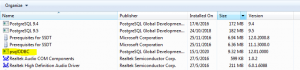
- After finish all the installation step, go to ‘Control Panel\Programs\Programs and Features’ and check whether psqlODBC was successfully installed on your machine or not.
- To start connecting Microsoft Excel to PostgreSQL DB, open any Excel sheet and go to Data -> Get External Data -> From Microsoft Query and click that option.
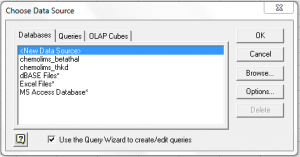
- Then a popup window will appear asking for data source connection. Choose <New Data Source> and click OK.
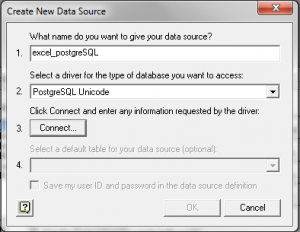
 For option 1, put any name that you like for this datasource connecetion, in this case it is called ‘excel_postgreSQL’. Option 2, choose ‘PostgreSQL Unicode’. Then for Option 3, click on the connect button and another popup will open.
 For this popup window, it will ask for your postgreSQL connection. Fill in the form based on your setup. Click OK after finish filling all field.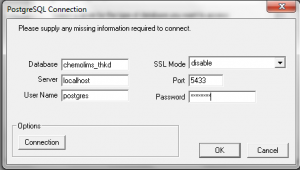
- It will bring us back to Create New Data Source popup window. Optional step, you can choose to save User ID and password for this datasource setup.
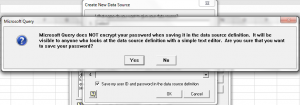
- After that, choose the datasource that you just created and click OK.
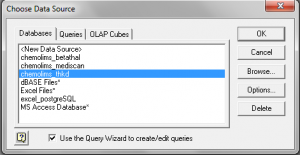
- Then Query Wizard will appear, this wizard is a tool use to get record from PostgreSQL DB without need to write a query. In this case, just closed that window and use Microsoft Query window to create your own query.

- Click on the SQL button inside the window, to show SQL script window so we can put customize query to get all the record.
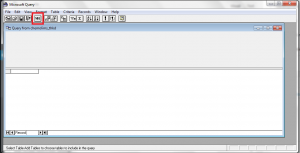
- After click on that SQL button, another window will popup and can put customize query on that window to generate the result as wanted.
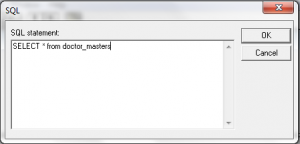 After that, click OK and and it will go back to Microsoft Query window. If the query is valid, it will automatically show the result at this window. If already satisfied with the query, click Return Data button on the top to populate the record at Excel sheet.
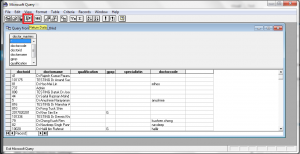 Another window will appear asking on how we want to show the record inside Excel sheet and asking where do you want to populate the record (eg: in sheet 1 cell A10).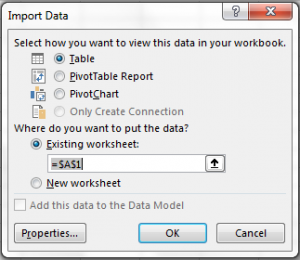
- This is the final result for this session.
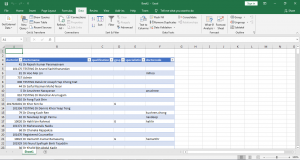
- After download the installer, we will get a zip file that contains a msi type file and a README file. Double click the msi installer and just proceed like a normal installation. Choose default option for all setting.
Extra Notes
 Red box -> Refresh All -> Use to refresh and fetch new record for database based on the query. Green box -> Properties -> Excel and connection configuration. This is also where you can edit your query and connection setting.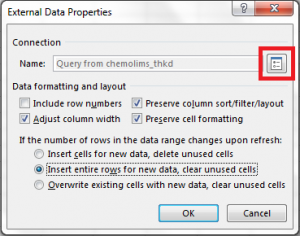
Query with Parameter
Excel can also accept query with parameter. To use this feature, you need to insert question mark (?) inside the query. It will detect
this symbol and automatically asking for parameter value. It also can accept multiple parameter. Parameter number will be based on the
symbol sequence inside the query.
Steps to produce
- Exactly the same step, Open any Excel sheet and go to Data tab.
- Choose Get External Data -> From Other Sources -> From Microsoft Query.
- It will prompt Choose Data Source window, choose previously created data source or can create a new data source by following the step mention previously in this document.
- After choosing data source, insert Username and Password for the data source if applicable.
- Then it will show Query Wizard window, just choose Cancel option.
- After that it will show Add Table window, just choose Close option.
- Choose SQL option and insert this query: SELECT doctorid, doctorname, qualification, gpsp, specialistin, doctorcode FROM doctor_masters where doctorname = ?
- The question mark symbol will indicate a parameter that user can dynamically choose the value for it. Excel will automatically prompt a parameter window and you can insert the value. In this case you just put Admin value
- After click OK, it will show the result and you can click Return Data to show the record inside Excel sheet.
Fetch New Data With Drop down Selection
Previously we managed to create a query that accept parameter so we can put any value and change that value whenever needed. In this case, it
will show how the data will  keep on changing based on value selection.
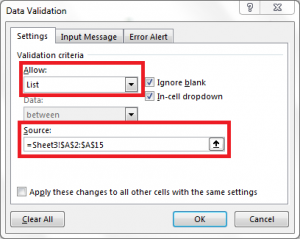
1. Create new drop down list to use as selection. Click on any cell, then go to Data tab, choose Data Validation. Choose Type List and
Select the Source.
2. Select cell that have the query record, then inside Data tab, choose the properties to change the query properties. Then click on Connection
properties button beside Connection name field.

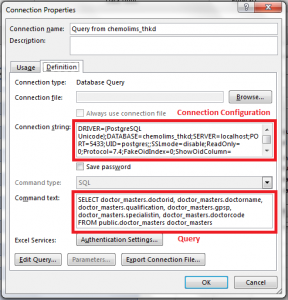
3. Then it will shows Connection properties window and click on the Definition tab. Inside  that tab, it has Connection properties and query
that had been created previously. Make sure your query have question mark symbol (?) to make this things work.

4. Inside this window, just click OK button, then it will prompt Enter Parameter Value and you need to choose the cell that had drop down list
and check those 2 option also.


5. After you click OK, then if your query is valid and data existed, the record value will keep on changing when you change the drop down value.
Here is sample record display after we change the drop down value.



Total 0 Votes:
0
0
