Mission U500
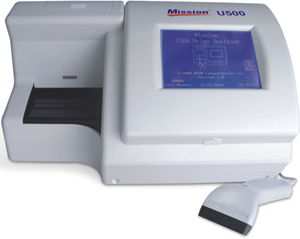

The Mission® U500 Urine Analyzer is a great tool to use with the Mission® Urinalysis Reagent Strips. This analyzer has the capability of running up to 500 tests per hour and saving and recalling 2000 results automatically. The Mission® U500 Urine Analyzer facilitates high volume testing and provides a sense of confidence in the accuracy of the results.
Copy Files
- There are 3 files need to be copied and replace.
- License File
- SMC Files
- Plugin Files
- Firstly, stop all these services.
- Server Console (only when updating sys-services-config.properties file)
- Paste the created license into 5 different folder
- My Computer > C: > Chemolims > License
- My Computer > C: > Chemolims > server > minimal > license
- My Computer > C: > Chemolims > console > license
- My Computer > C: > Windows > Syswow64 > license
- My Computer > C: > Windows > System32 > license
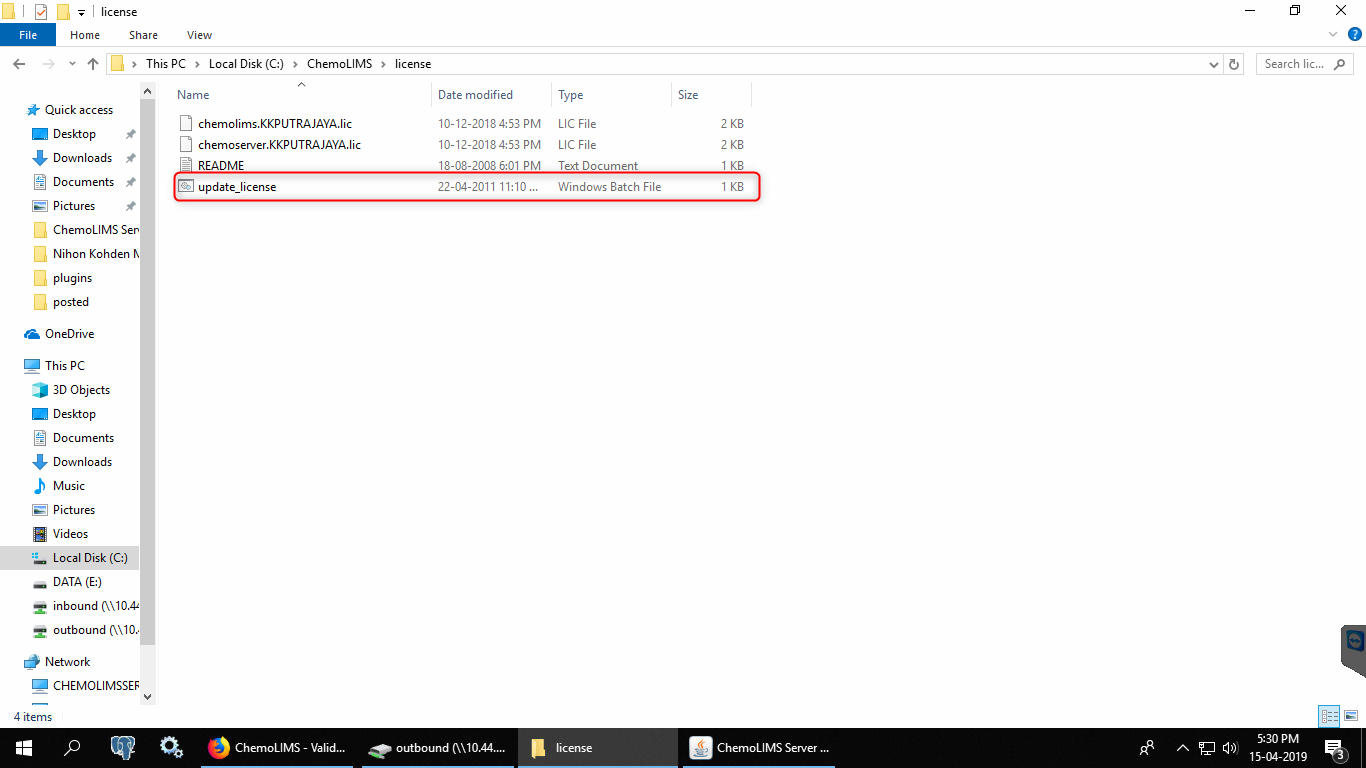
- Go to My Computer > C: > Chemolims > License and double click on update_license.
- Next, open Chemolims > console > bin > plugins
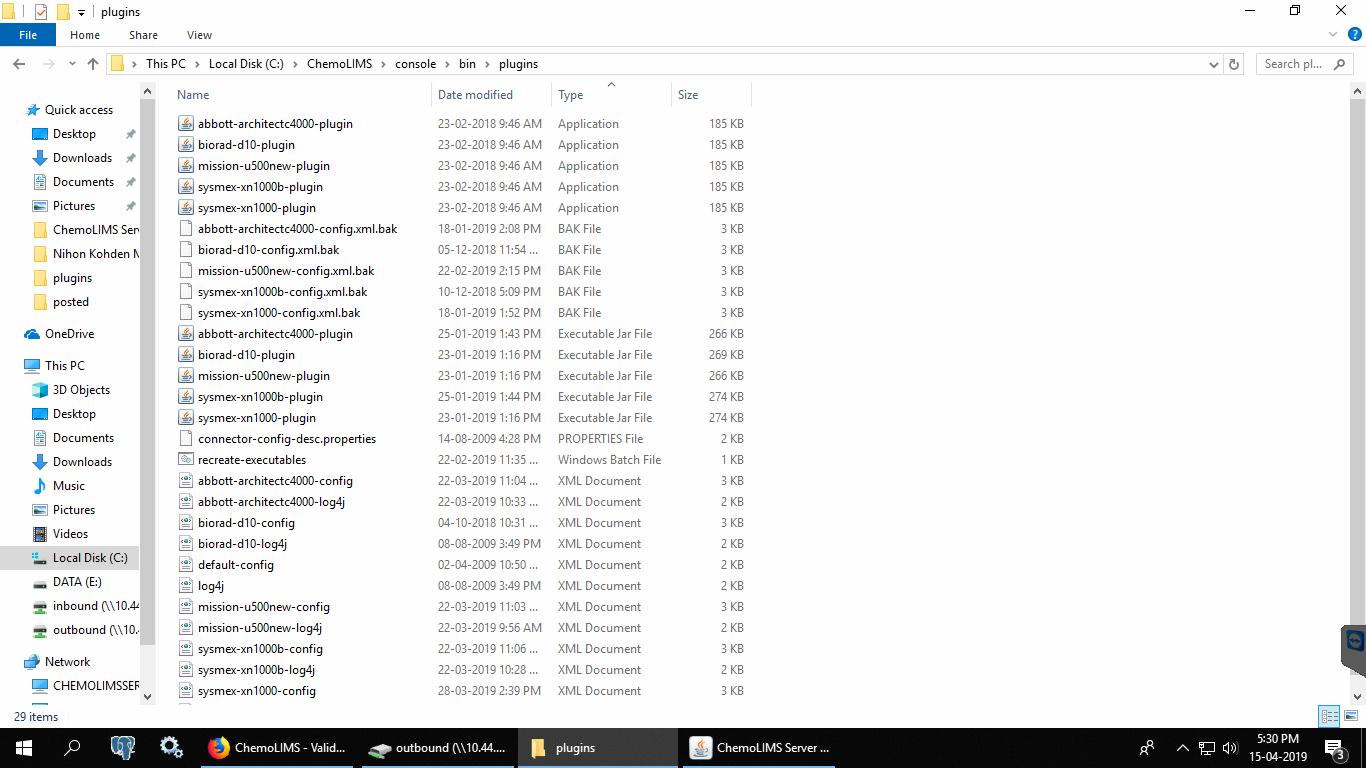
- Replace .jar files for the old connector
- Paste .jar file for the new connector
- Copy the existing .config and .log4j files inside C:/ChemoLIMS/console/bin/plugins
- Then, right click on bio-rad-d10-config and select edit with notepad ++.
- Make sure to change from bio-rad-d10 to mission-u500 and then Save.

- Then, right click on bio-rad-d10-logj4 and select edit with notepad++.
- Make sure to change from bio-rad-d10 to mission-u500 and then Save.
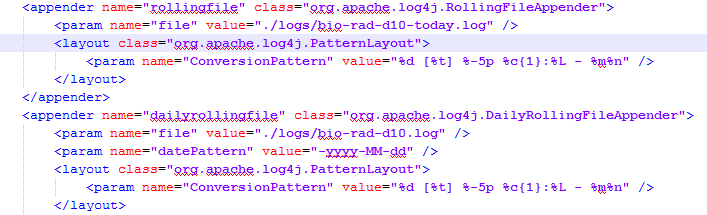
- Then, right click on recreate_executable and select edit with notepad++
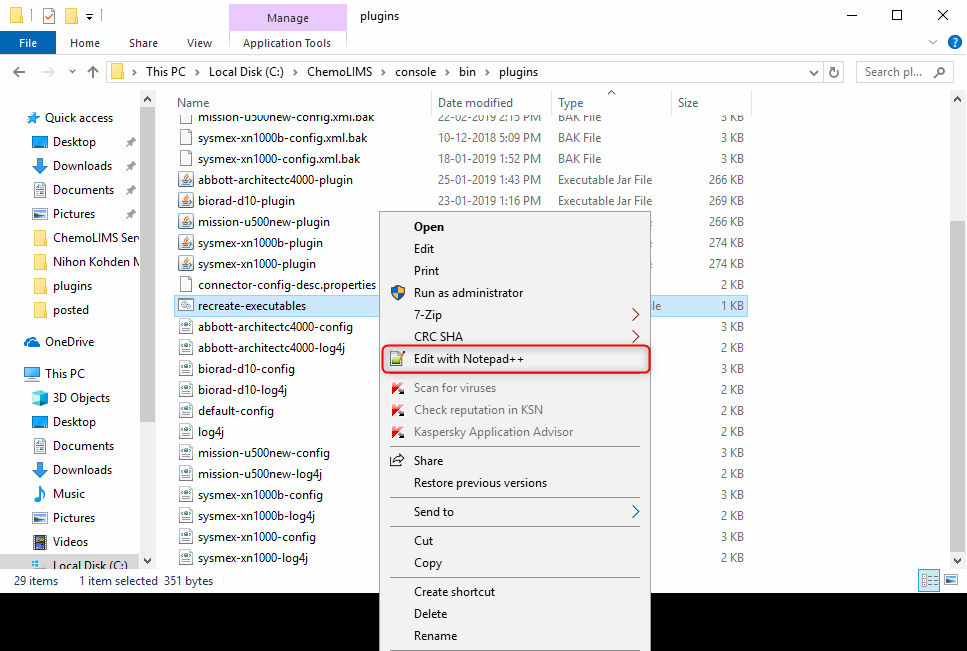
- Add the new connector .exe file name and save. For example biorad-d10-plugin.exe (Remark: Analyzer name should be exactly the same with the name inside the excel file)
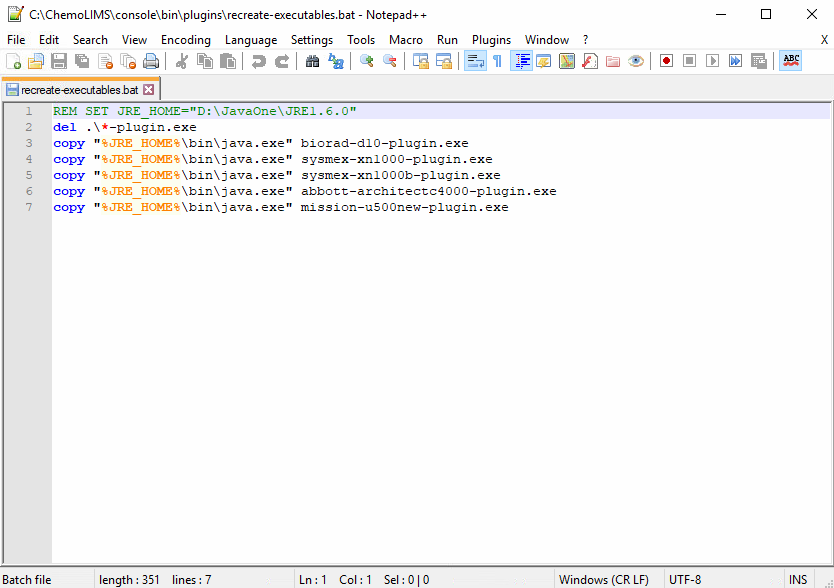
- Then double click on the recreate_executable.
- There should have 4 files for instrument
- .exe
- .jar
- .log4j
- config
- Then copy 8 SMC files from Google Drive and paste inside C: > Chemolims > console > bin
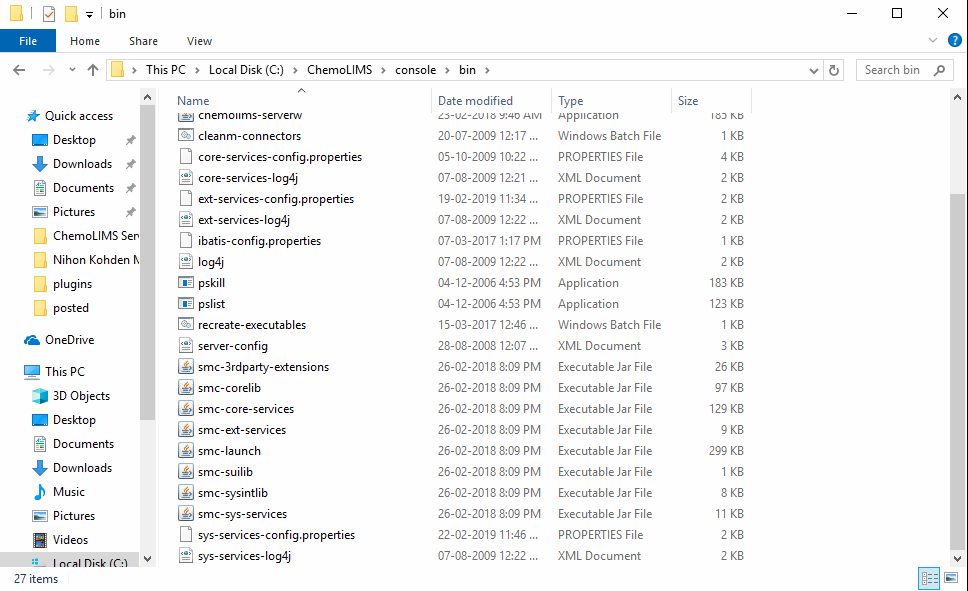
- Then right-click on sys-services-config.properties and select edit with notepad ++
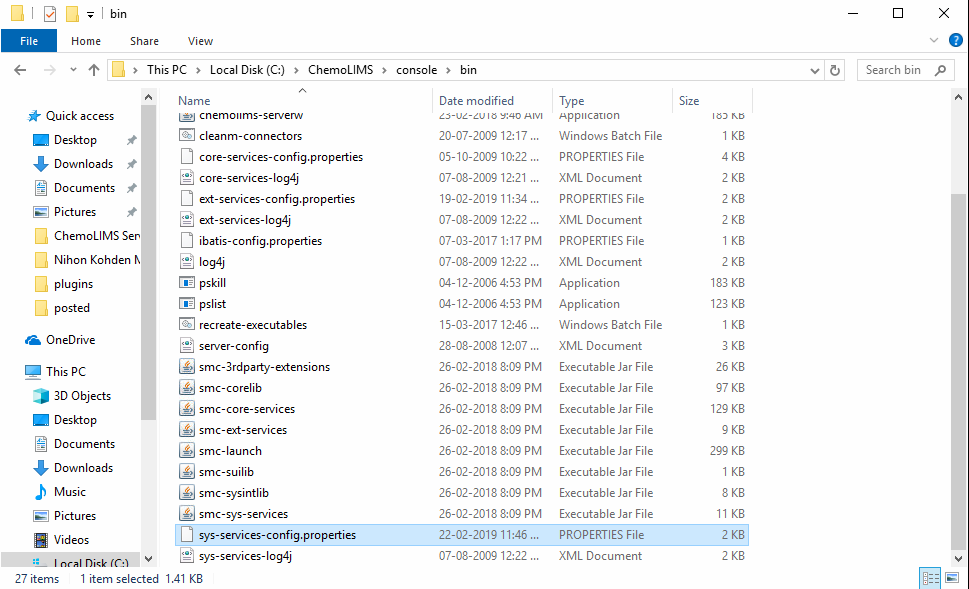
- Add the new connection name and then save. For example Bio-Rad D-10 (Remark: Analyzer name should be exactly the same with the name inside the excel file)
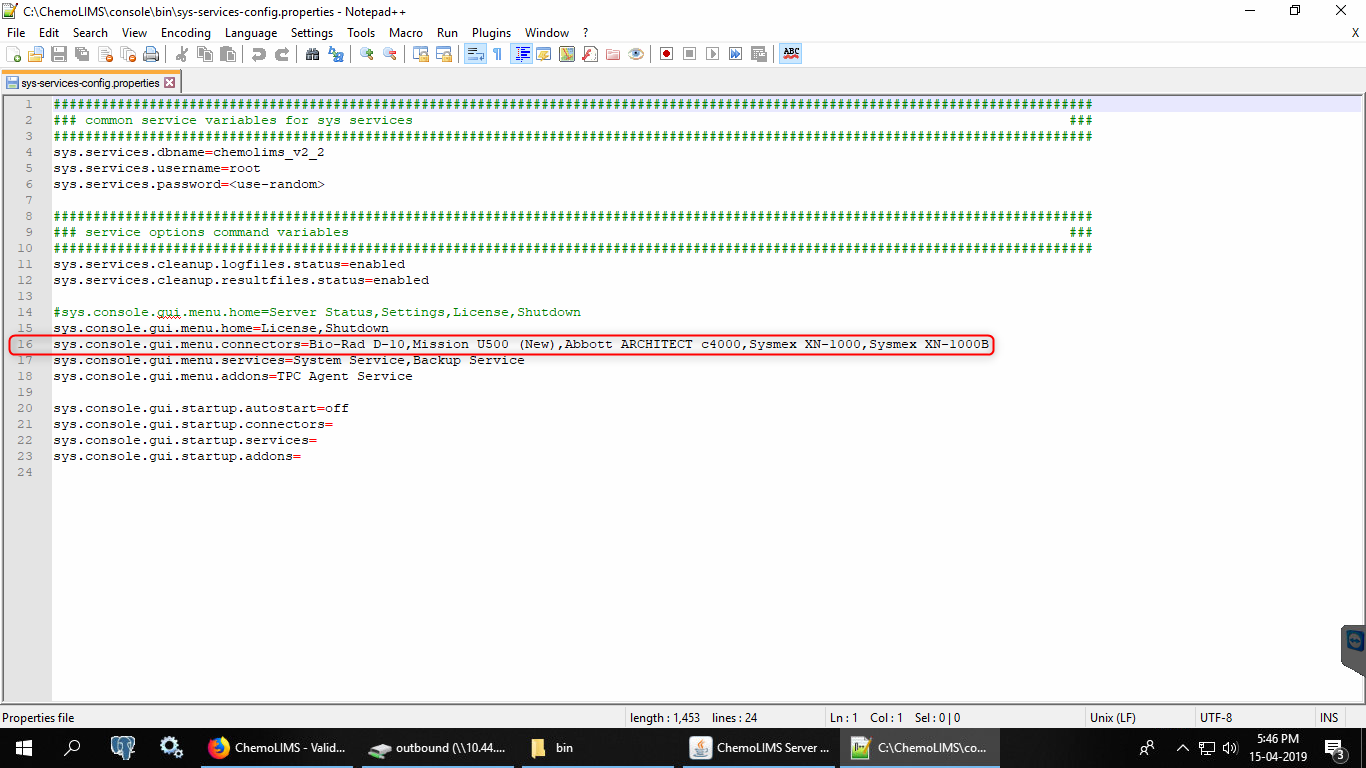
- Lastly, double click the recreate_executeble inside C: > Chemolims > console > bin
Mapping
- Open pgAdmin III

- Once open pgAdmin, double click on PostgreSQL 8.4 as below
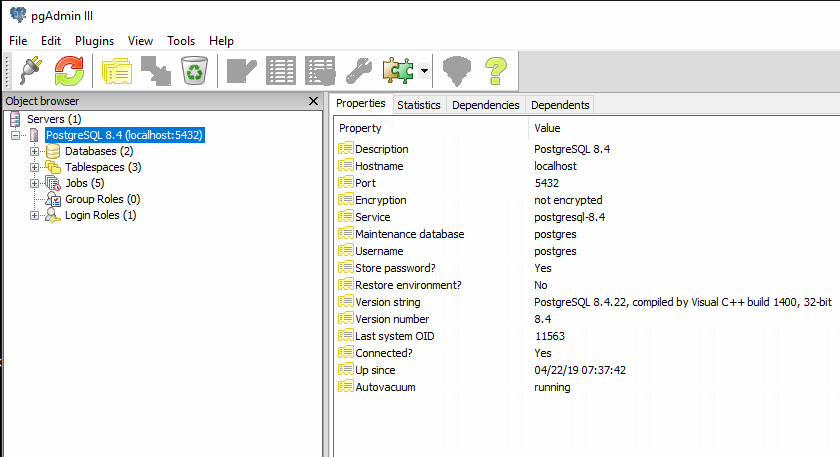
- Then double click on the Databases as below

- Then double click on chemolims as below
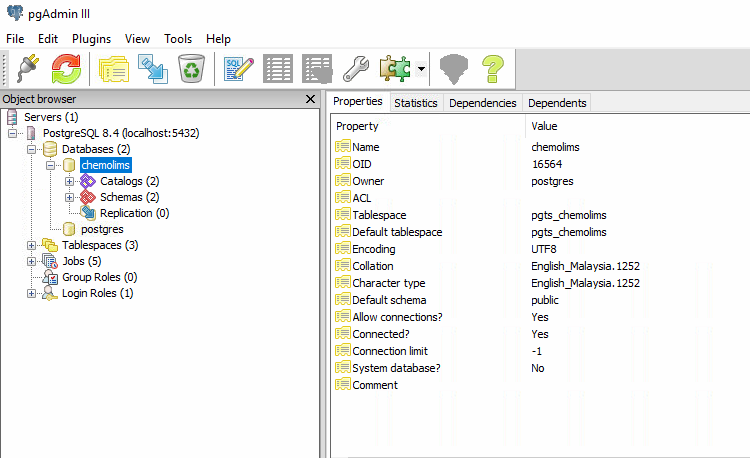
- Then double click on Schemas as below

- Then double click on public as below

- Then double click on Tables as below
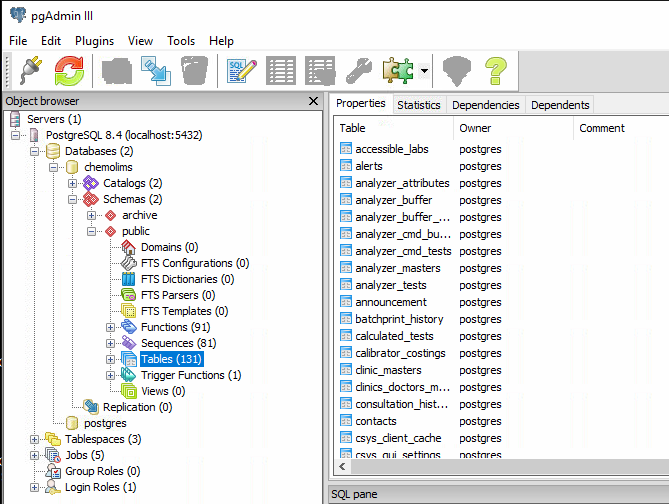
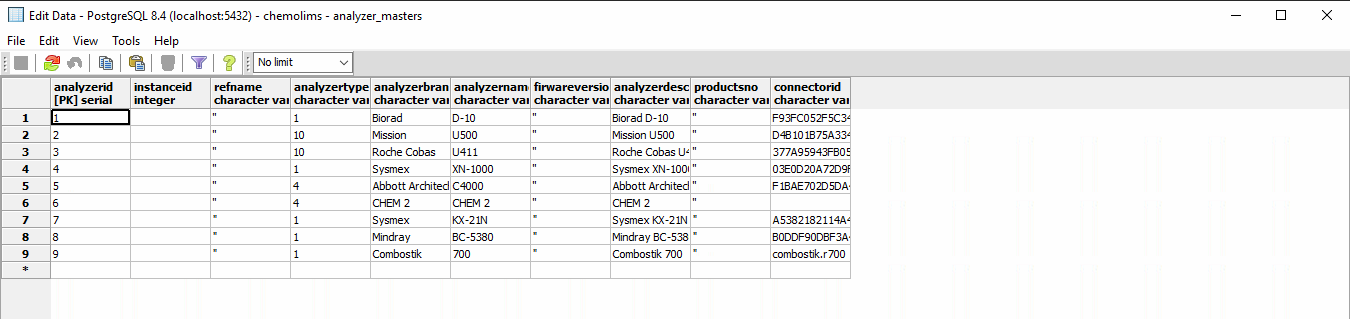
- Then find a table name analyzer_masters. Right-click and select View Data > View All Row

- Check either the instrument for Mission U500 is already in the table or not.
- If Yes, can proceed to the next step.
- If No, add all details at the * row and click save.
- Then find a table name analyzer_test. Right-click and select View Data > View All Row
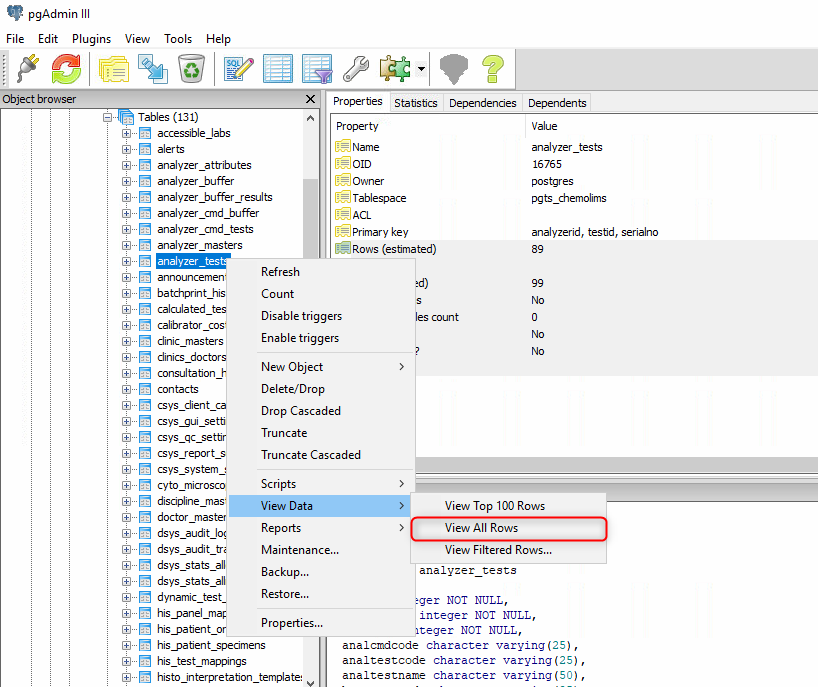
- Check either the test for Mission U500 is already in the table or not.
- If Yes, can proceed to the next step.
- If No, Then find a table name test_masters. Right-click and select View Data > View All Row
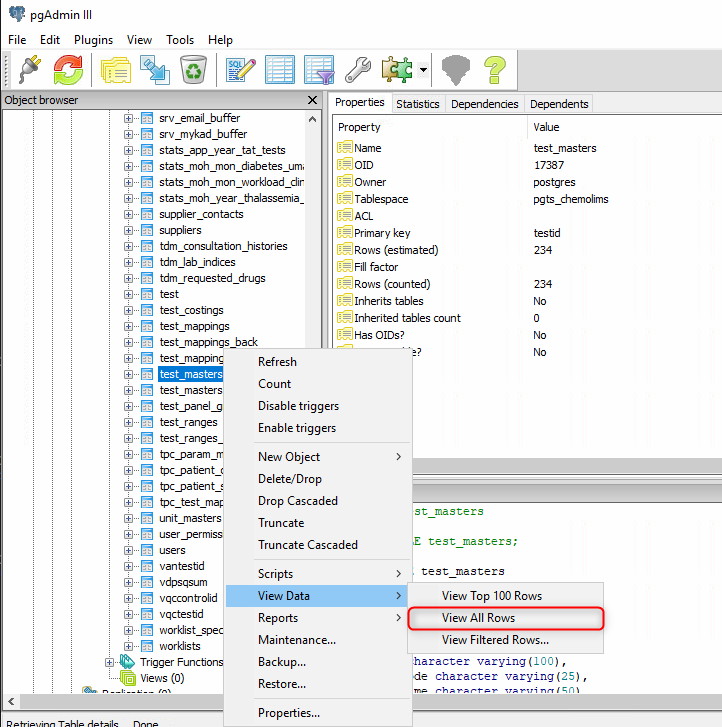
- Scroll down and find the test name from the list and copy the details and paste in the analyzer_test table.

- Please make sure to paste at the correct column and the analyzerid column must be similar to the analyzer_masters table.
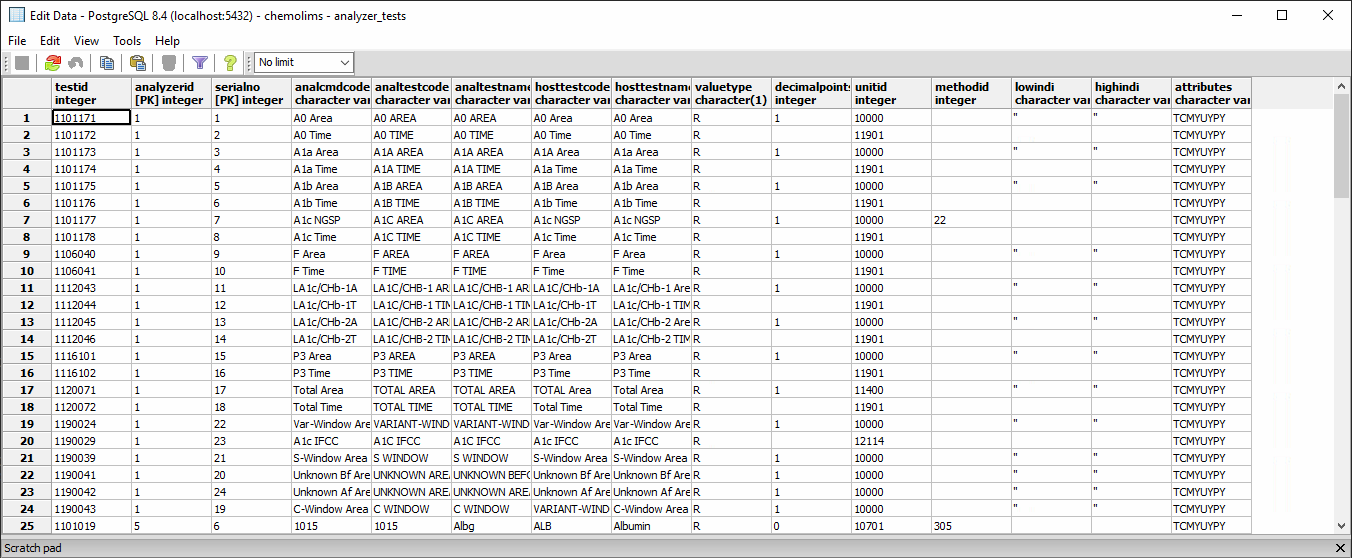
- For analcmdcode and analtestcode column, need to get the details from the machine itself.
Configuration
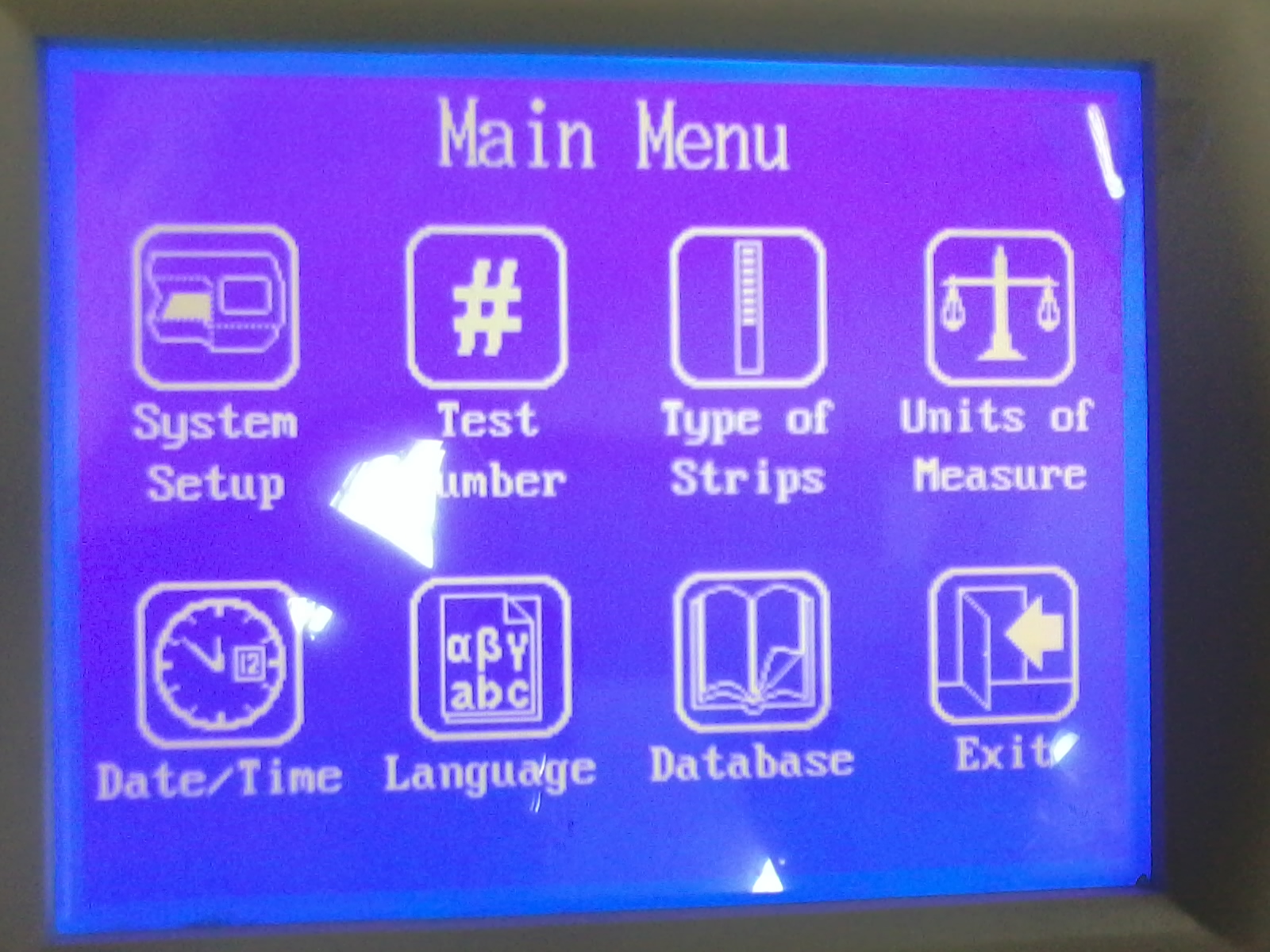
- Go to the Main Menu of Mission U500 and select System Setup.
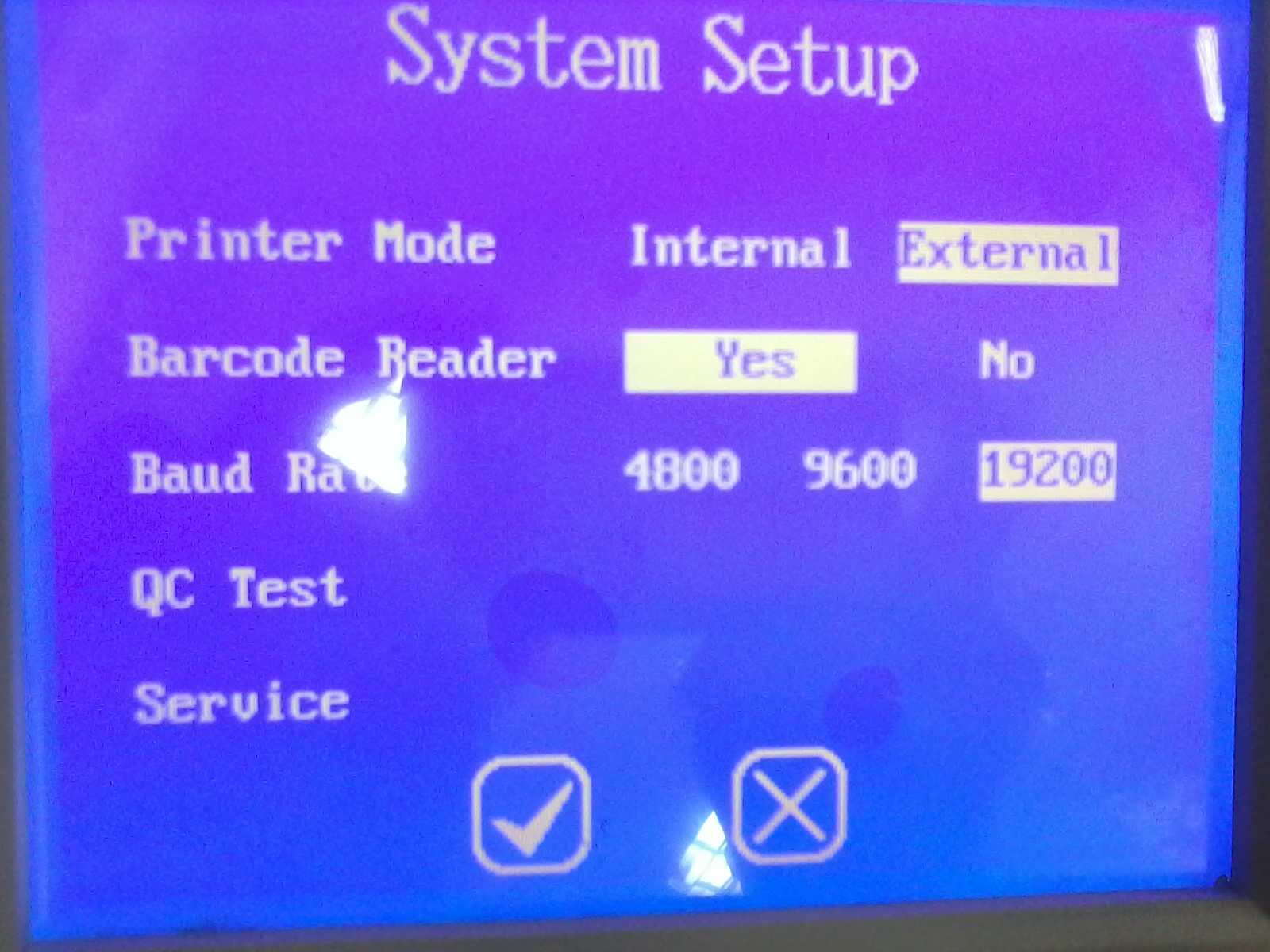
- Then change the setting similar to the picture below and the Save.
- Printer Mode – External
- Barcode Reader – Yes
- Baud Rate – 9600
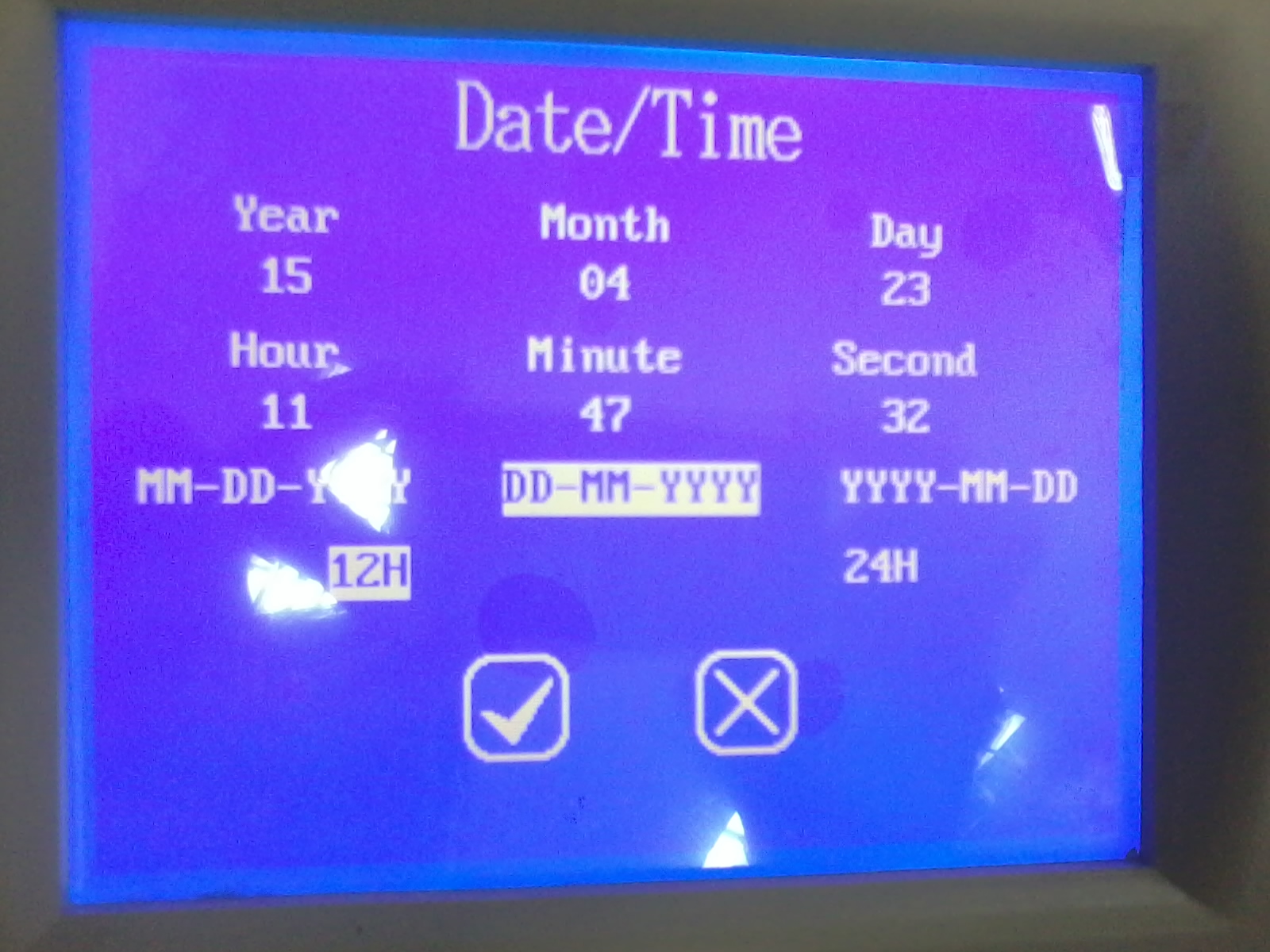
- Then back to Main Menu and select Date/Time and change the date format as in the picture below.
Test Database
- Start ChemoLIMS Server Console
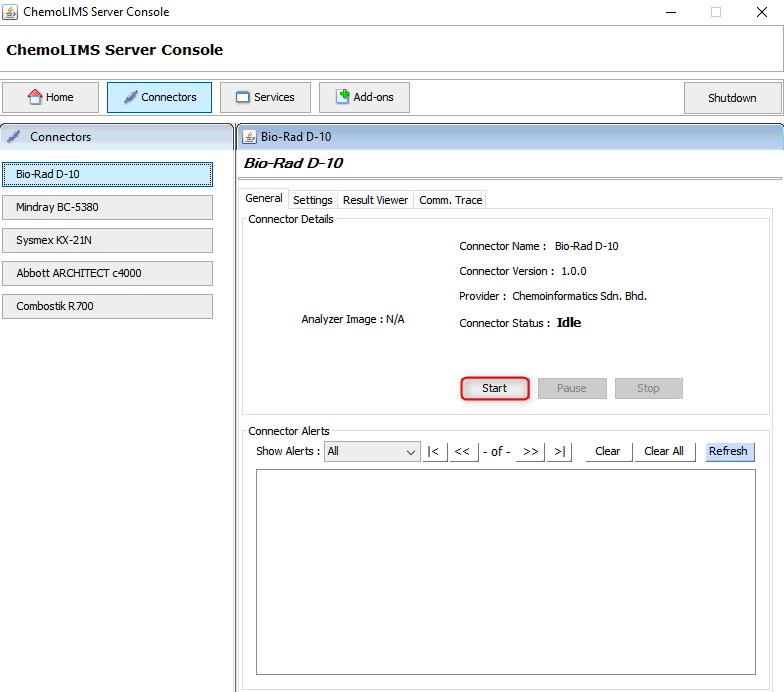
- Wait until the Connector Status change to Running.
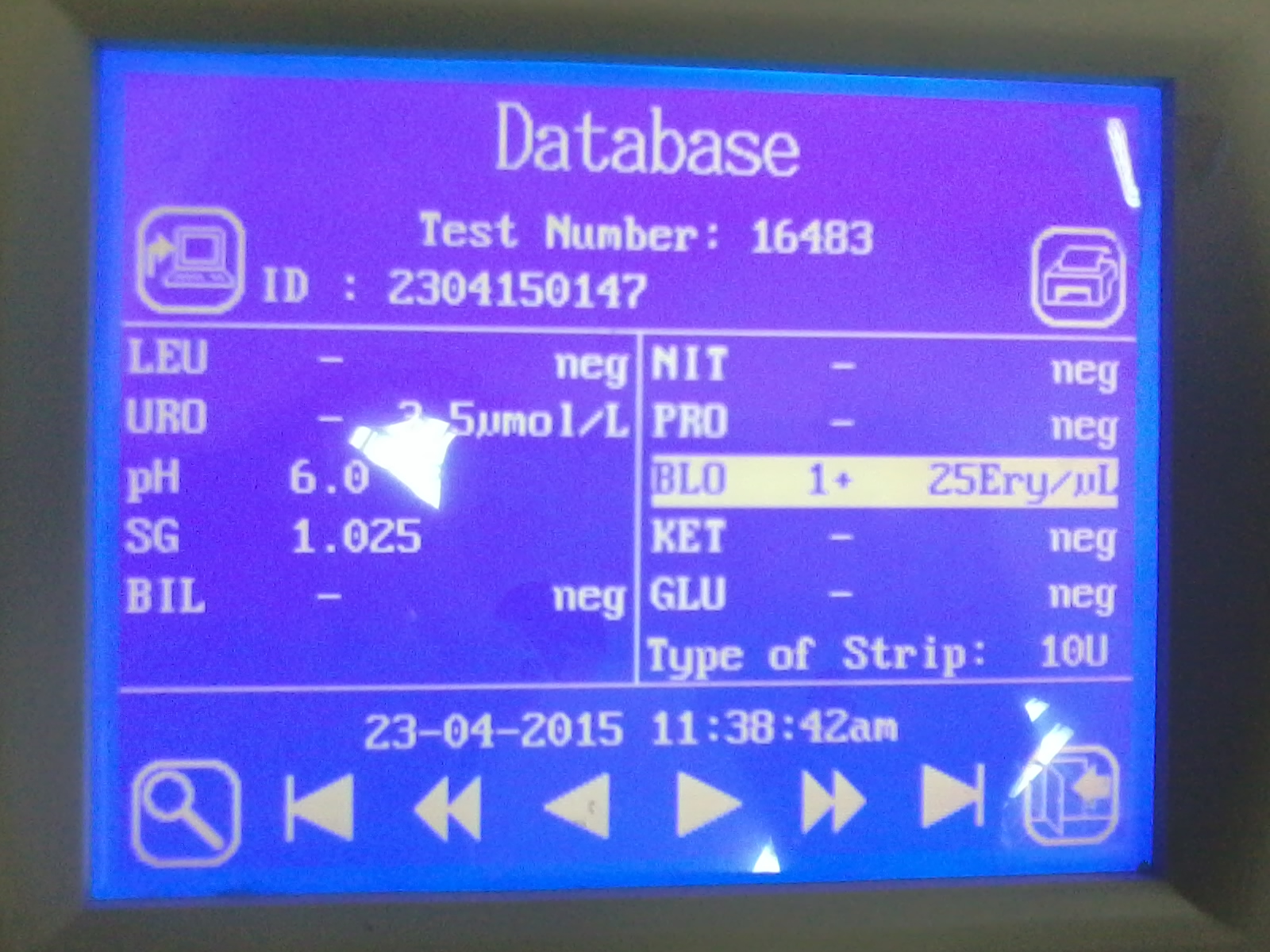
- Then go to Main Menu of the machine and select Database.
- Select any data and select on the computer icon on the upper left side.

Total 0 Votes:
0
0
