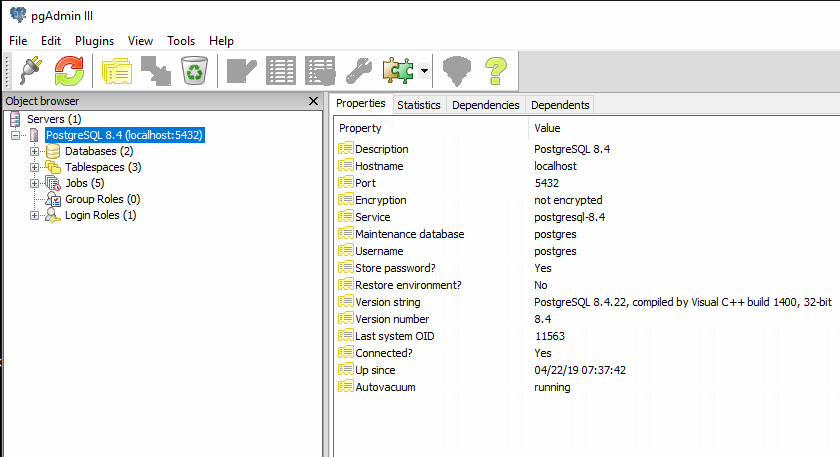
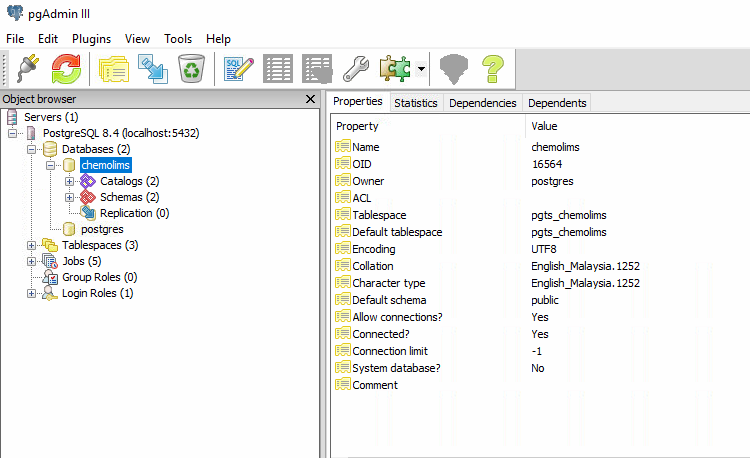
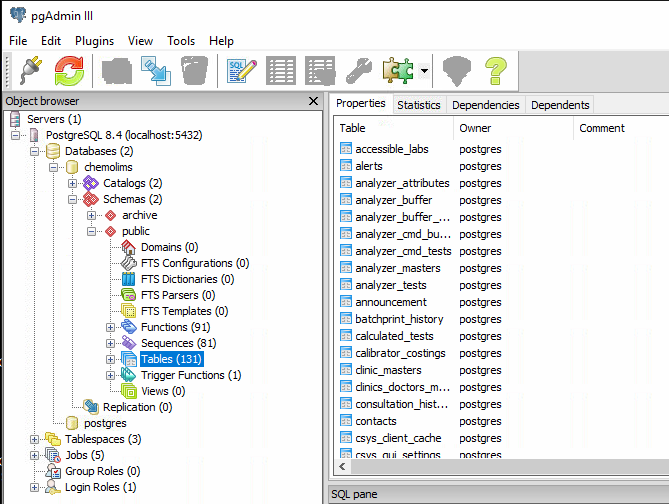
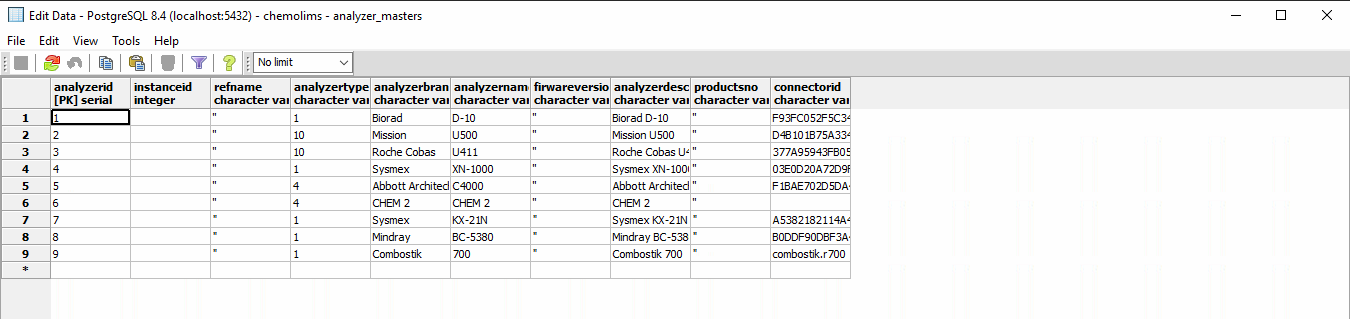
- Open intellij software
- Click File > Open…
- Select gradle under: [your_local_drive]\[your_project_folder]\ [your_chemoNX_folder]\webapps
- Once selected, click “OK” and pick “Open as Project”. An Import Project from Gradle screen shall display.
- Follow below settings to setup Gradle screen:
[image_with_text image=’https://docs.chemoinformatics.com/wp-content/uploads/2020/10/1.jpg’ title=” title_color=” title_tag=’h6′]- Gradle JVM: Select Java JDK been using in your desktop/laptop.Click “OK” after settings been selected. [/image_with_text] - After finish configuration of project, navigation to the top right and look for below image section.
[image_with_text image=’https://docs.chemoinformatics.com/wp-content/uploads/2020/10/setup-chemolimsnx-screen2.jpg’ title=” title_color=” title_tag=’h6′]- Under dropdown, select spring-app or the project name just setup.
– Press “Play” button to run pro[/image_with_text] - After start project, a terminal shall pop up and prompt project running/error log panel, refer below image for the panel.
[image_with_text image=’https://docs.chemoinformatics.com/wp-content/uploads/2020/10/setup-chemolimsnx-screen3.jpg’ title=” title_color=” title_tag=’h6′]First load of the project may take some time. Once project successful loaded, log panel shall display “Started Webstart in …”, refer below image for the success message:[/image_with_text]
[image_with_text image=’https://docs.chemoinformatics.com/wp-content/uploads/2020/10/setup-chemolimsnx-screen4.jpg’ title=” title_color=” title_tag=’h6′]- If project unsuccessful to run, check with your senior or supervisor for further action and ensure the settings match. [/image_with_text]