Setting Up Nova pHOx Ultra for ChemoDMS

This guide is for configuring the Nova pHOx Ultra analyzer to be used with ChemoDMS.

Nova Service Mode

  1. At the home screen, press SYSTEM.
  2. Press SERVICE.
  3. Press NOVA SERVICE.
  4. Enter the password based on the Ms Excel file from Nova Team.  Password entry is by using the keypad on the screen.
  5. The password depends on the date.  Double check the analyzer’s date if the password fails.
  6. Once password entry is successful, plug in your USB mouse and keyboard.
  7. Press the Windows logo and SWITCH USER.
  8. Select the NovaService user and enter the password provided by Nova Team.


Configuring SQL Server Management Studio

  1. Click on Windows logo -> Programs -> Microsoft SQL Server 2008 R2 -> SQL Server Management Studio
  2. Connect to the server using:-
    Server type:  Database Engine
    Server name:  <ANALYZER_PC_NAME>\NOVA
    Authentication:  Windows Authentication
  3. Click CONNECT.
  4. In the OBJECT EXPLORER pane (left side of the app), right-click on the analyzer name (the first item).
  5. Click PROPERTIES.
  6. In the SERVER PROPERTIES popup, click on CONNECTIONS from the left pane.
  7. Tick ALLOW REMOTE CONNECTIONS TO THIS SERVER.
  8. Go to Security -> Logins
  9. Right-click on Logins.
  10. Click New Login.
  11. General
    …Login name:  chemodms
    …SQL Server authentication Password:  chemodms
    …Untick Enforce password policy
    …Default database:  Nova
    Server Roles
    …Tick public and sysadmin
    …User Mapping
    …Tick Nova
    …User:  chemodms
    …Default Schema:  dbo
    Status -> Settings
    …Permission to connect to database engine:  Grant
    …Login:  Enabled
  12. Click OK.
  13. Click OK and close the SQL Server Management Studio.


Configuring SQL Server Configuration Manager

  1. Click on Windows logo -> Programs -> Microsoft SQL Server 2008 R2 -> Configuration Tools -> SQL Server Configuration Manager
  2. On the left pane, go to SQL Server Configuration Manager (Local) -> SQL Server Network Configuration -> Protocols for NOVA
  3. On the right pane, right click on TCP/IP and click PROPERTIES.
  4. In the TCP/IP Properties, popup, set the following:-
    In the PROTOCOL tab:-
    …Enabled:  Yes
    …Keep Alive:  30000
    …Listen All:  Yes
    In the IP ADDRESSES tab -> IP ALL:-
    …TCP Dynamic Ports:  (Leave this blank)
    …TCP Port:  1433
  5. Click OK.  A warning popup will appear.  Click OK.
  6. On the left pane, SQL Server Configuration Manager (Local) -> SQL Server Services
  7. On the right pane, right-click SQL Server (NOVA).
  8. Click RESTART


Configuring Windows Firewall

  1. Open up Windows Firewall with Advanced Security
  2. In the left pane, right-click on Inbound Rule.
  3. Click on New Rule.
  4. Port -> TCP -> Specific local ports:  1433 -> Allow the connection -> Tick all Profile -> Name:  ChemoDMS
 

Planned Preventive Maintenance (Express PPM)


  1. Make sure the ‘clservice.exe‘ file is in the Pendrive of the engineer.
    Remarks: Please DO NOT copy the file into the Desktop
  2. Run the ‘clservice.exe‘ from the engineer’s pendrive. 
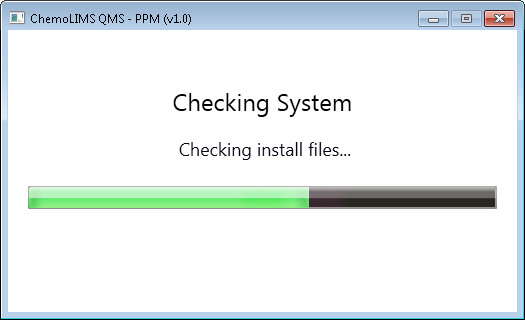
  3. The PPM application will start checking ChemoLIMS files.
     
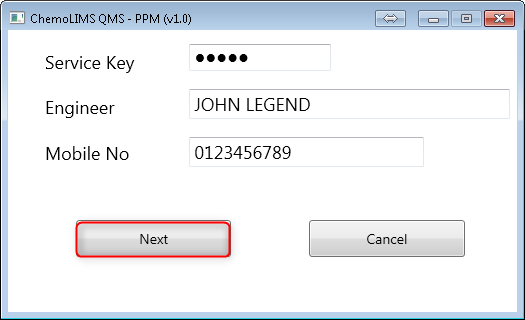
  4. Next, enter the Service Key  and enter the engineer name and mobile phone and select Next.
    Note: Service Key can be get from CI Team.
     
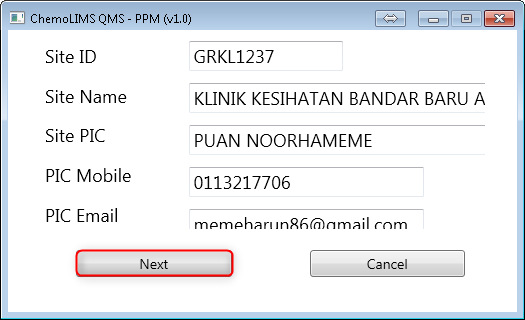
  5. Then enter all site details and select next as in below. Engineer need to be aware of the Site ID and the Site Name.
      
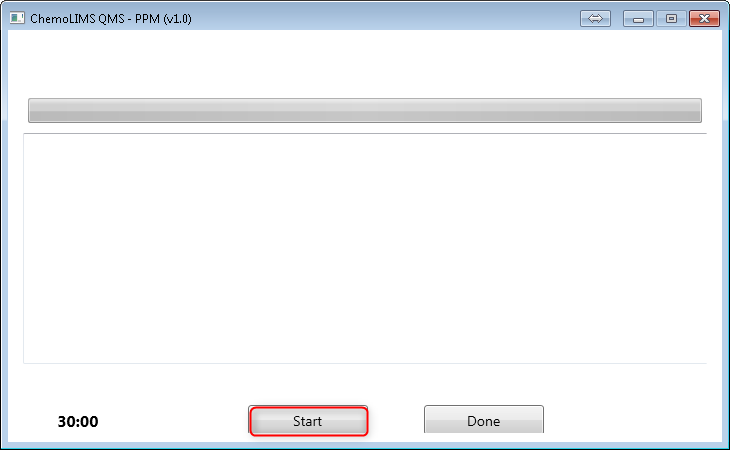
  6. There will be a screen as below and select Start 
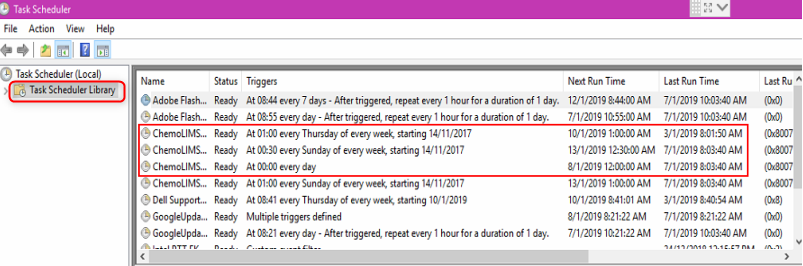
  7. Next, it will automatically open Task Scheduler.
  8. Select on Task Scheduler Library and check for 3 backups (Daily Backup, Weekly Backup, Application Weekly Backup
     
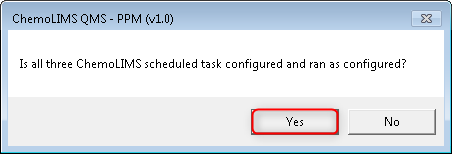
  9. There will be a message box and if the task scheduler is run as scheduled, select Yes
     
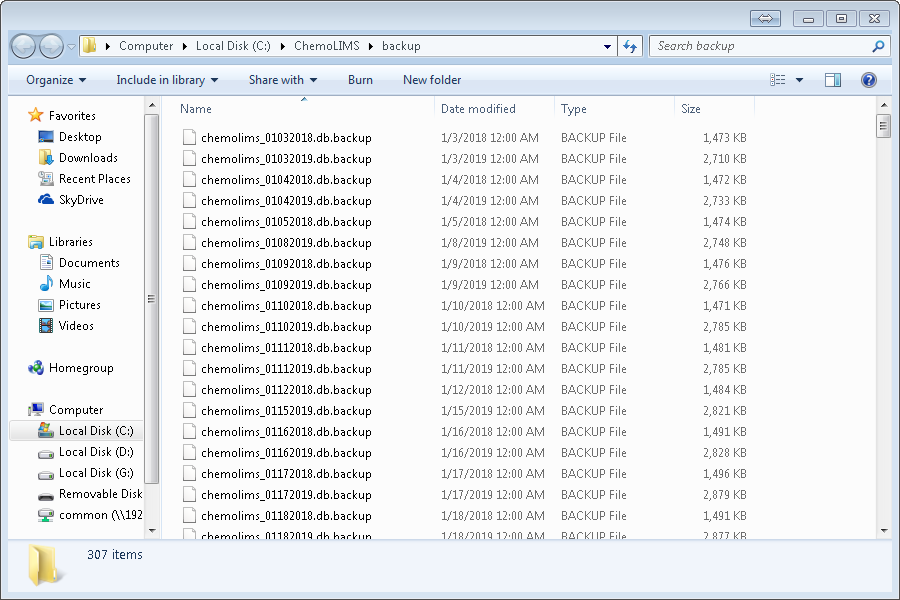
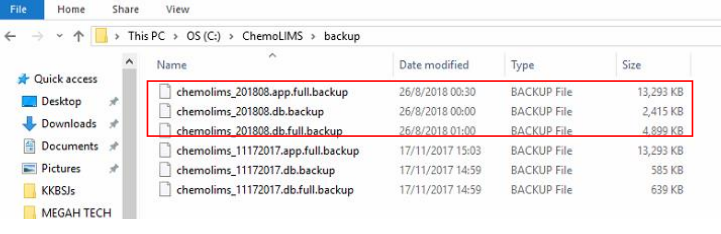
  10. It also will open the backup folder. Check if the backup is existed or not . 
     
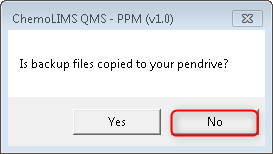
  11. There will be a message box and if the backup files are already copied into pendrive, select No
     
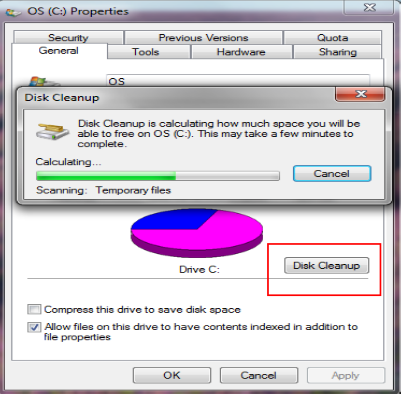
  12. Then it will clean up all unnecessary files and junk files as in below. 
     
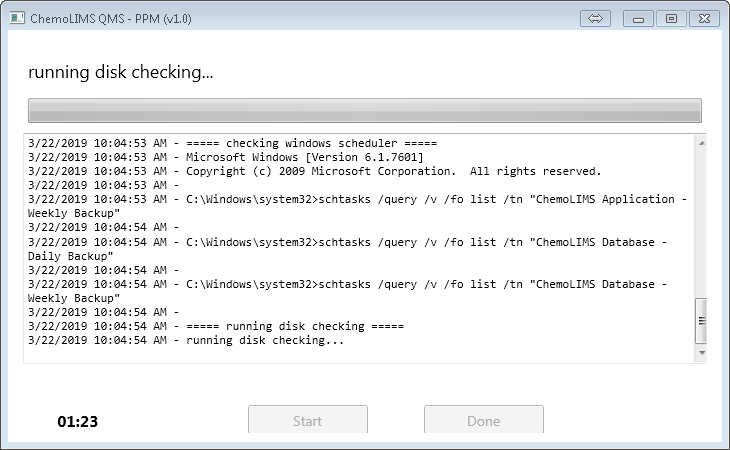
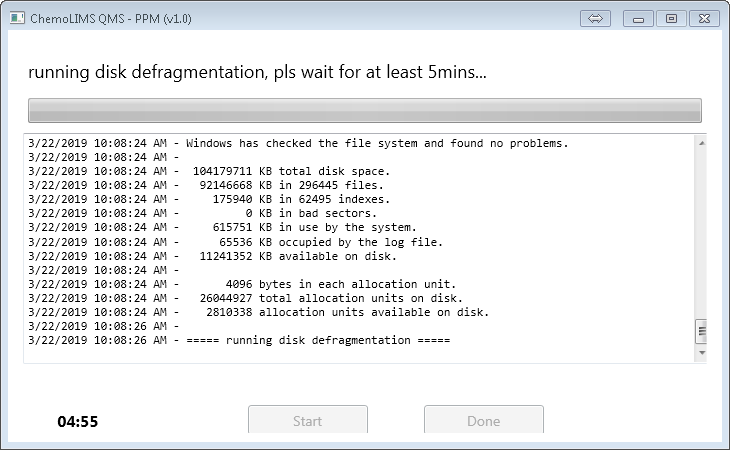
  13. Next, it will run disk defragmentation and please wait for five minutes or more. 
     
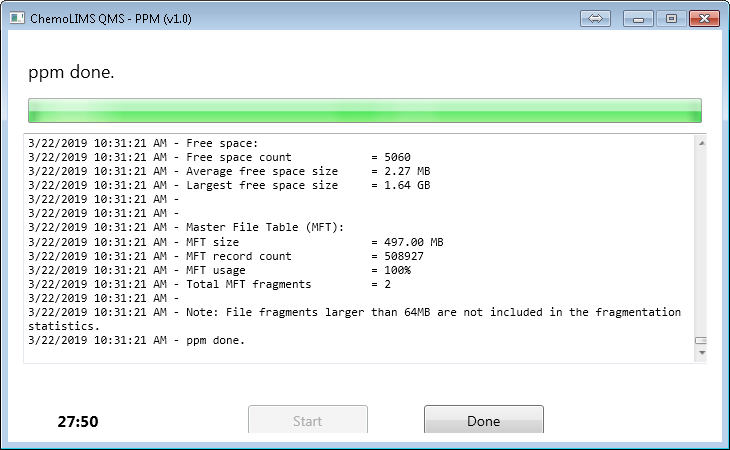
  14. After the defragmentation is done, PPM is done and select Done 
     
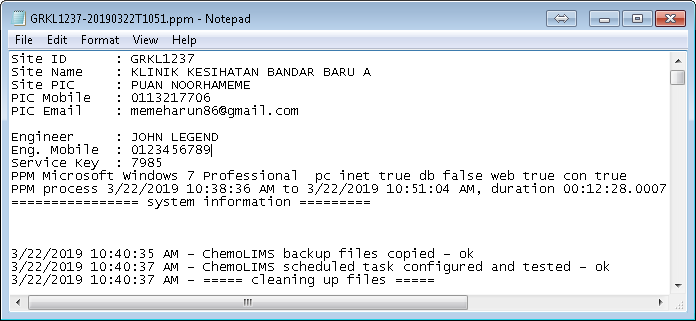
  15. Finally, it will open PPM Report.

Planned Preventive Maintenance (PPM)

Step 1: Delete Selected .xml Files

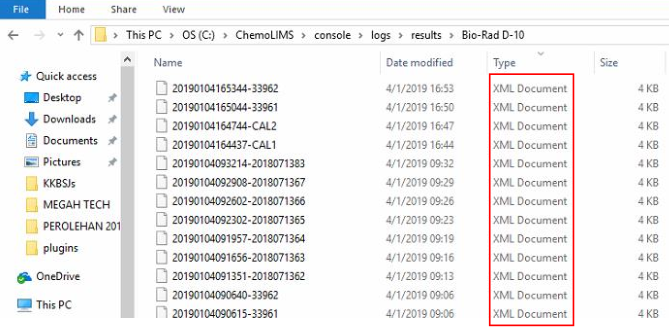
  1. Delete files and keep only for latest 3 months file (C:/Chemolims/console/temp/queue/result/<Instruments>)
    Folder “failed”: Delete all files
    Folder “posted”: Keep 3 months 
  2.  

Step 2: Delete  Selected .Backup Files

  1. Check the date and make sure have the latest one file, if not check to another drive
  2. Delete the old version and keep the latest 3 months (C:/chemolims/backup) 

Step 3: Delete all .LCK files 

1. Delete all LCK files from Tomcat and Console the .lck file except .lic file (Server, License, Console folder) 


Step 4: Deleted Selected log files

Keep latest 3 month file and delete for the rest

  • C:/chemolims/data/data/pg_log
  • C:/chemolims/console/logs
  • C:/chemolims/server/minimal/logs 

Step 5: Perform HDD Defragmentation

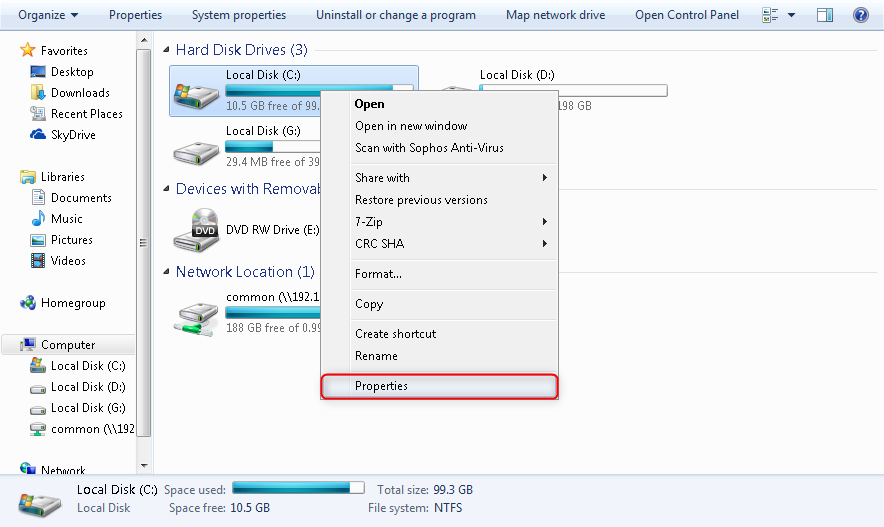
  1. Select My Computer and right click on C: drive and select Properties. 
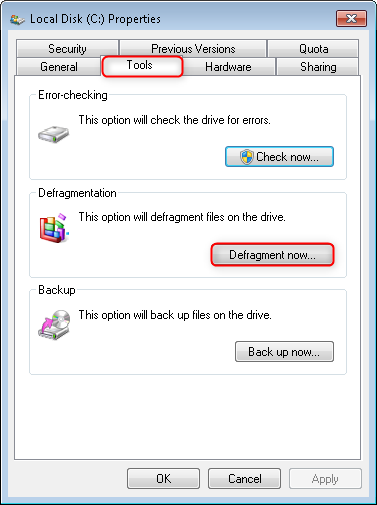
  2. Then select on Tools tab on the upper side, then select Defragment Now.

Step 6: Check Backup Schedules 

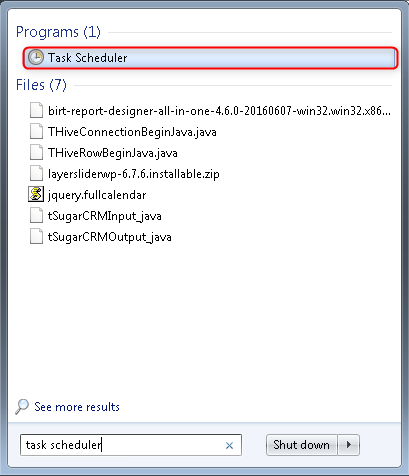
  1. Select on the Start button and search Task Scheduler 
  2. Select on Task Scheduler Library. Check for 3 backup 
    • Daily Backup
    • Weekly Backup
    • Application Weekly Backup 


Step 7: Copy folder chemolims and paste to the engineers thumb drive 

  • C:/chemolims/server/minimal/webapps 
  •  

Step 8: Perform HDD disk check 

  1. My Computer > C: > Right click on C: drive > Properties
  2. Then click on Disk Cleanup 


Customer Support – Hotline