- Make sure the ‘clservice.exe‘ file is in the Pendrive of the engineer. Remarks: Please DO NOT copy the file into the Desktop
- Run the ‘clservice.exe‘ from the engineer’s pendrive.
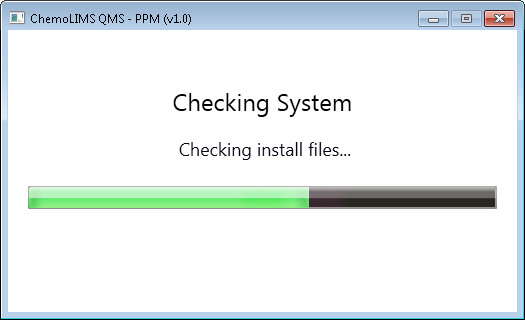
- The PPM application will start checking ChemoLIMS files.
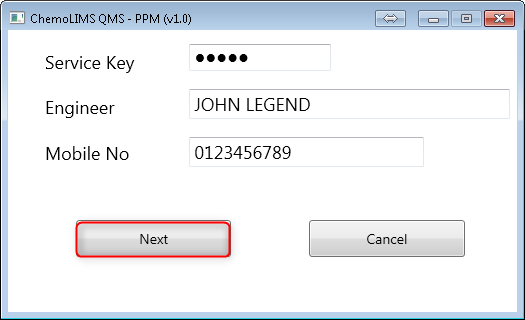
- Next, enter the Service Key and enter the engineer name and mobile phone and select Next. Note: Service Key can be get from CI Team.
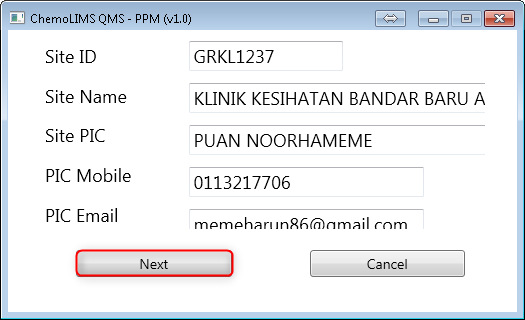
- Then enter all site details and select next as in below. Engineer need to be aware of the Site ID and the Site Name.
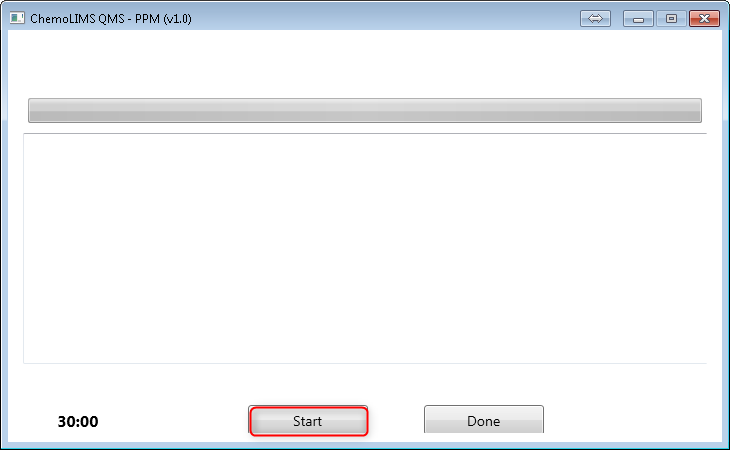
- There will be a screen as below and select Start
- Next, it will automatically open Task Scheduler.
- Select on Task Scheduler Library and check for 3 backups (Daily Backup, Weekly Backup, Application Weekly Backup)
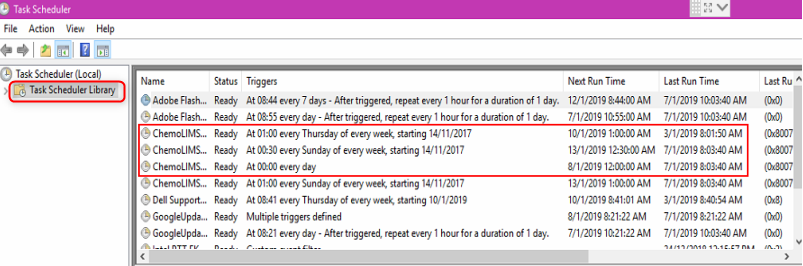
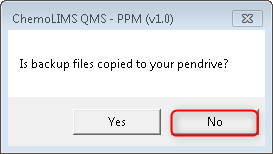
- There will be a message box and if the task scheduler is run as scheduled, select Yes.
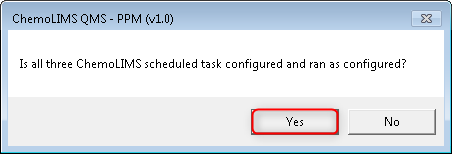
- It also will open the backup folder. Check if the backup is existed or not .
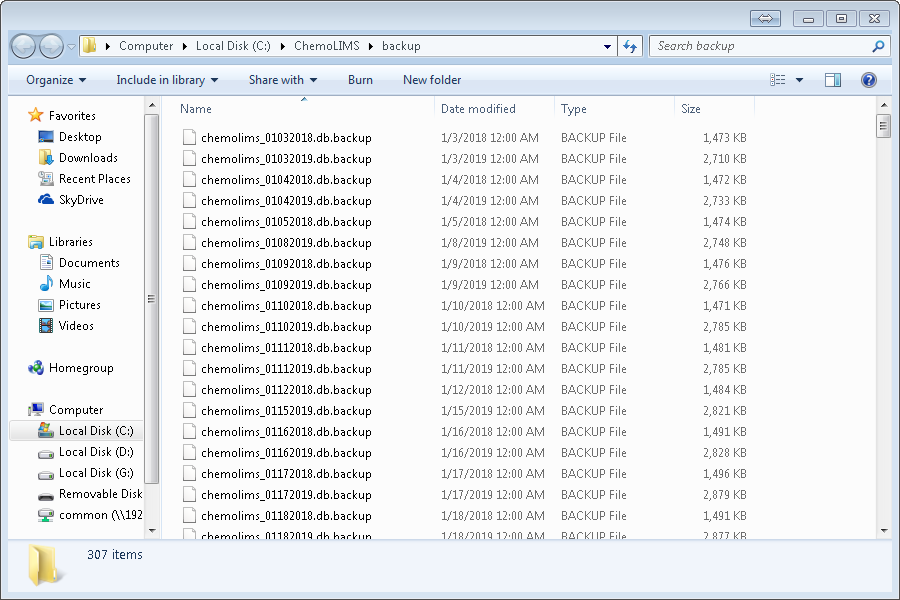
- There will be a message box and if the backup files are already copied into pendrive, select No.
- Then it will clean up all unnecessary files and junk files as in below.
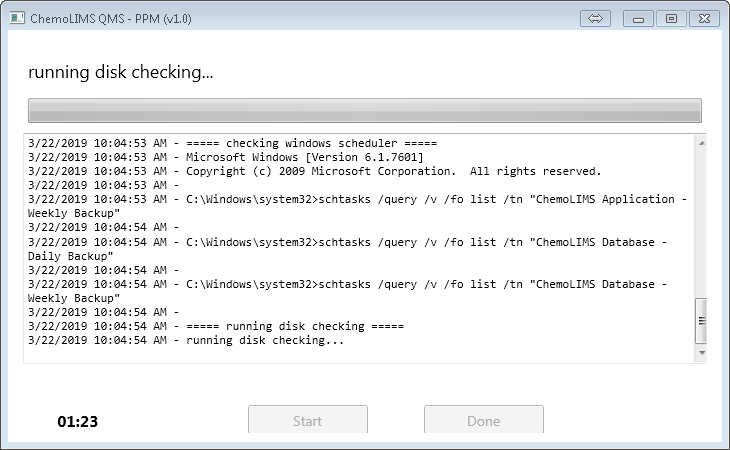
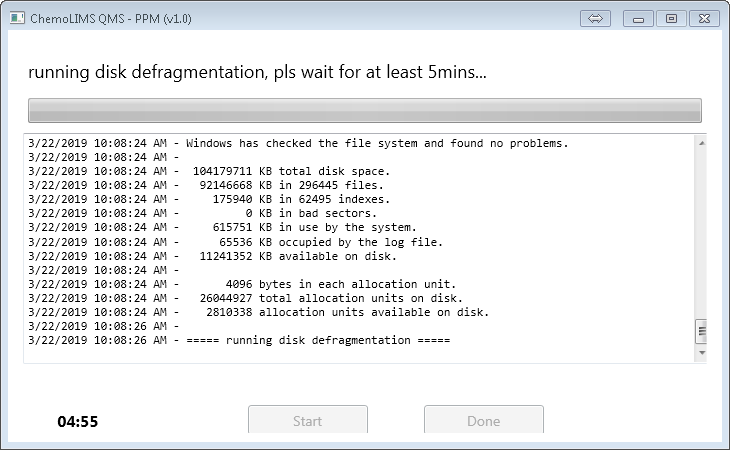
- Next, it will run disk defragmentation and please wait for five minutes or more.
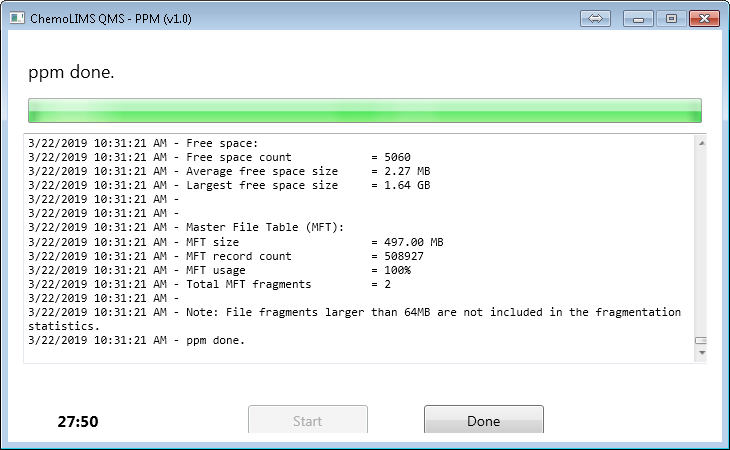
- After the defragmentation is done, PPM is done and select Done
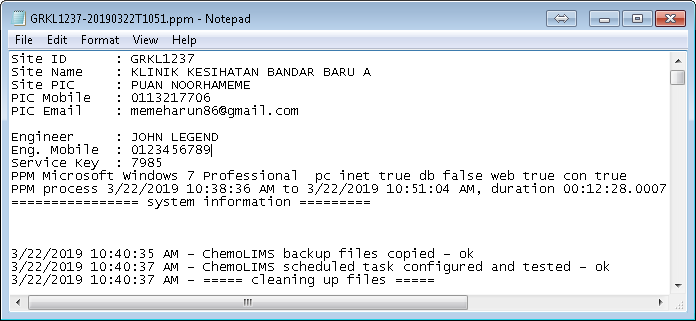
- Finally, it will open PPM Report.
Total 0 Votes:
0
0
