Step 1: Delete Selected .xml Files
- Delete files and keep only for latest 3 months file (C:/Chemolims/console/temp/queue/result/<Instruments>)
Folder “failed”: Delete all files
Folder “posted”: Keep 3 months 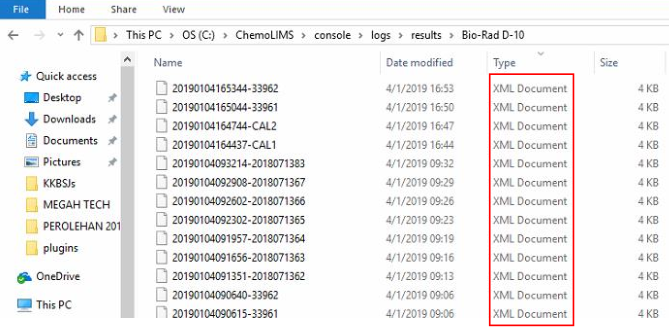
Step 2: Delete Selected .Backup Files
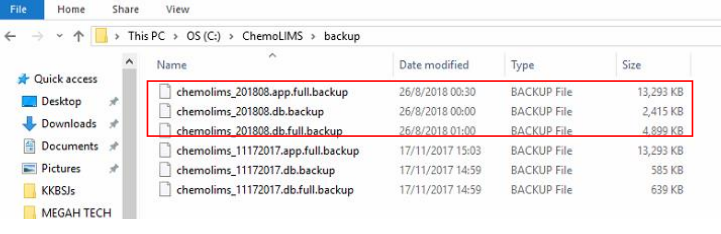
- Check the date and make sure have the latest one file, if not check to another drive
- Delete the old version and keep the latest 3 months (C:/chemolims/backup)
Step 3: Delete all .LCK files
1. Delete all LCK files from Tomcat and Console the .lck file except .lic file (Server, License, Console folder)
Step 4: Deleted Selected log files
Keep latest 3 month file and delete for the rest
- C:/chemolims/data/data/pg_log
- C:/chemolims/console/logs
- C:/chemolims/server/minimal/logs
Step 5: Perform HDD Defragmentation
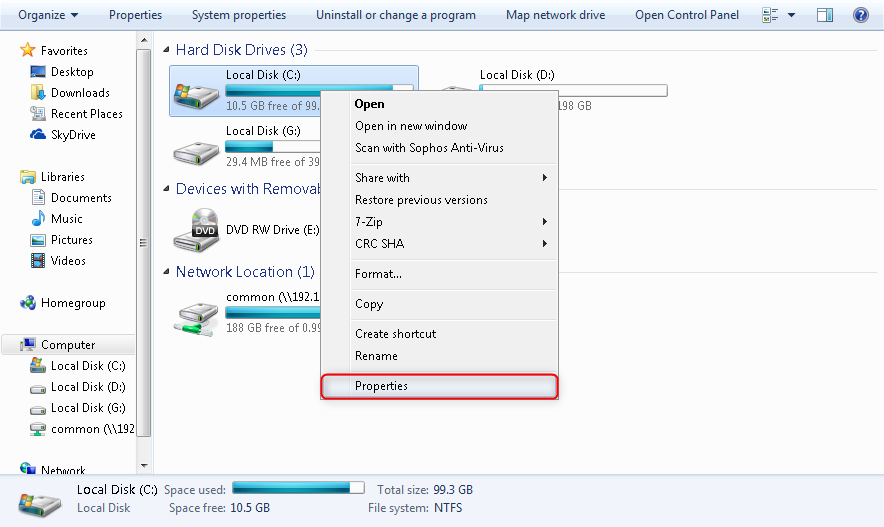
- Select My Computer and right click on C: drive and select Properties.
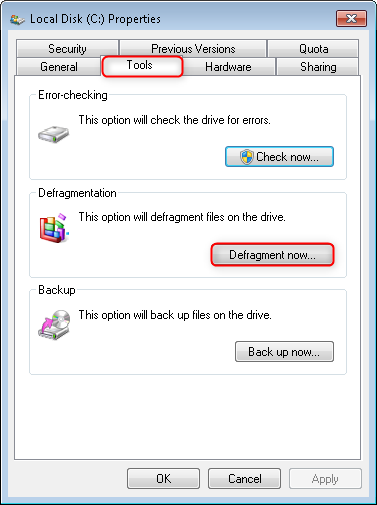
- Then select on Tools tab on the upper side, then select Defragment Now.
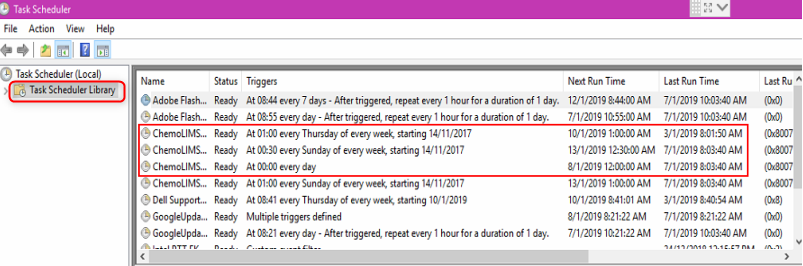
Step 6: Check Backup Schedules
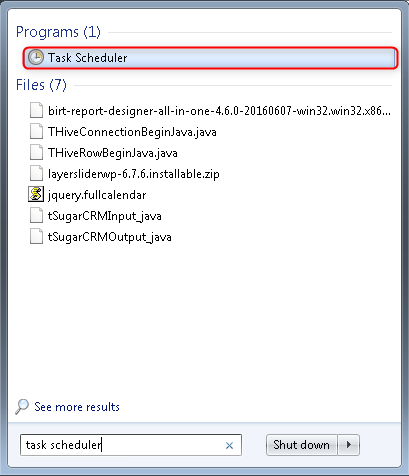
- Select on the Start button and search Task Scheduler
- Select on Task Scheduler Library. Check for 3 backup
- Daily Backup
- Weekly Backup
- Application Weekly Backup
Step 7: Copy folder chemolims and paste to the engineers thumb drive
- C:/chemolims/server/minimal/webapps
Step 8: Perform HDD disk check
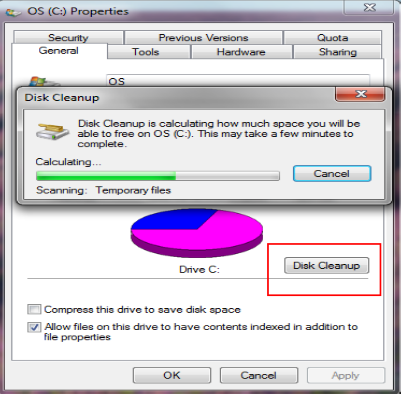
- My Computer > C: > Right click on C: drive > Properties
- Then click on Disk Cleanup
Total 0 Votes:
0
0
