Solution 1 – Restart Server Console
- Open ChemoLIMS Server Console
- Select Bio Rad D10 on the left side and select Stop.
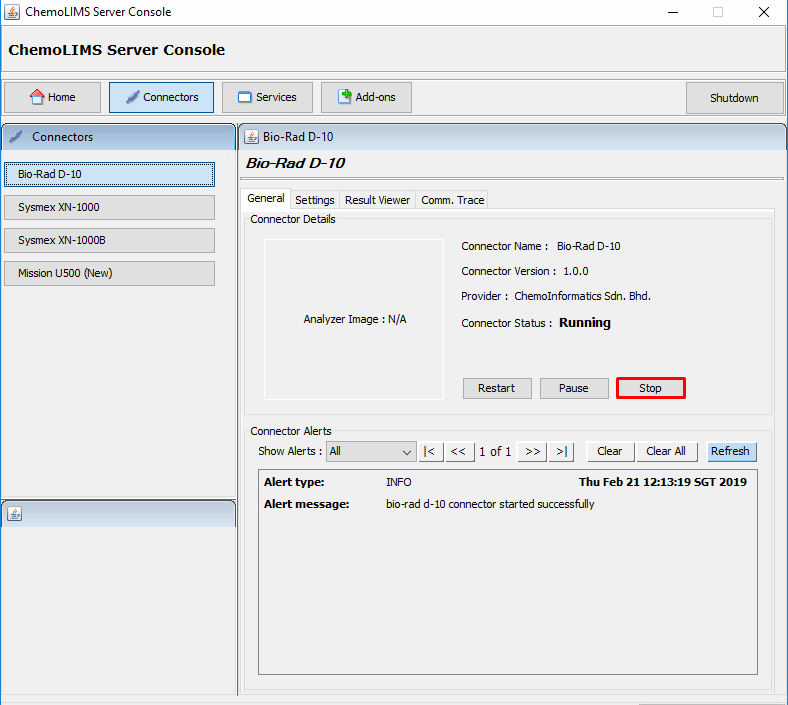
- Next, there will be a pop up message
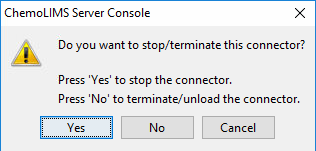
- If select Yes, it will only terminating the process and if select No, it will kill .exe file and relaunch the connector.
- Refresh (f5) and Select on Bio rad D10 again on ChemoLIMS server Console.
- Then click only once on Start button to start the connector again.
- Lastly, user need to re-transmit the data from Bio Rad D10
Solution 2 – Check Export Setting
- Select Settings Tab
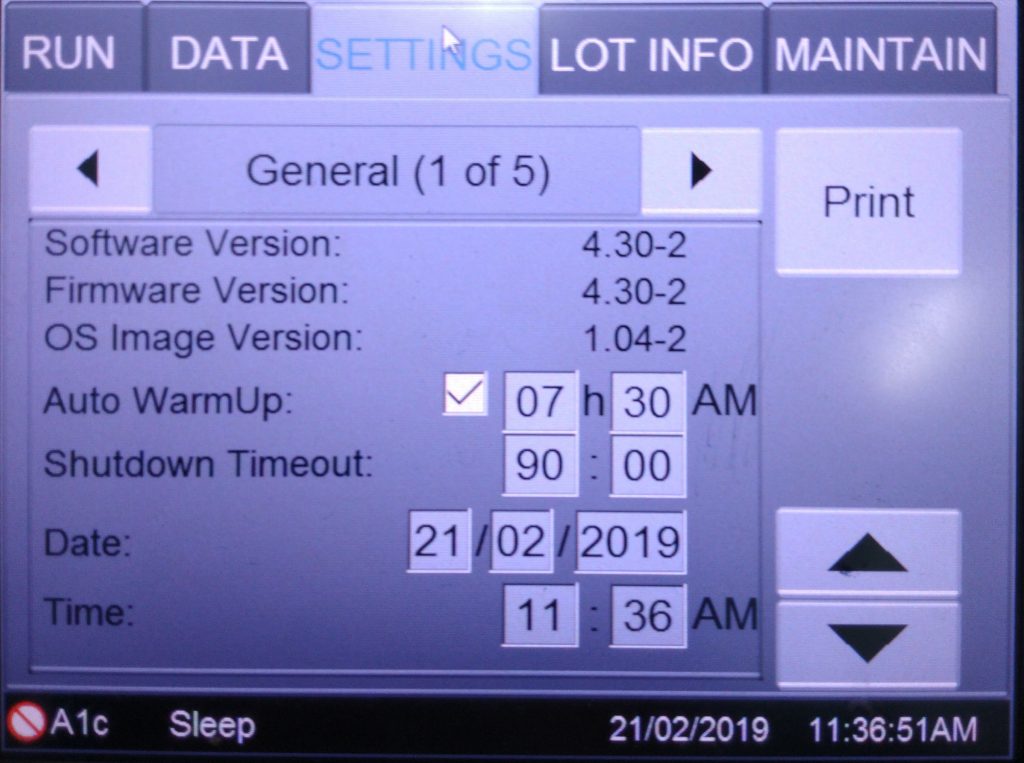
- Select on the arrow and go to the page 3
- Make sure Export Activated is YES and tick on After Each Injection.
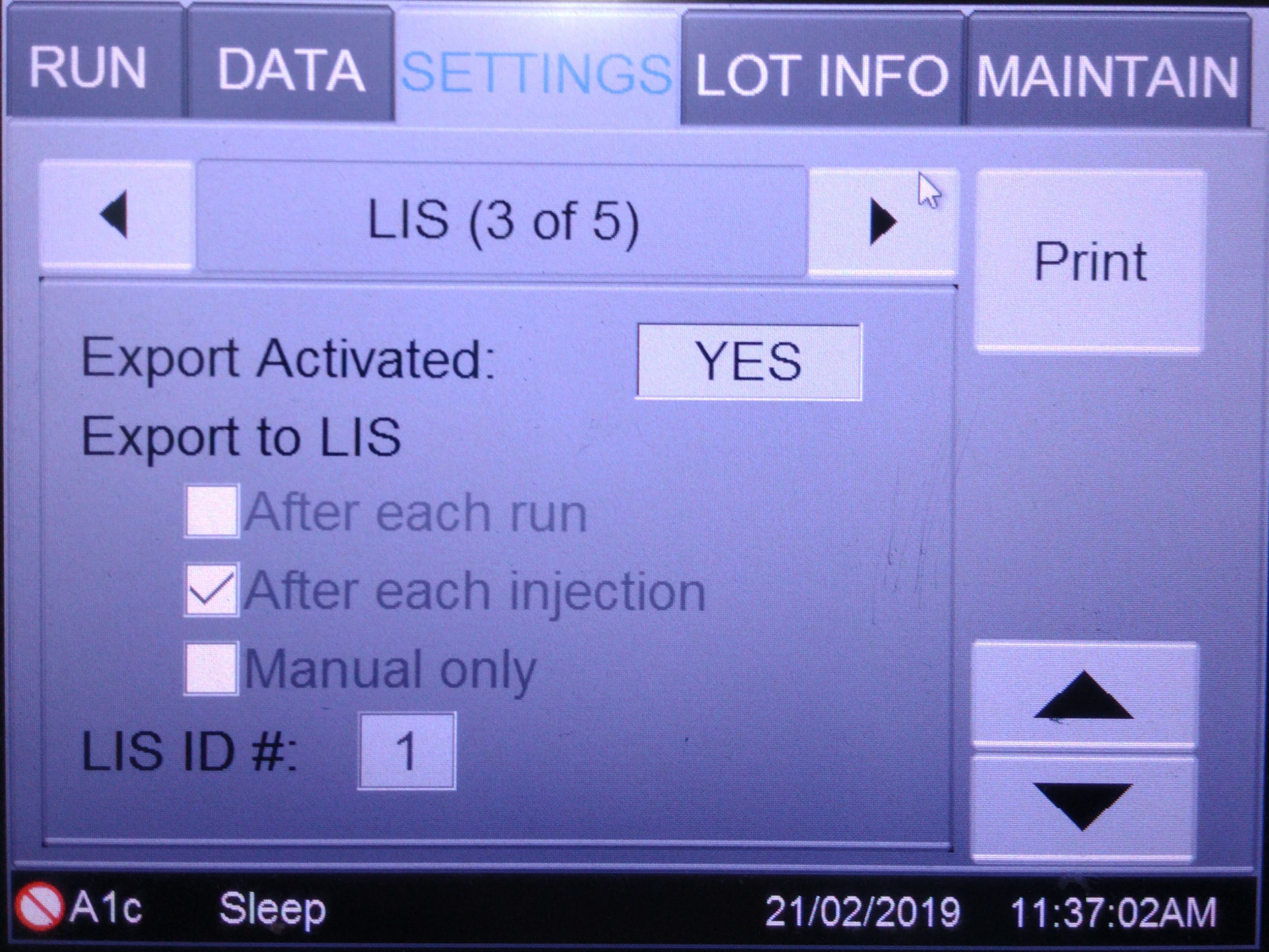
- Then try to transmitted the result again.
Solution 3 – Flush Bio Rad D10
- Firstly, make sure the Bio Rad D10 is in the Sleep Mode.
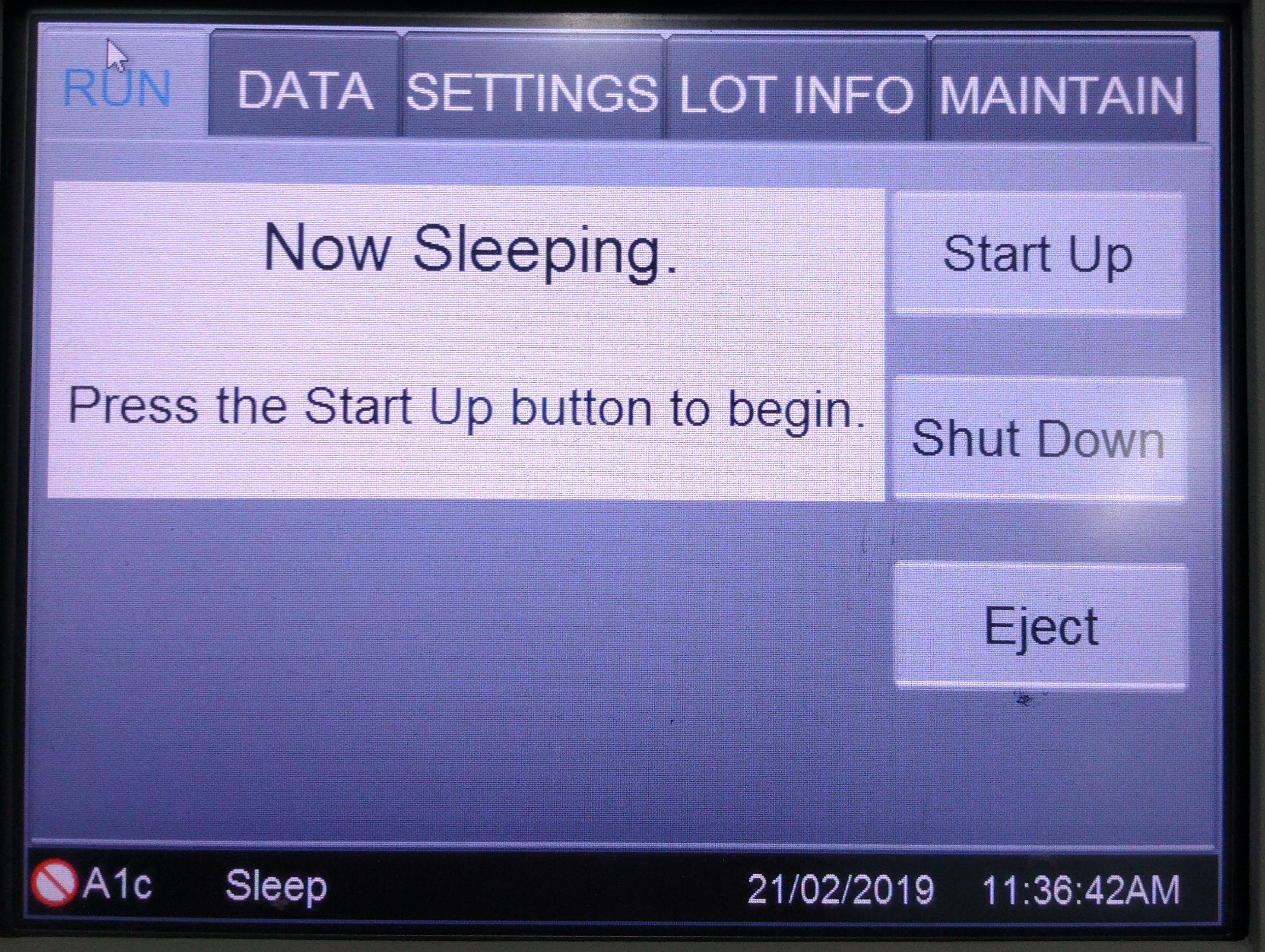
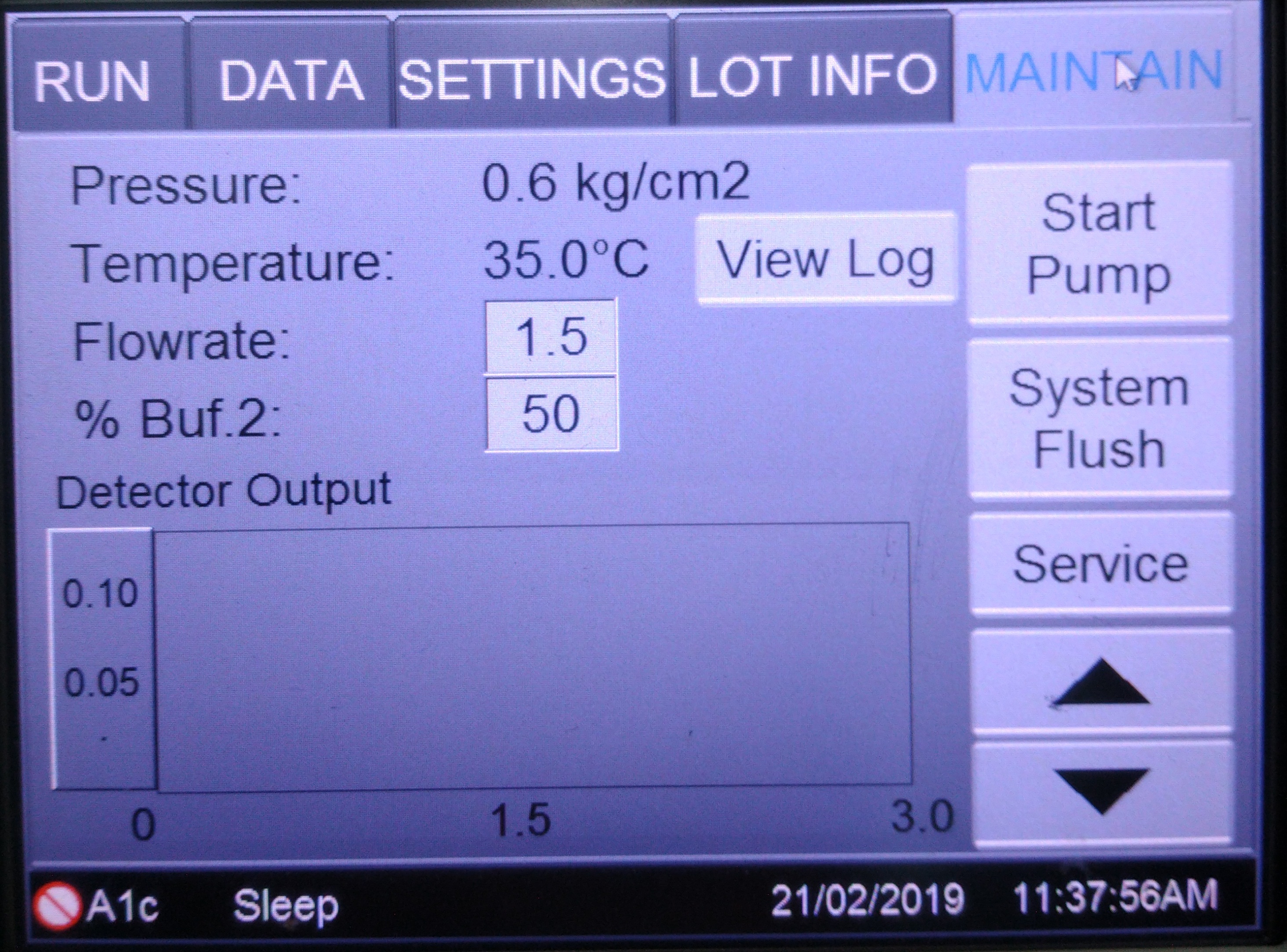
- Then select Maintain Tab and select Service on the right side.
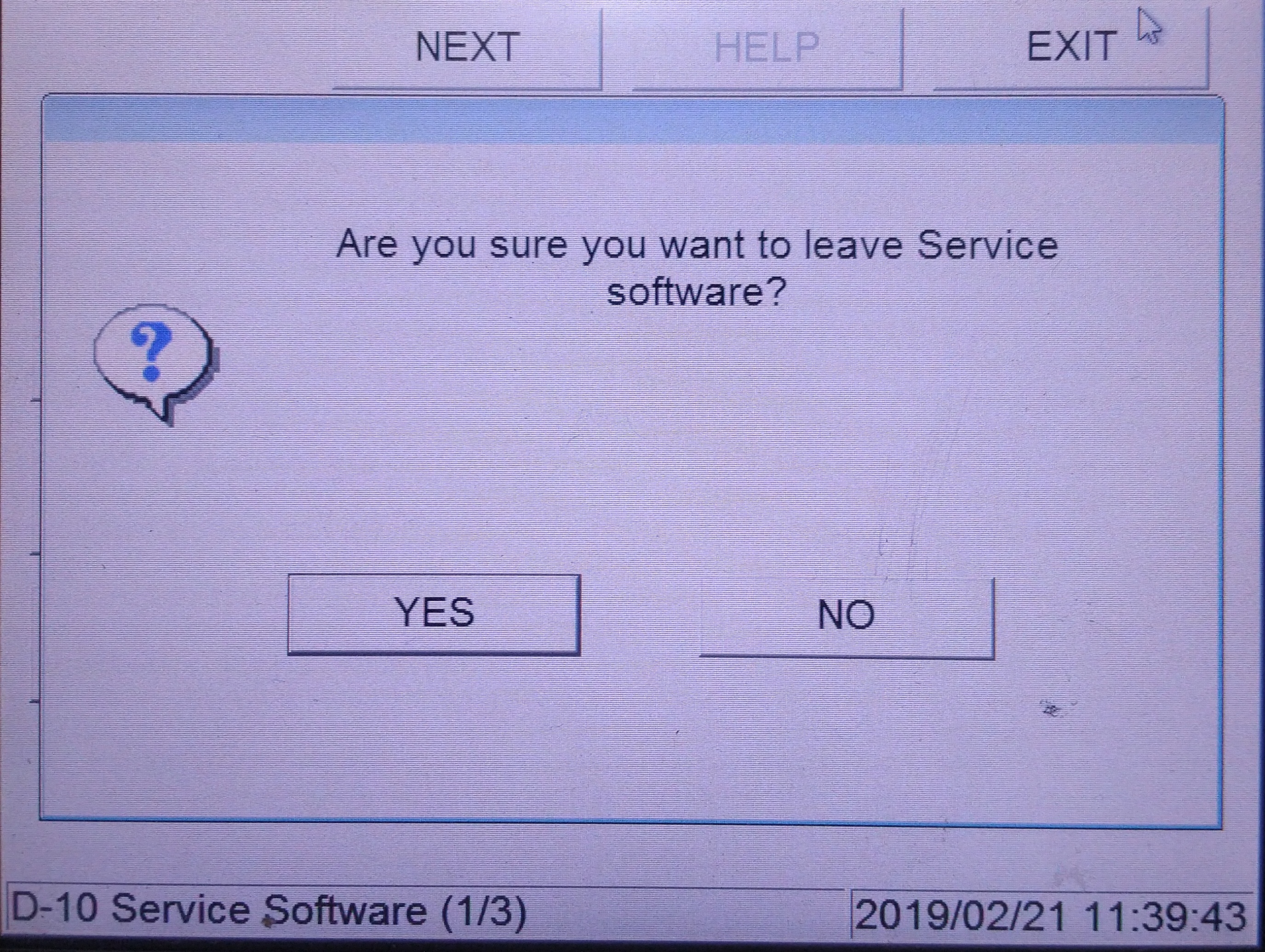
 Then select Exit to Service Software.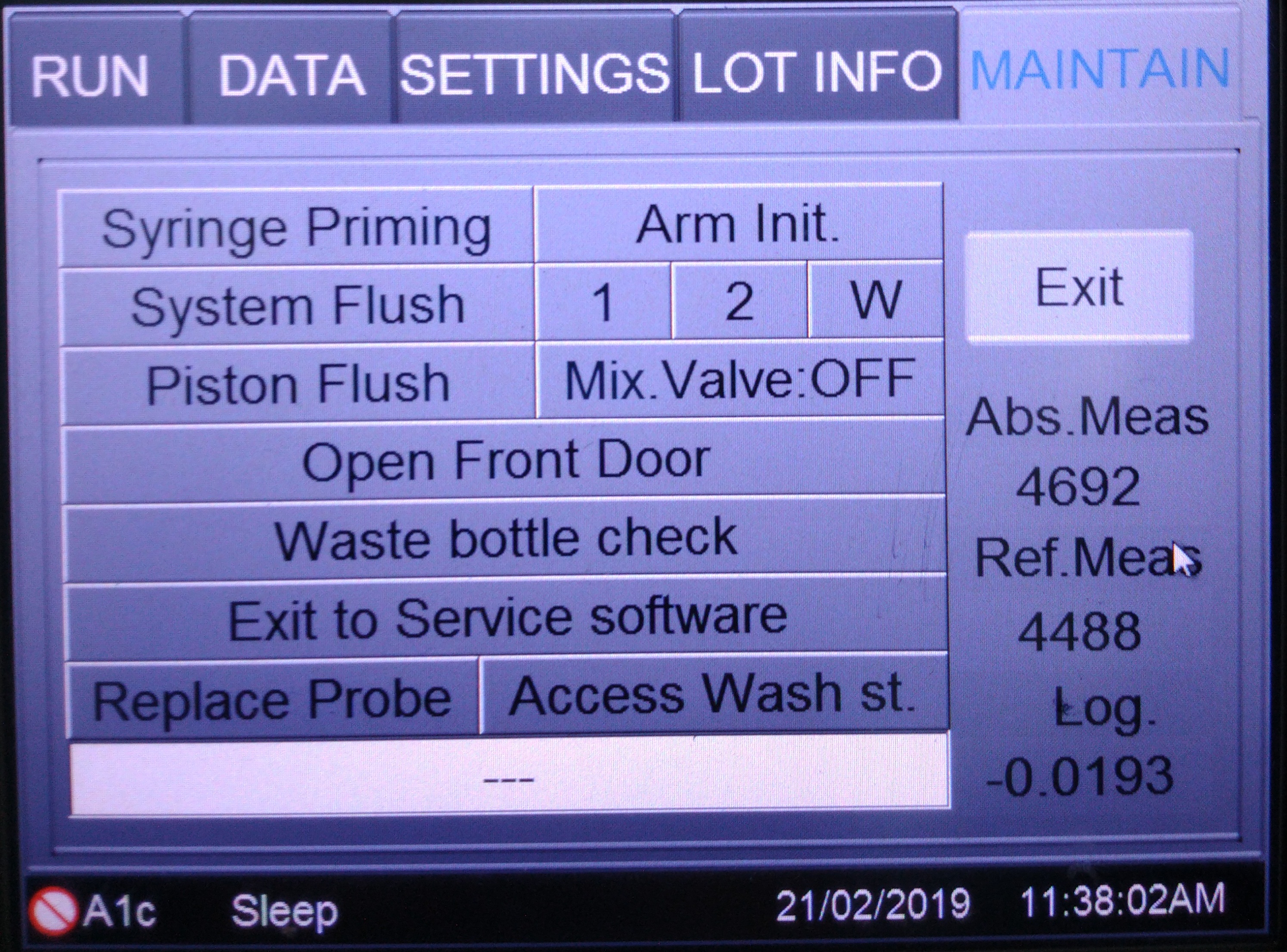
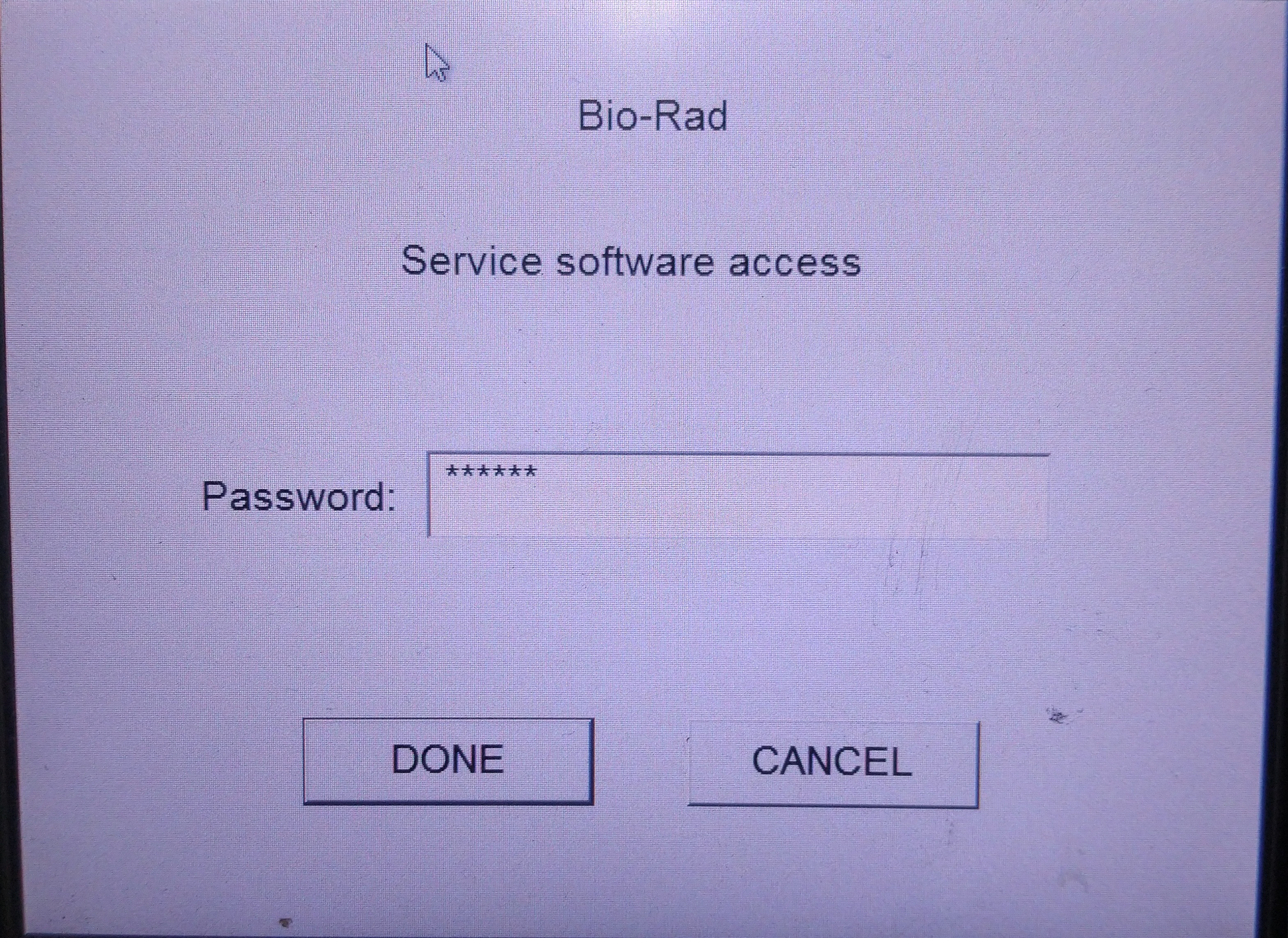
- Then it will request for a password and enter ‘DIA904‘ as the password and click Done.
- Then select Next and go to second page.
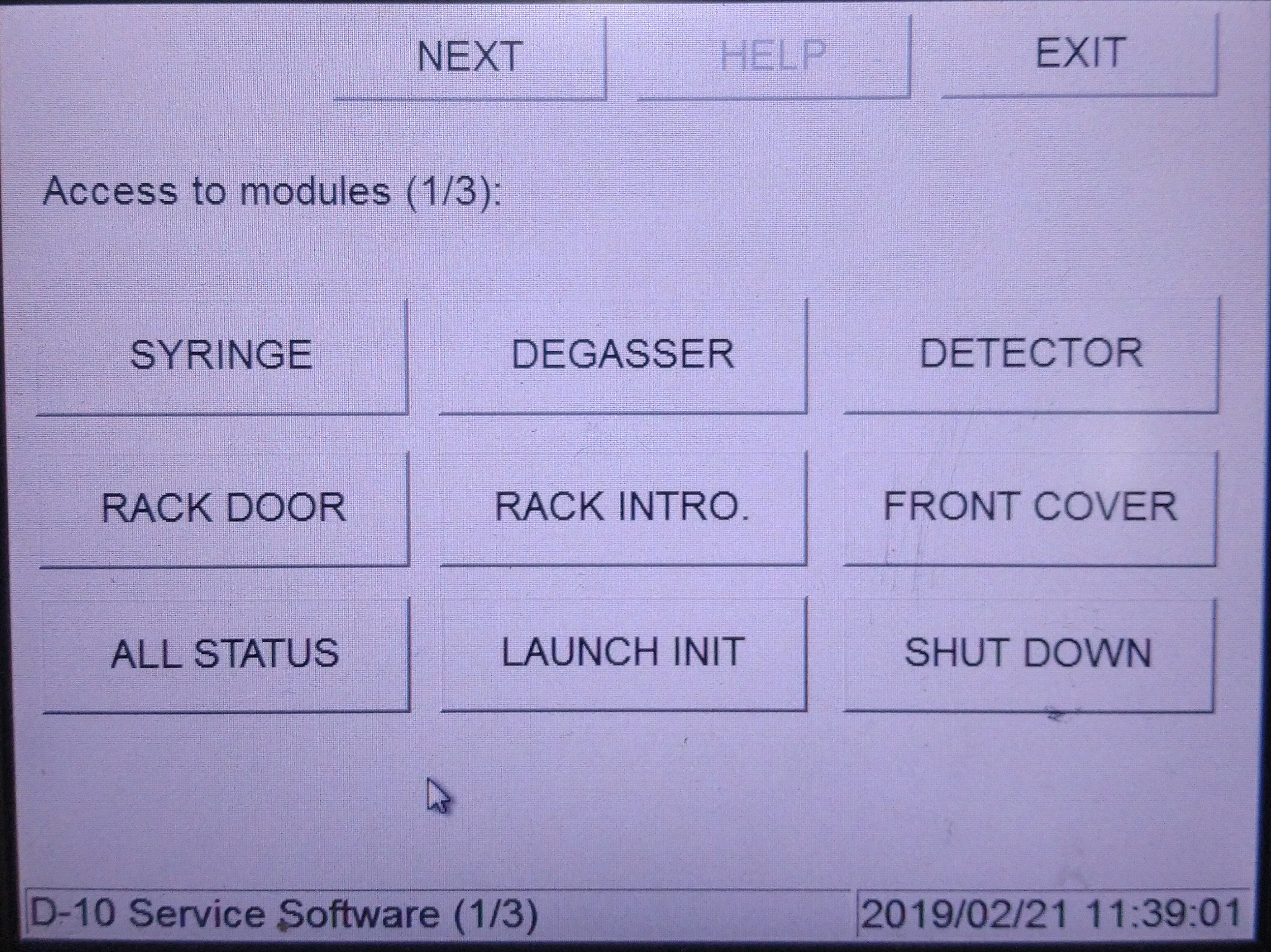
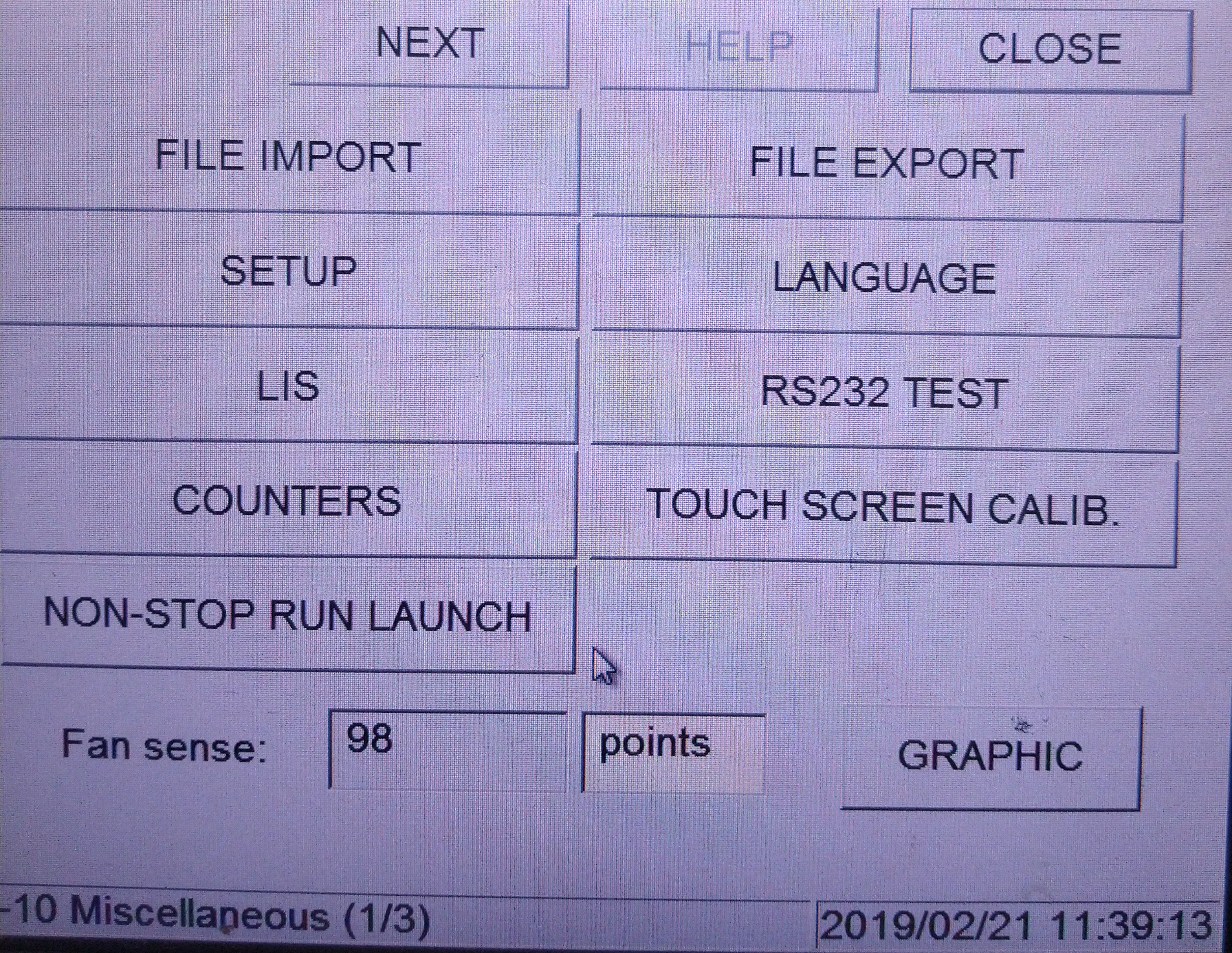
- On the second page, select MISC.
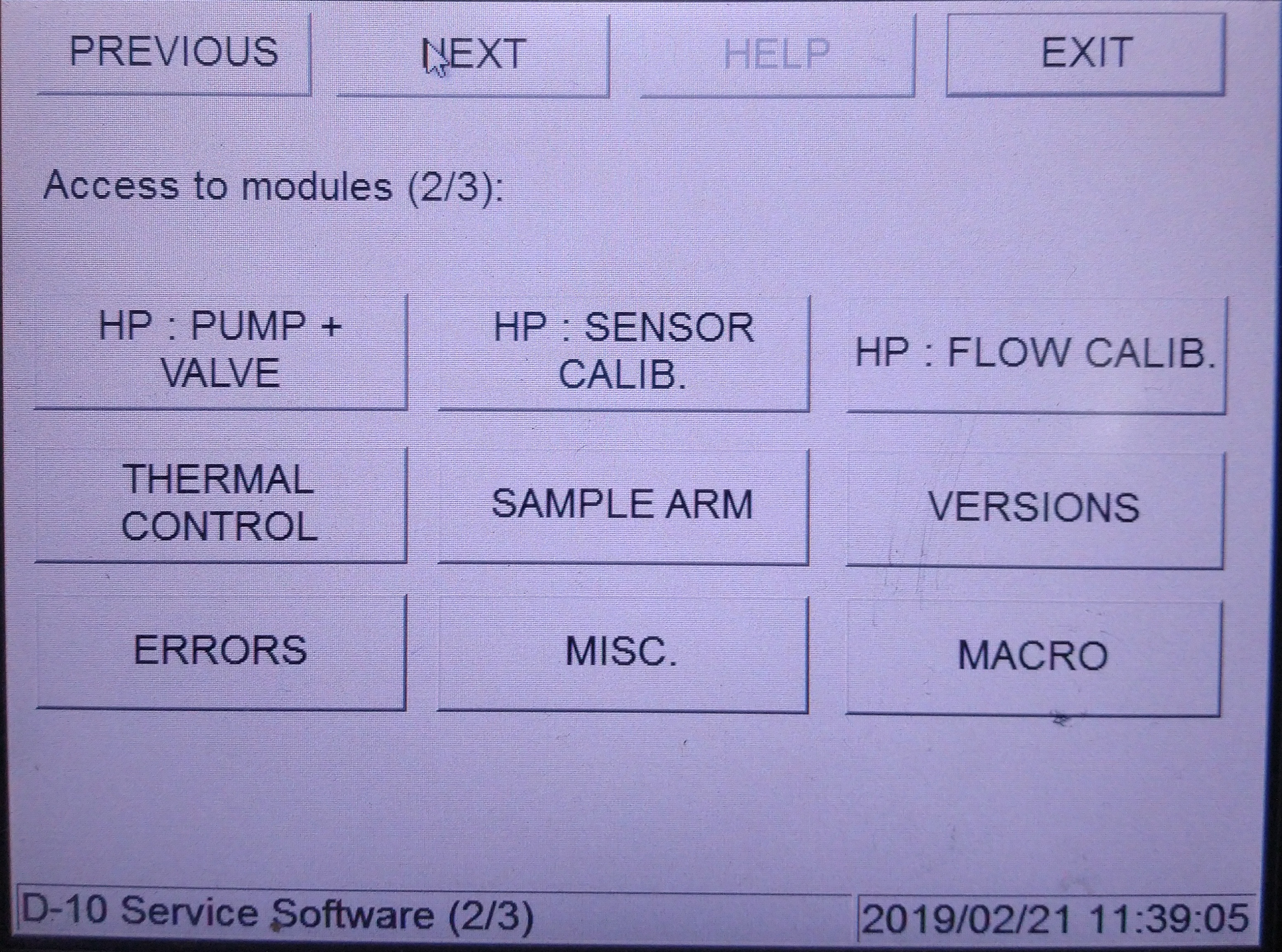
- Then select LIS
- Then check the Result waiting to be transmitted either there is a number or not.
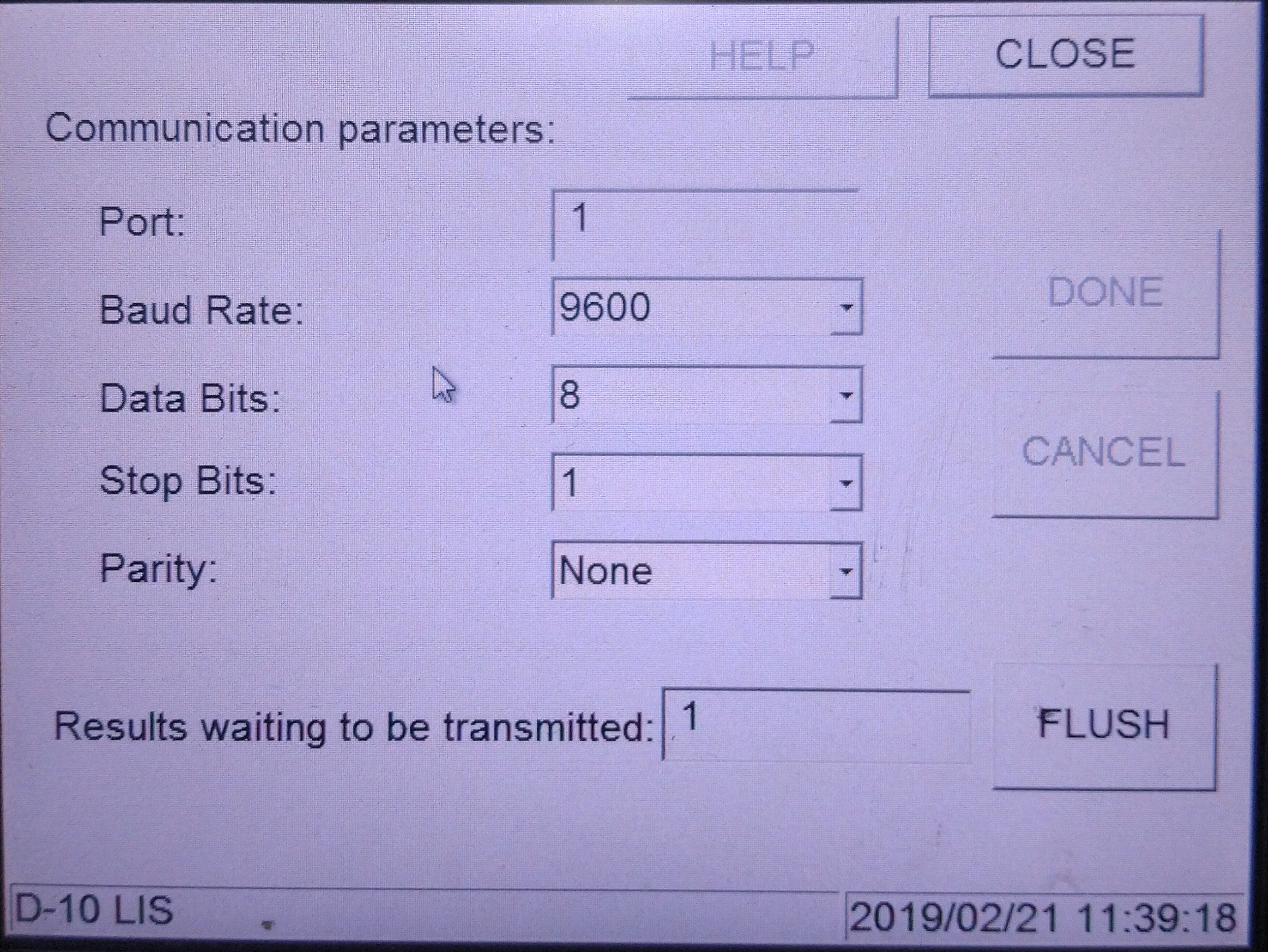
- If there is a number, then select Flush and there will be a pop up asking Are you sure to flush the result? Select Yes
- The result waiting to be transmitted should become 0.
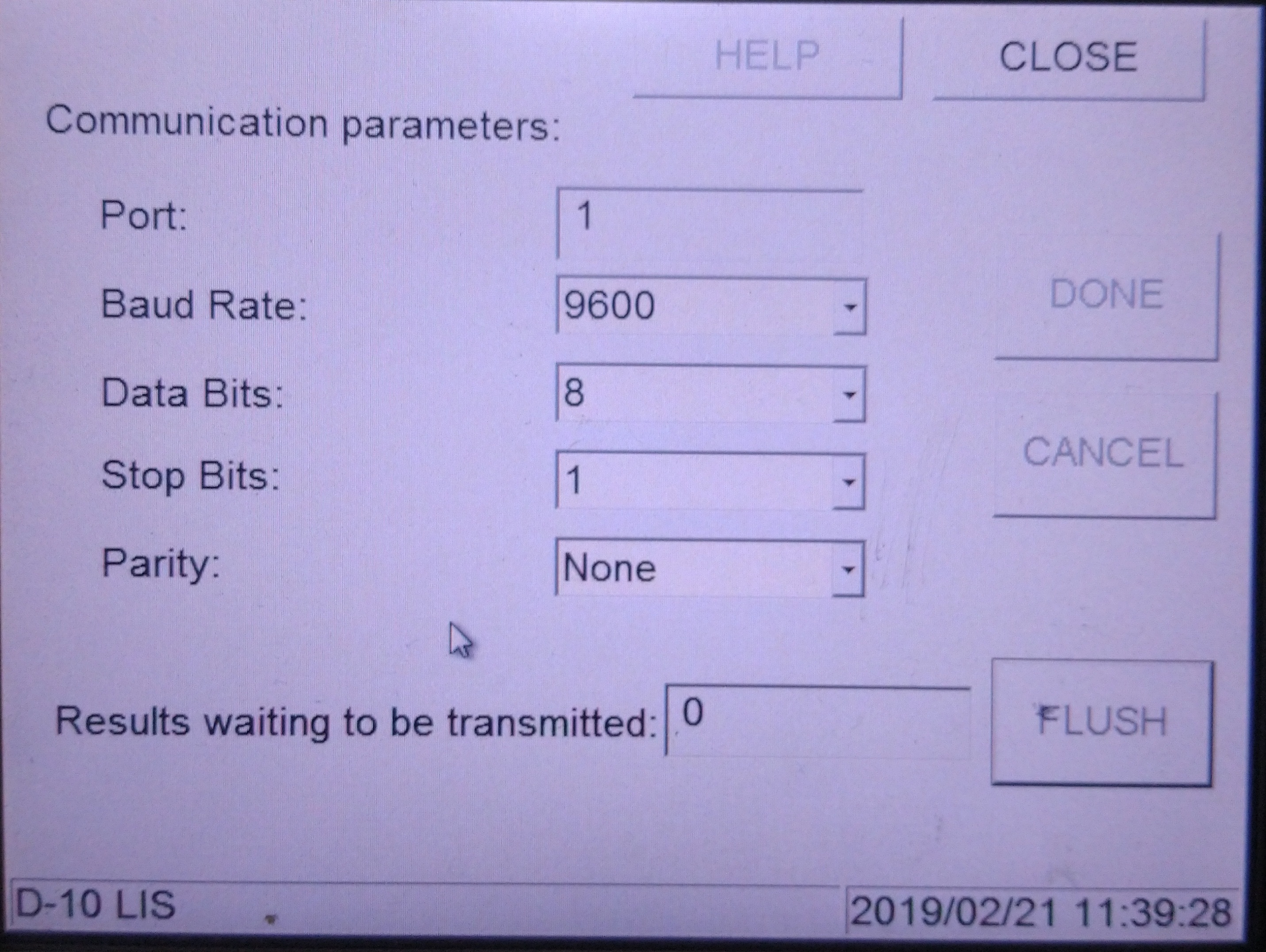
- Select Close on the upper right corner and there will be a pop up message asking Are you sure to leave? Select Yes.
- Open ChemoLIMS Server Console
- Select Bio Rad D10 on the left side and select Stop.
- Then make sure the cnnector status change from Idle to Running
- Then select the Start Up button on the right side
-
- After the machine is fully start up, re-transmit the data by selecting the Data Tab
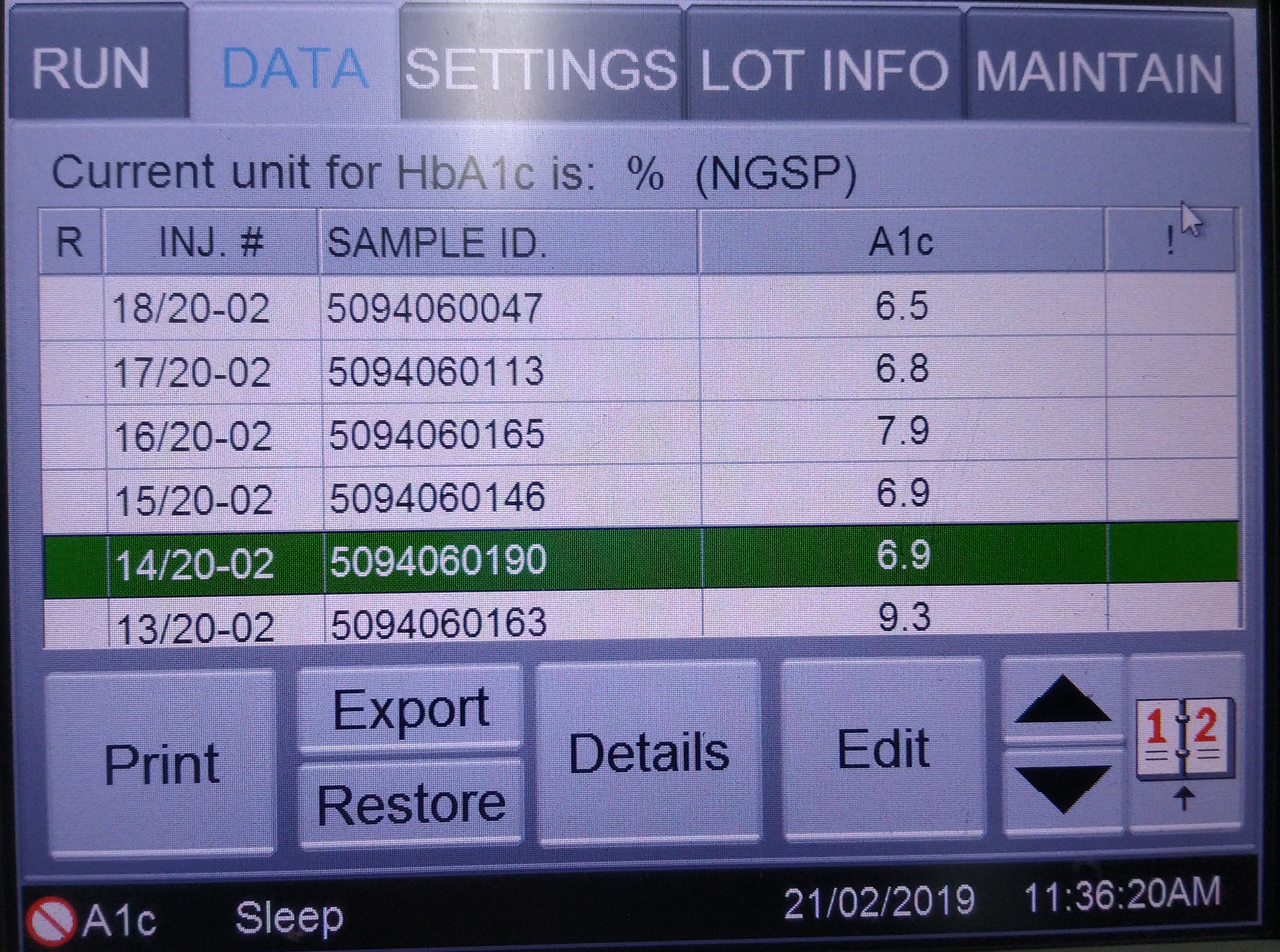
- Then highlight on several sample and select Export.
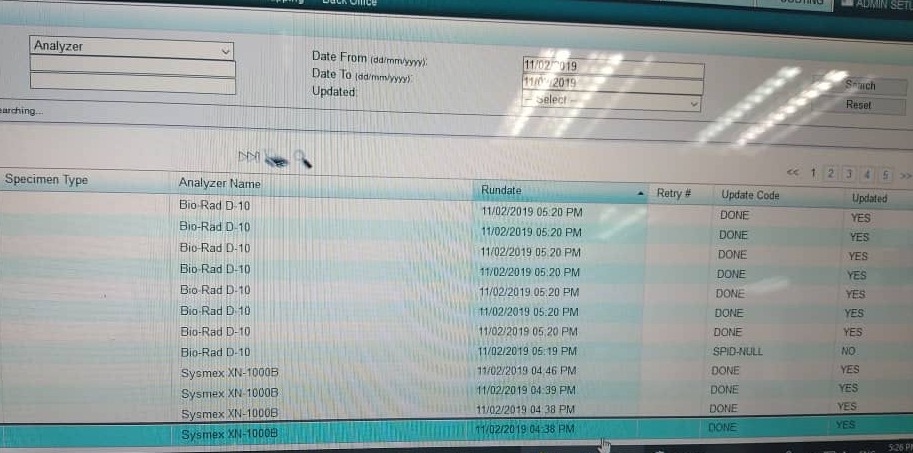
- Then log in Chemolims and select Admin Setup -> Back Office-> Manage Result Buffer and check either there is result from Bio Rad D10 or no.
Total 0 Votes:
0
0
