Solution 1 – Check ChemoLIMS App Server
- Search for Services program.
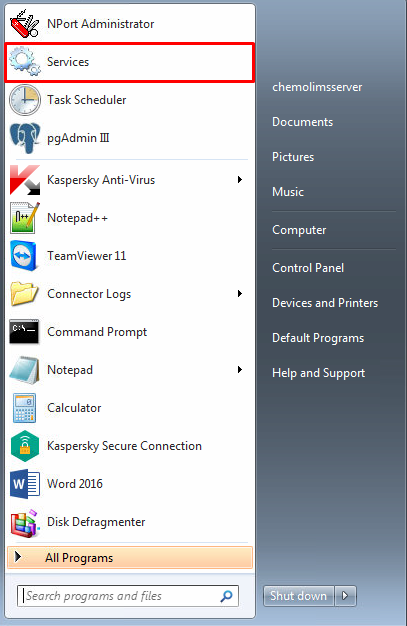
- Search for ChemoLIMSAppServer

- If it is not running, Start the services on the left sidebar.
- If it is running but still cannot access ChemoLIMS, Stop the service and Start the service again.
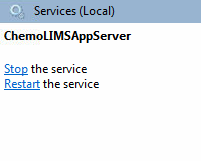
- Refresh (f5) the page and try to access ChemoLIMS again by entering this url.(http://chemolimsserver:18080/chemolims/login.jsp)
Solution 2 – Check Windows Firewall
- Open Windows Firewall.

- If the firewall is On, it will be green. If it is green select Turn Windows Firewall On or Off on the left side.
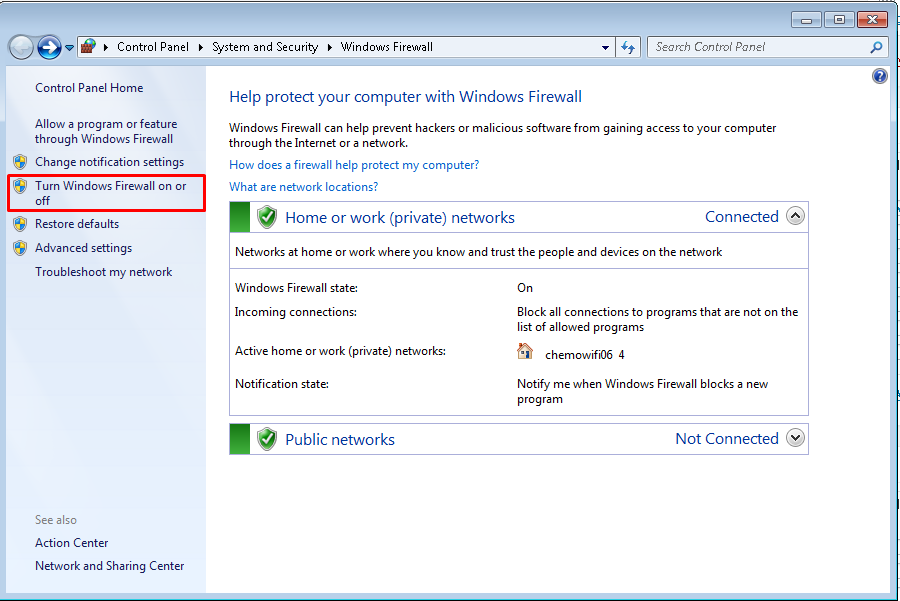
- Then check on Turn off Windows Firewall.

- After the Windows Firewall is off, it will become red.

- Refresh (f5) the page and try to access ChemoLIMS again (http://chemolimsserver:18080/chemolims/login.jsp)
Solution 3 – Check Ethernet Connection
- Click on Internet Access Icon

- Then select on Open Network and Sharing Center
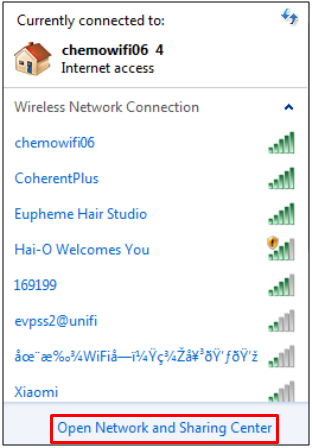
- Then select Change Adapter Settings on the left sidebar.

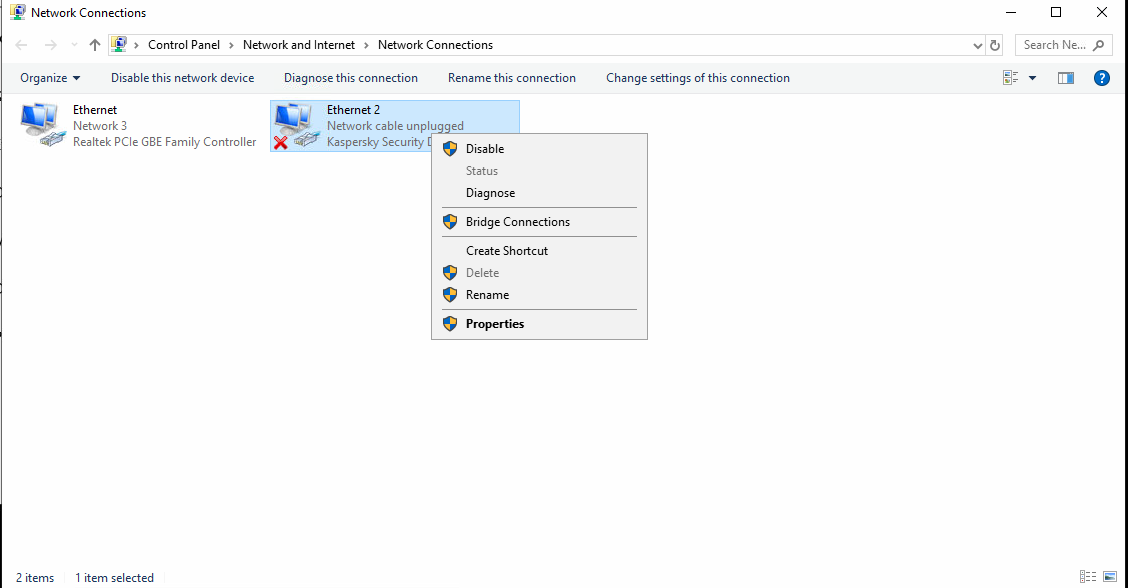
- Then check either the connection between the Kaspersky Security is enable or not.

- If it shows the Cross Mark, right click on the Ethernet 2 and select Disable.
- Refresh (f5) the page and try to access ChemoLIMS again (http://chemolimsserver:18080/chemolims/login.jsp)
Total 0 Votes:
0
0
