Category: Troubleshooting

Troubleshoots Unable to send Emails.

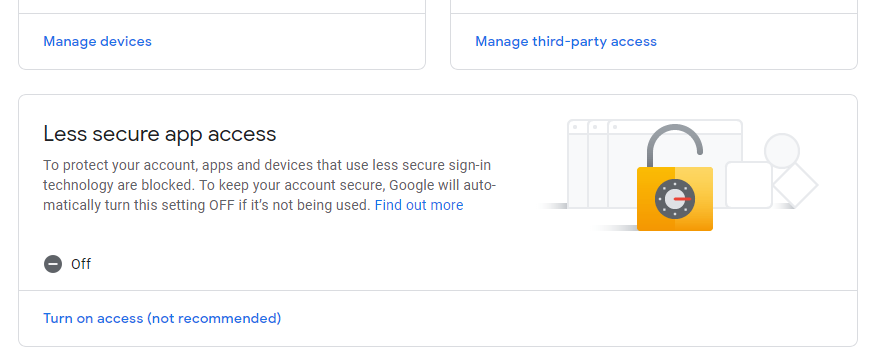
Among the problem unable to send emails is because we did not enable less secure apps on gmail settings.
By default it will be turn OFF. We need to turn it on.

Sign in into gmail account you wish to be use for emailing and copy paste link below.

https://myaccount.google.com/security

Scroll down until you see Less Secure Apps Access and turn it ON.
Additional info if still can’t send email from ChemoLIMS even after disable less secure apps.

1. Try login into gmail from that PC using any browser.
2. There will be block login attempt from that computer. Need to verify using your phone. Verify completely
3. Retry.
 

[Quick Patch] Update ranges upon save/validate test results for QMS

Navigate to C:\ChemoLIMS\server\minimal\webapps\chemolims\results

Edit the file : testresult-process.jsp

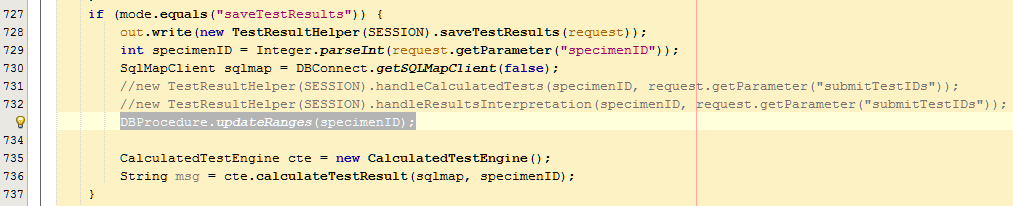
Add this text into at bottom block “saveTestResults”  .

DBProcedure.updateRanges(specimenID);


Example as above.

Nova Batch Transmission

If we need to reset transmission flag to nova by huge samples , run the query as below and save as CSV to get the all the specimenID.

select array_to_string(array_agg(specimenid::integer), ‘,’) from patient_specimens where date(registerdate) between ‘2020-07-17‘ AND ‘2020-07-20‘ AND status ilike ‘%RP%’ AND registeredby ilike ‘%NOVA%’

Change the date in blue.

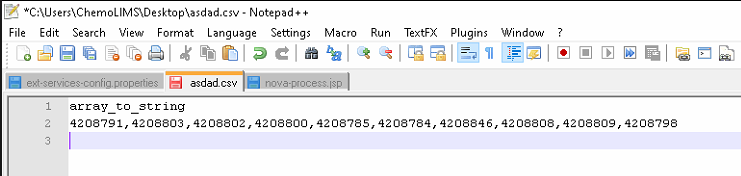
Open your csv and the content should be something like below.

Copy the sample ID and add to URL below.

If you using the URL from client PC:

http://ipaddressserver:18080/chemolims/service/nova-process.jsp?mode=generateResult&sampleid=4208791,4208803,4208802,4208800,4208785,4208784,4208846,4208808,4208809,4208798


If you using the URL from main server

http://localhost:18080/chemolims/service/nova-process.jsp?mode=generateResult&sampleid=4208791,4208803,4208802,4208800,4208785,4208784,4208846,4208808,4208809,4208798

Deleting Monthly Invoices for MediSCAN

Use the following URL to delete monthly invoices.  Practice maximum caution when deleting.  Once deleted, it cannot be undone.


http://limsmediscanpuchong.ddns.net:18080/chemolims_test/service/billing-process.jsp?mode=deleteinvoice&date=YYYY-MM-DD
   YYYY-MM-DD  is the date of the invoice to be deleted.  It should be in this format, e.g. 2020-04-30


Invoice date is normally the date the invoice is generated by the user.  This date can be acquired from the user.

Tele Primary Care (TPC) – Inbound

Inbound folder responsibility lies on TPC personnel.

Get the TPC contact Lab PIC and ask them to troubleshoot.

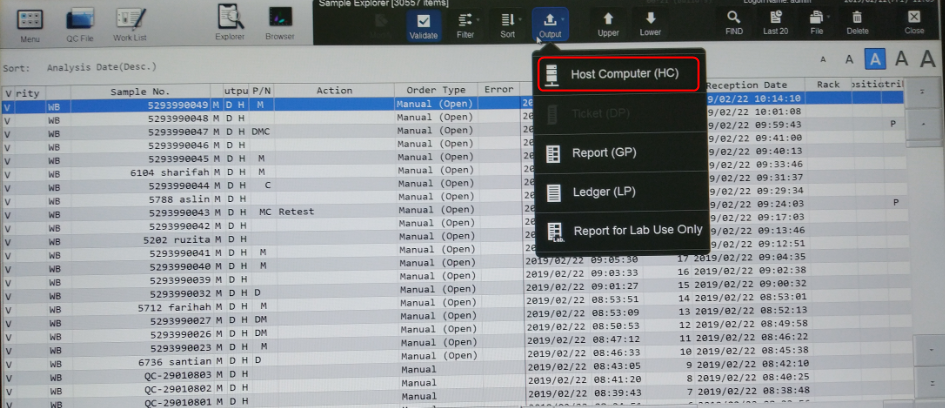
Result not transmitted from Sysmex XN-1000

Solution 1 – Check Host Status

  1. Remotely enter XN-1000 PC.
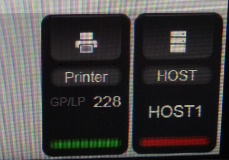
  2. Check the Host Status on the right side of the computer. 
  3.  
  4. If the host is showing Host 1 but it is Red bar, restart XN-1000 computer. 
  5.  
  6. If the Host 1 is showing Green bar but it is blinking, restart XN-1000 computer. 

Solution 2 – Restart Server Console

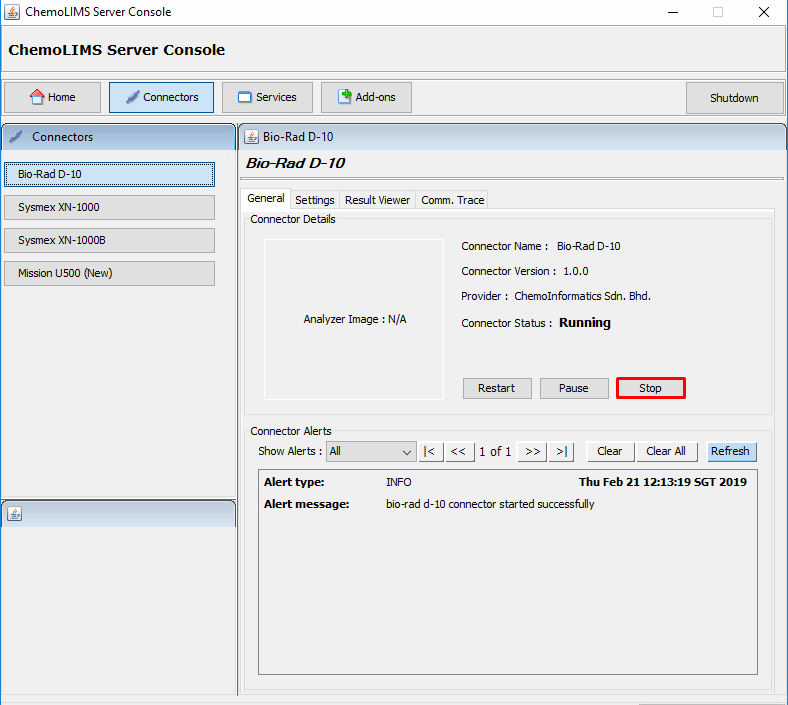
  1. Open ChemoLIMS Server Console
  2. Select Sysmex XN-1000 on the left side and select Stop
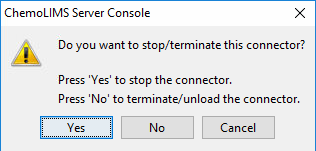
  3. Next, there will be a pop up message
  4. If select Yes, it will only terminating the process and if select No, it will kill .exe file and relaunch the connector. 
  5. Refresh (f5) and Select on XN-1000 again on ChemoLIMS server Console
  6. Then click only once on Start button to start the connector again. 
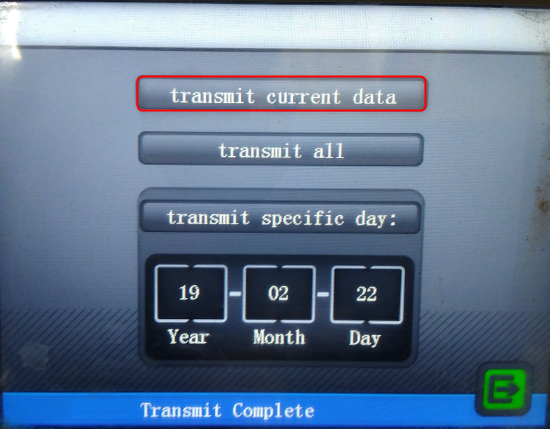
  7. Lastly, user need to re-transmit the data from XN-1000

Solution 3 – Check IP Address

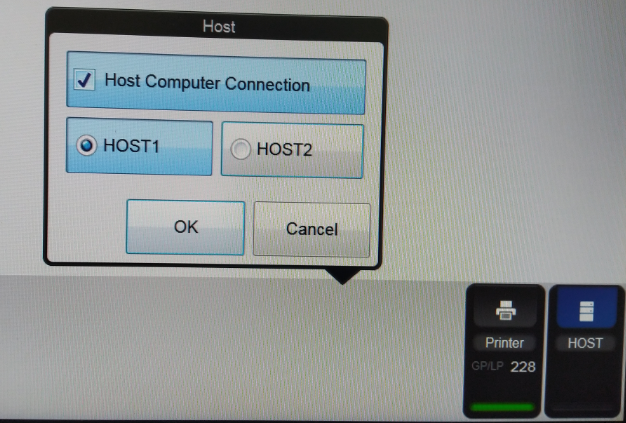
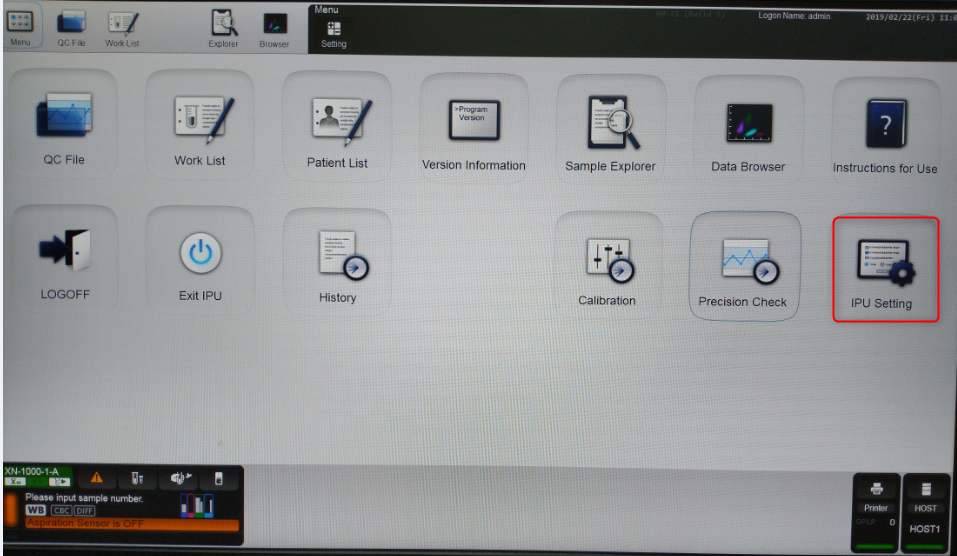
  1. Menu -> IPU Setting 
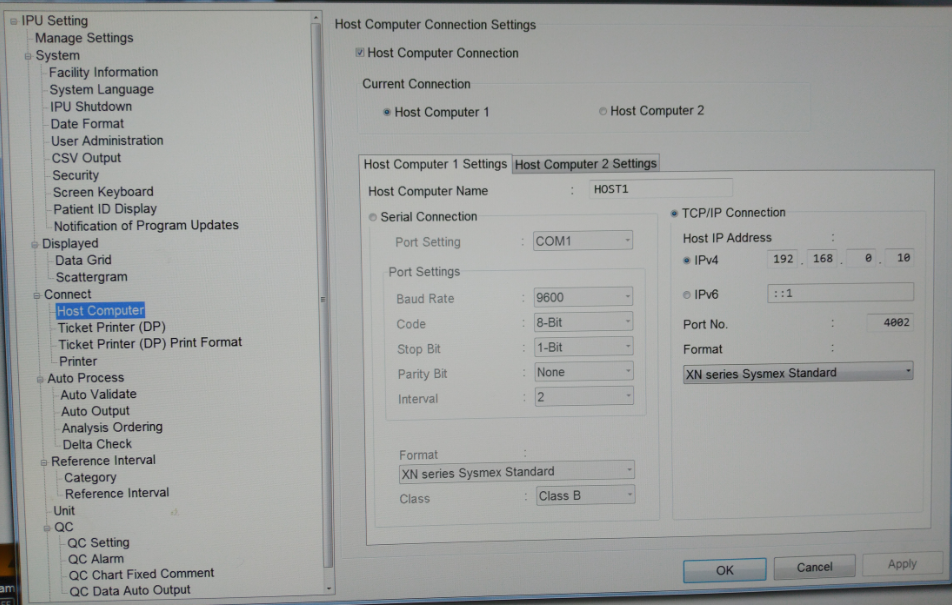
  2. Select Host Computer and check Host Computer 1 Settings
  3. Make sure the IPv4 is 192.168.0.10

Result not transmitted from Mission U500

Solution 1 – Restart Server Console

  1. Open ChemoLIMS Server Console
  2. Select Mission U500 on the left side and select Stop
  3. Next, there will be a pop up message
  4. If select Yes, it will only terminating the process and if select No, it will kill .exe file and relaunch the connector. 
  5. Refresh (f5) and Select on Mission U500 again on ChemoLIMS server Console
  6. Then click only once on Start button to start the connector again. 
  7. Lastly, user need to re-transmit the data from Mission U500

Unable to access ChemoLIMS from Client PC

Solution – Check Client PC

Windows 7   

  1. Open the Client PC 1 or Client PC 2 and check the network connection (internet) 
  2. If there is a Cross  , there is a possibility the network cable is unplug.

  3. If there is Exclamation Mark , there might be some network problem.
    1. Right click on the internet access icon 
    2. Select Troubleshoot Problems
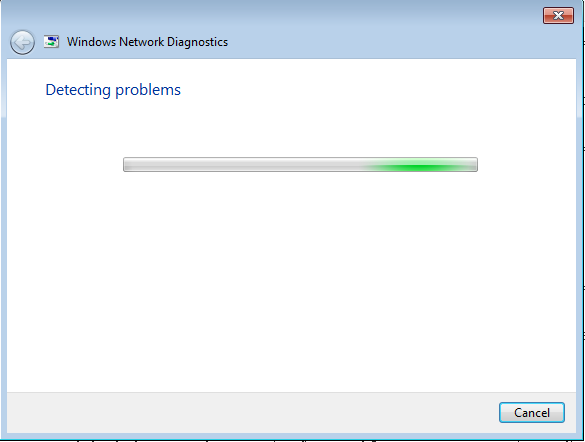
    3. the windows will start the detecting the problem
    4. After it detect the problem, it will automatically resolve the problem and shows what is the problems occurs.
    5. If there is still a problem, ask user to Restart the Computer or Restart the Router/Switch

Windows 10  

  1. Open the Client PC 1 or Client PC 2 and check the network connection (internet) 
  2. If there is a Cross  , there is a possibility the network cable is unplug.
  3. If there is Exclamation Mark , there might be some network problem.
    1. Right click on the internet access icon 
    2. Select Troubleshoot Problems
    3. The windows will start the detecting the problem
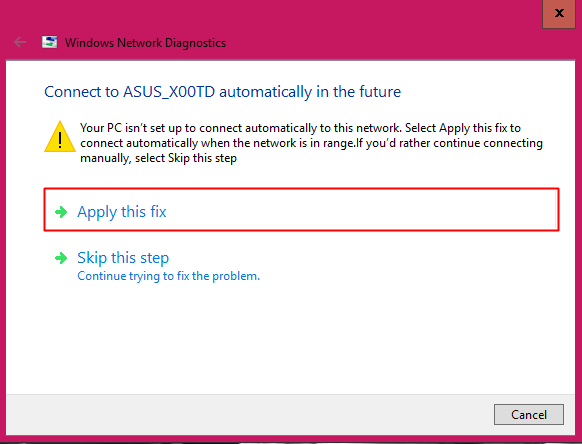
    4. After it detect the problem, it will shows what is the problem and the solution that might help.Select Apply This Fix.
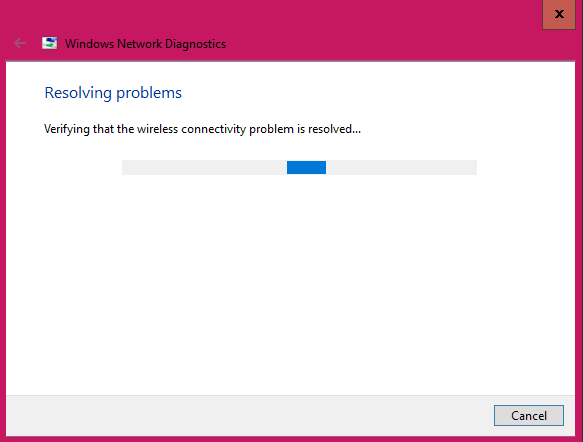
    5. Then the computer will try to resolve the problem.
    6.  
    7. After it resolve the problem, it will shows the problem occurs and either it is fixed or not.
    8.  
    9. If there is still a problem, ask user to Restart the Computer or Restart the Router/Switch

Result not transmitted from Bio-Rad D-10

Solution 1 – Restart Server Console

  1. Open ChemoLIMS Server Console
  2. Select Bio Rad D10 on the left side and select Stop
  3. Next, there will be a pop up message
  4. If select Yes, it will only terminating the process and if select No, it will kill .exe file and relaunch the connector. 
  5. Refresh (f5) and Select on Bio rad D10 again on ChemoLIMS server Console
  6. Then click only once on Start button to start the connector again. 
  7. Lastly, user need to re-transmit the data from Bio Rad D10 

Solution 2 – Check Export Setting

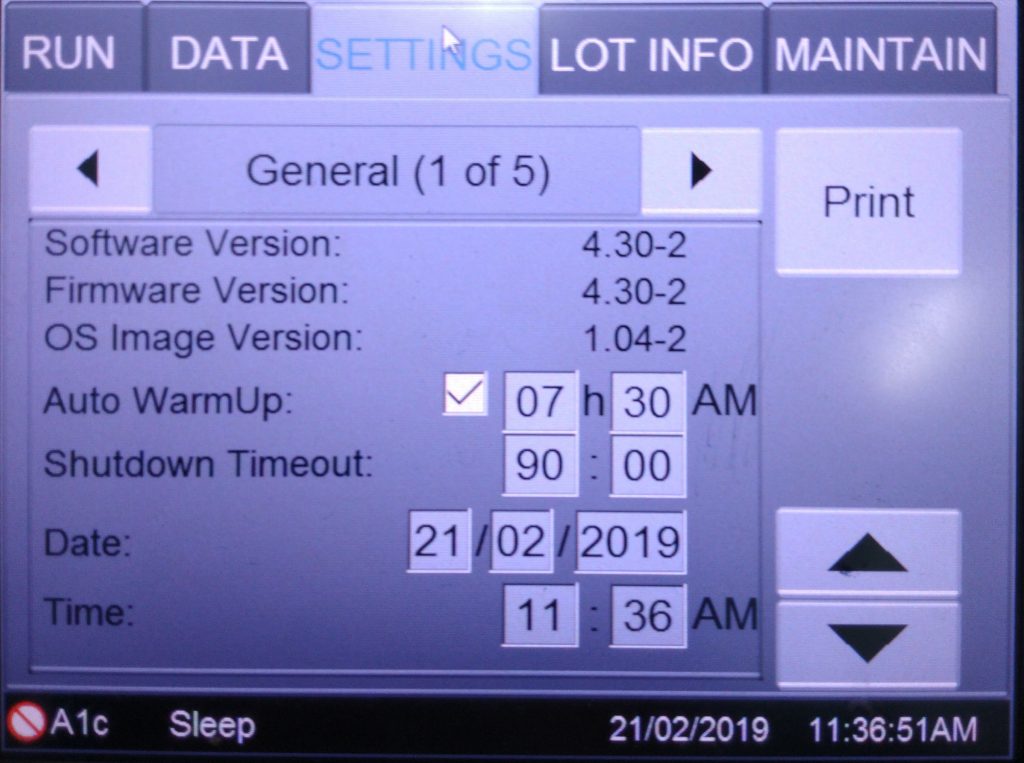
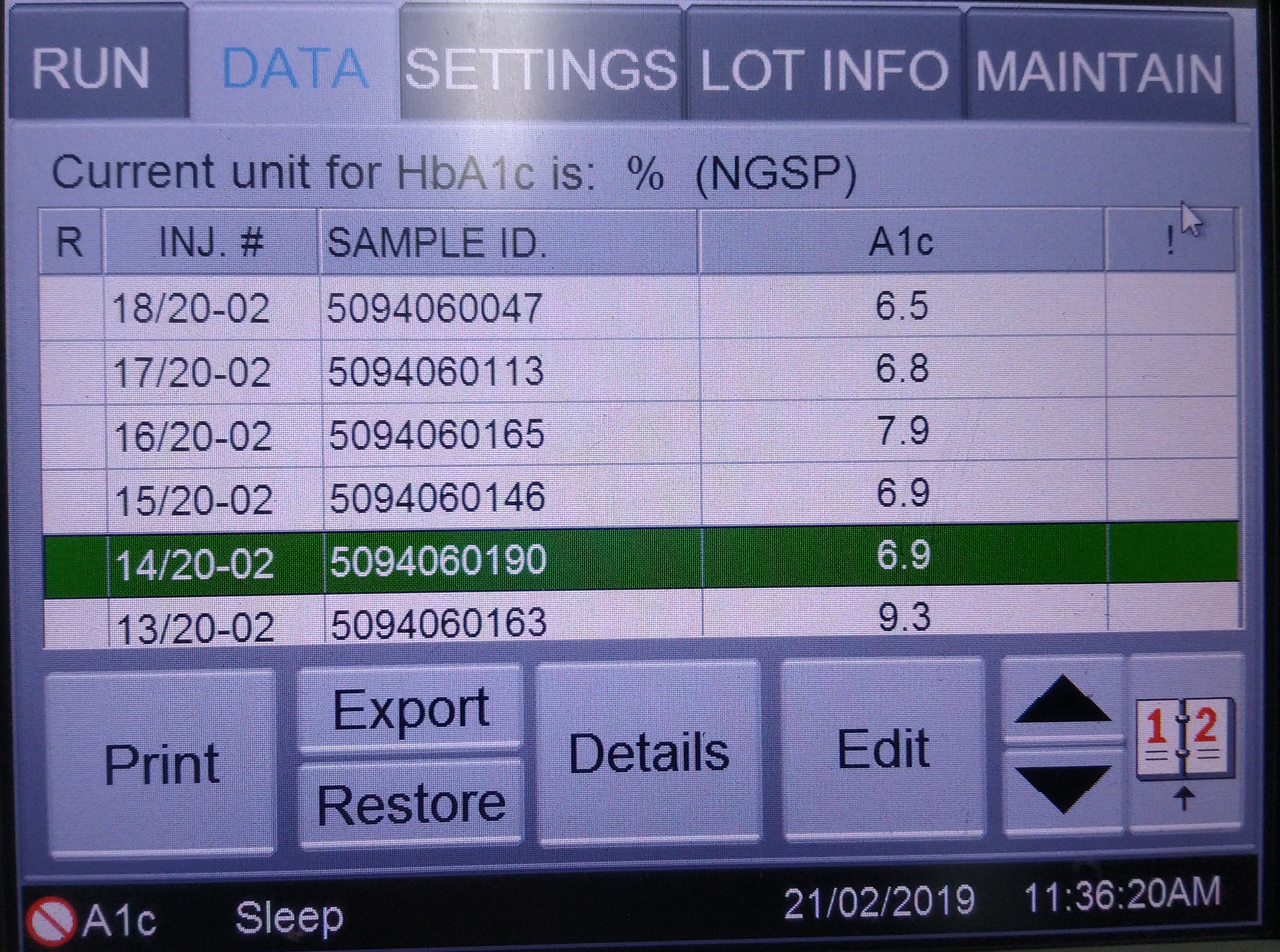
  1. Select Settings Tab
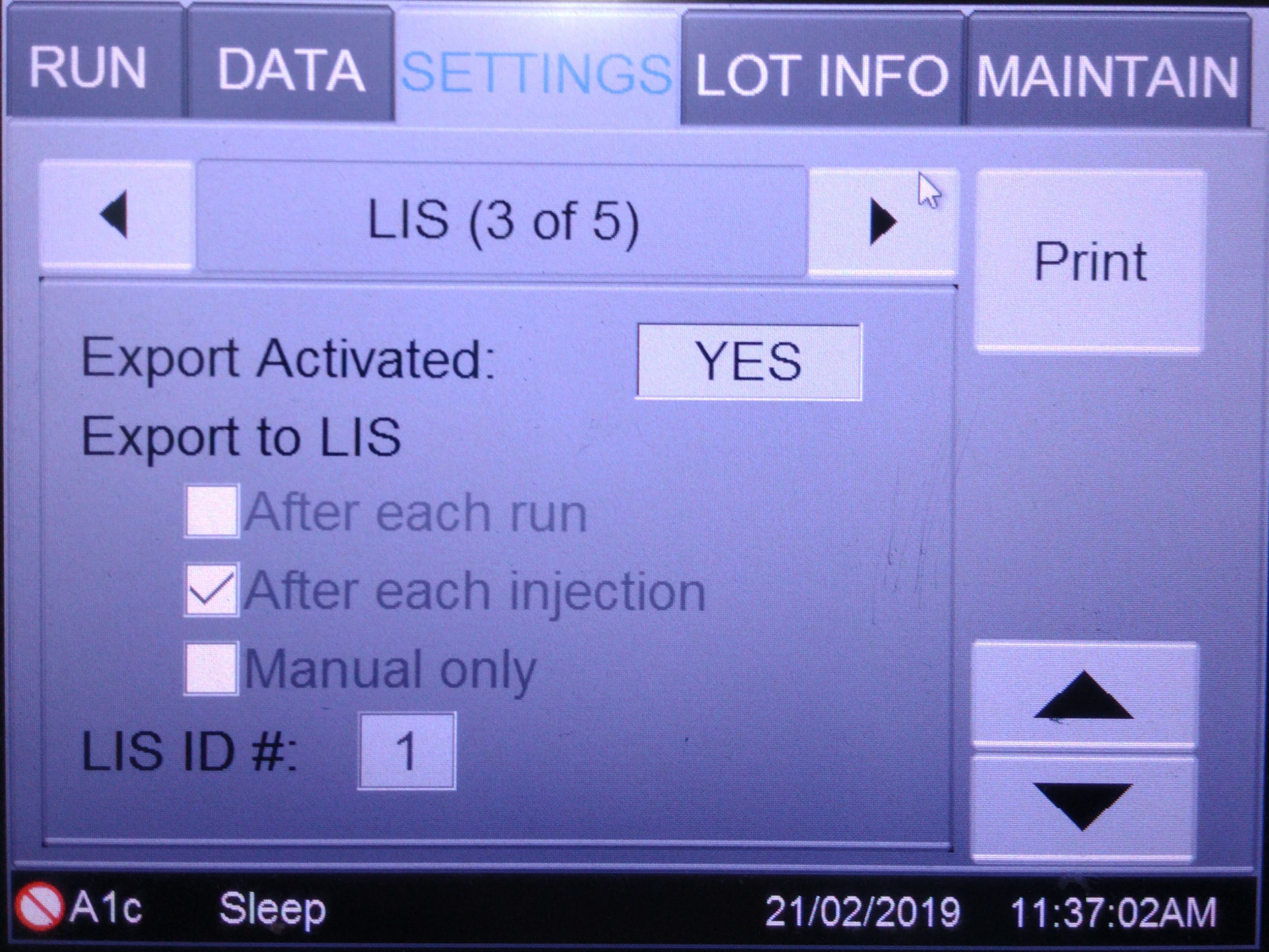
  2. Select on the arrow and go to the page 3
  3. Make sure Export Activated is YES and tick on After Each Injection.
  4. Then try to transmitted the result again.

Solution 3 – Flush Bio Rad D10

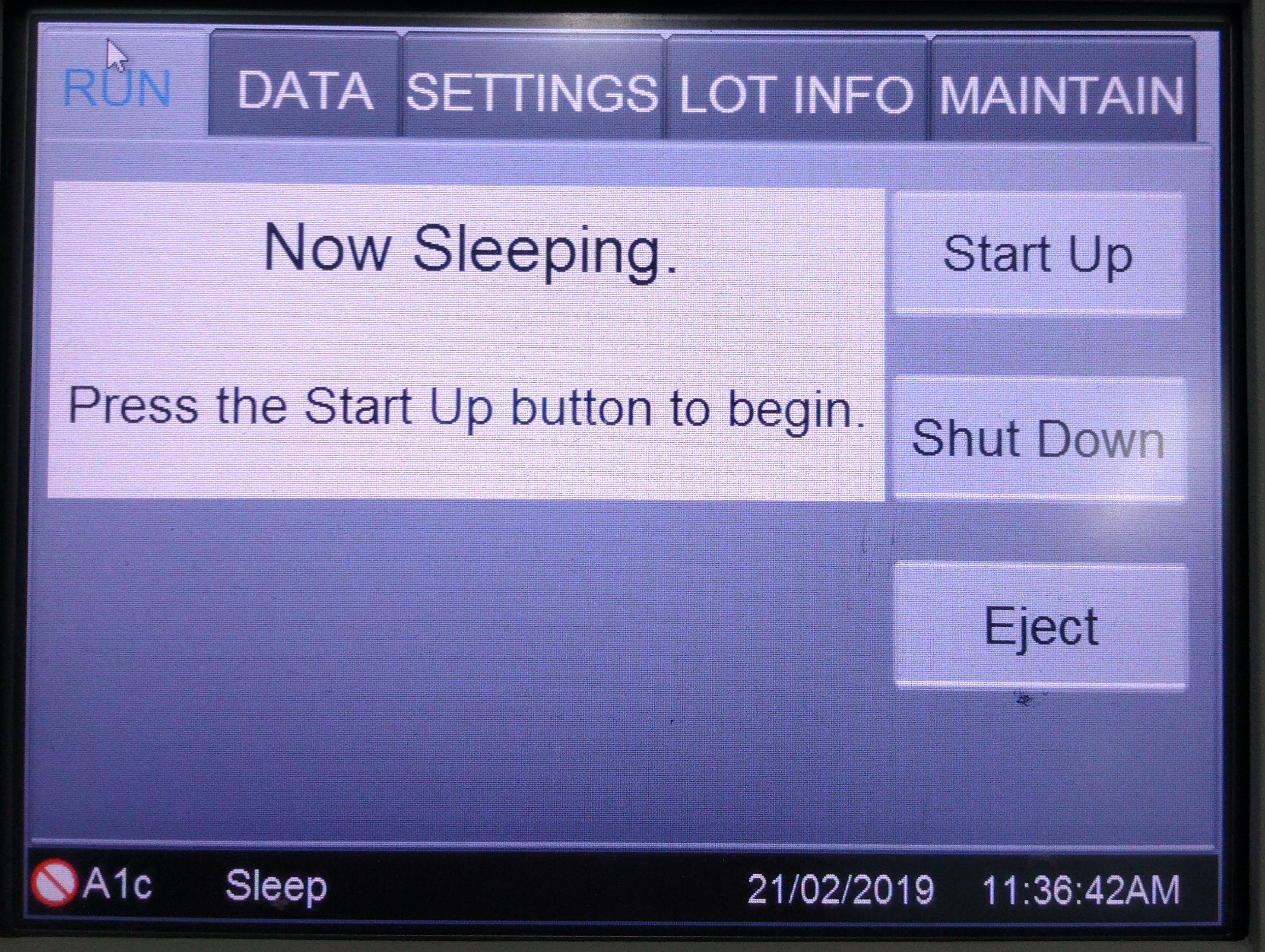
  1. Firstly, make sure the Bio Rad D10 is in the Sleep Mode.
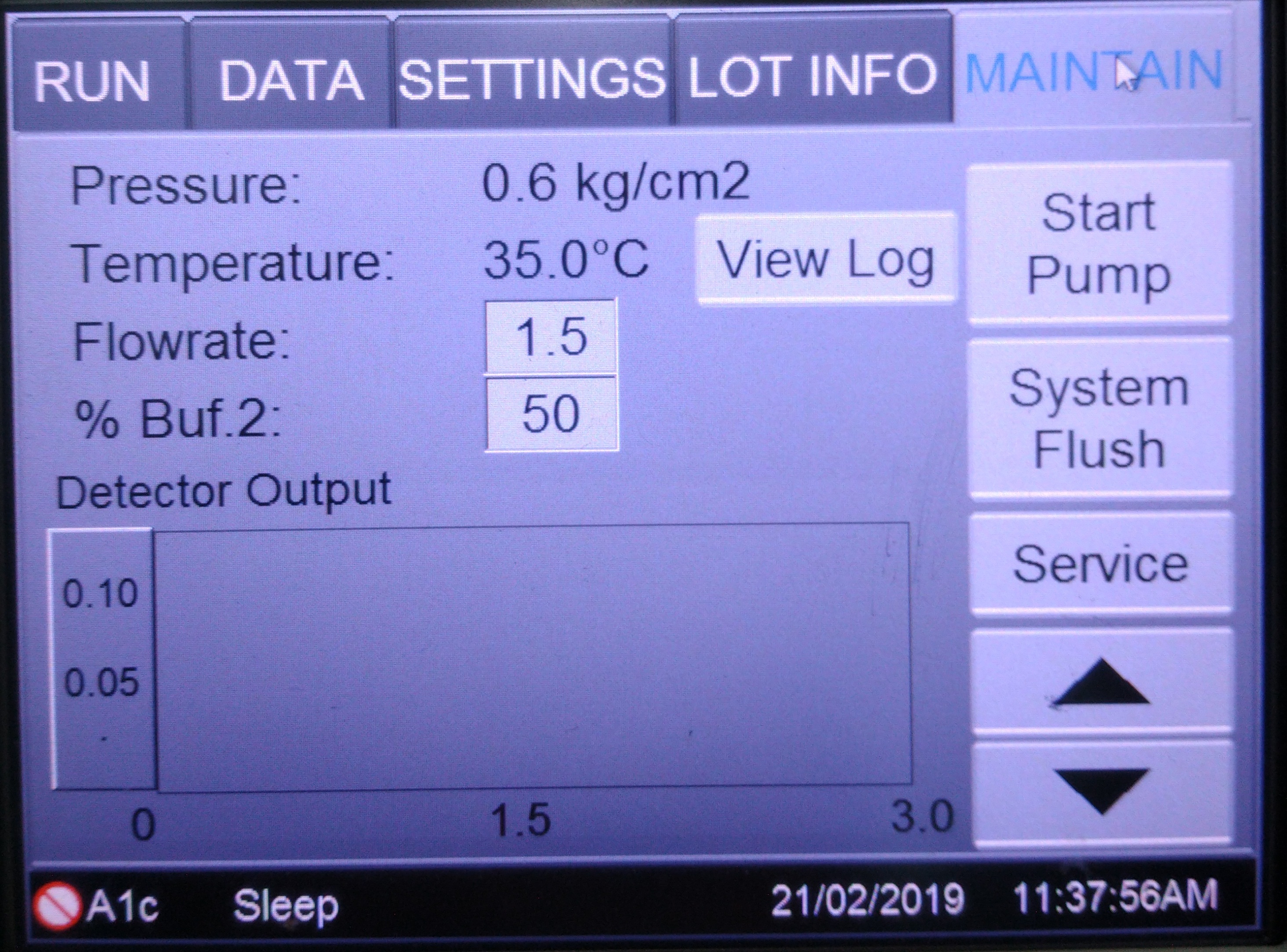
  2. Then select Maintain Tab and select Service on the right side.
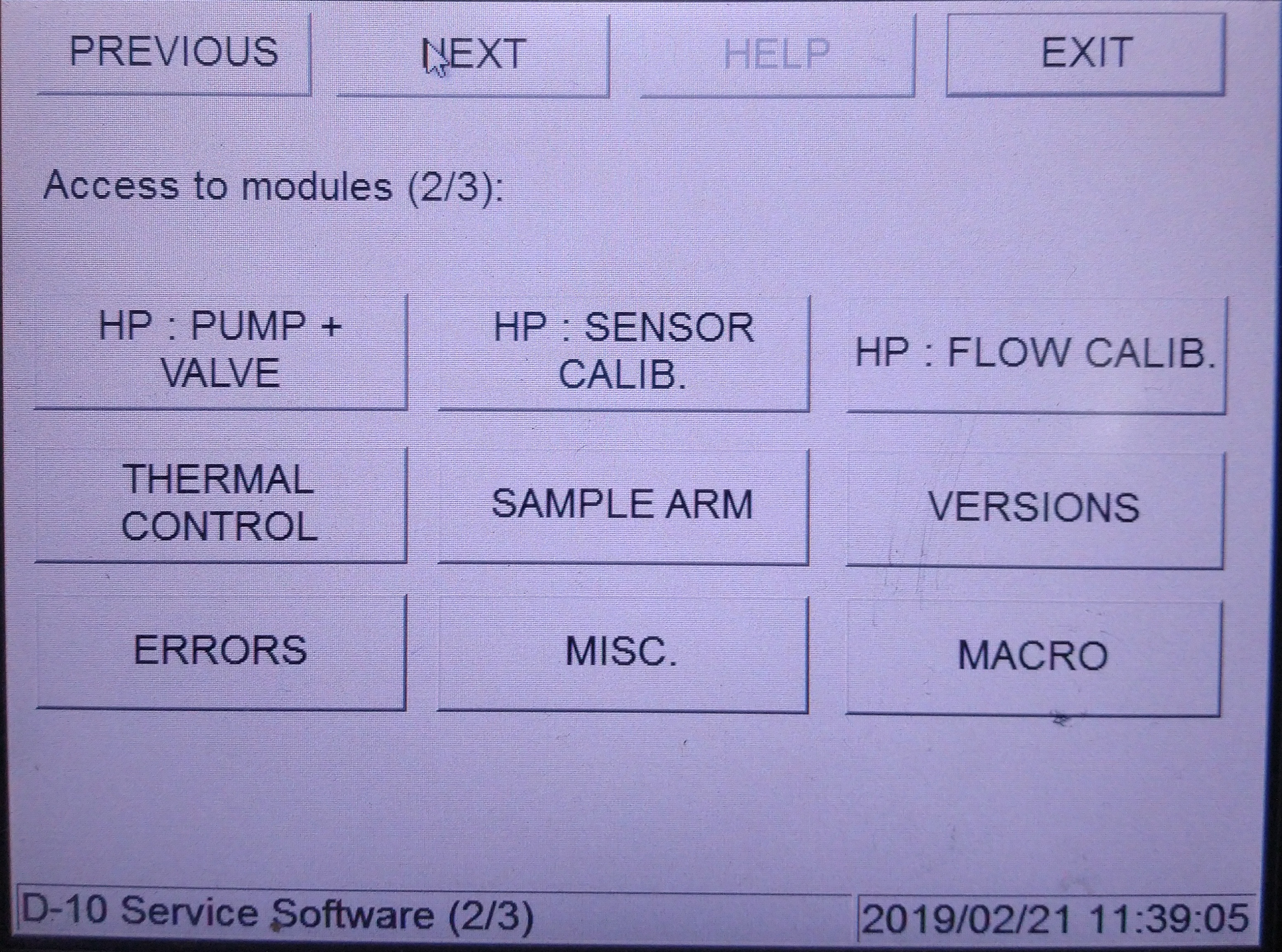
  3. Then select Exit to Service Software. 
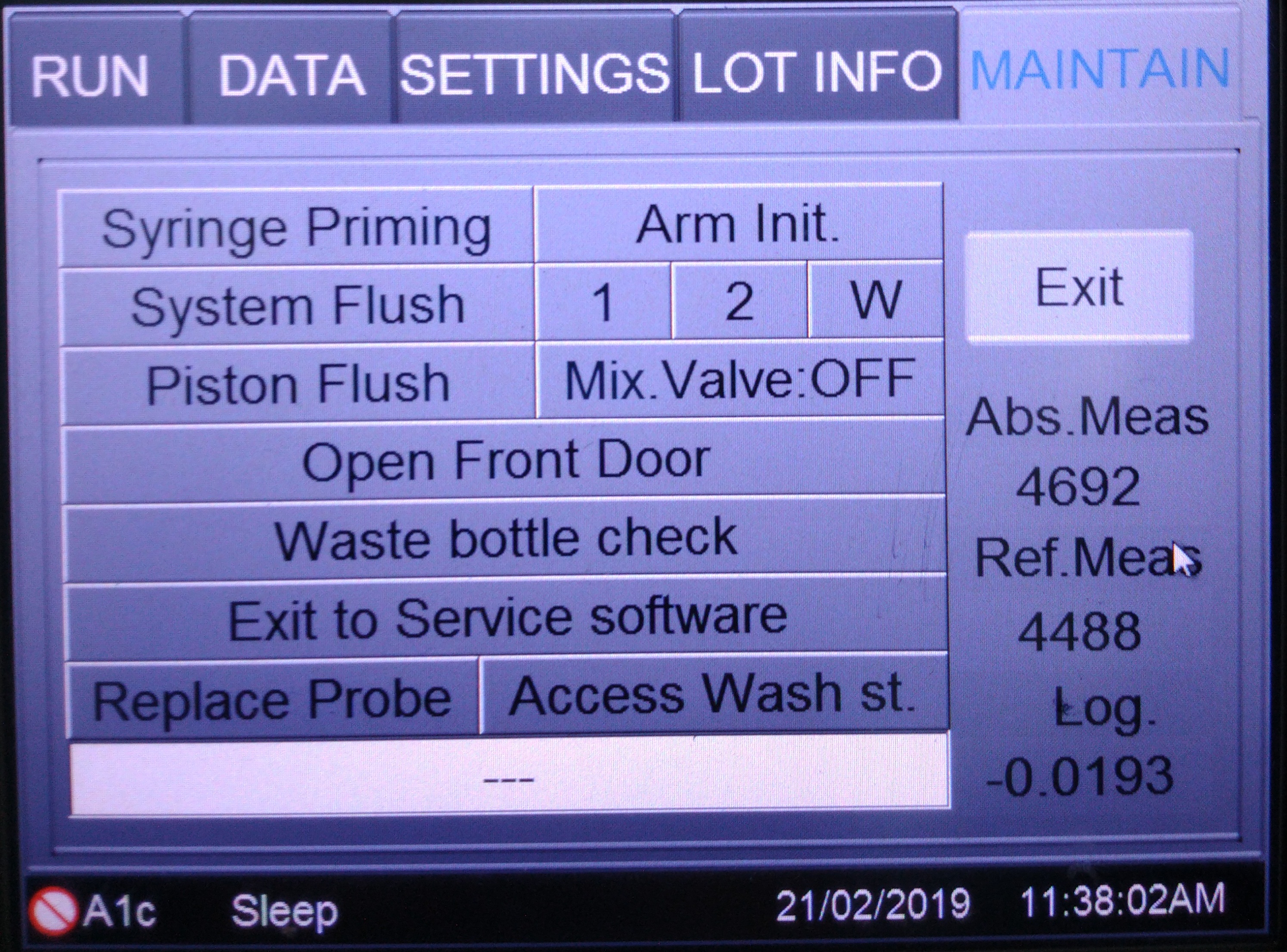
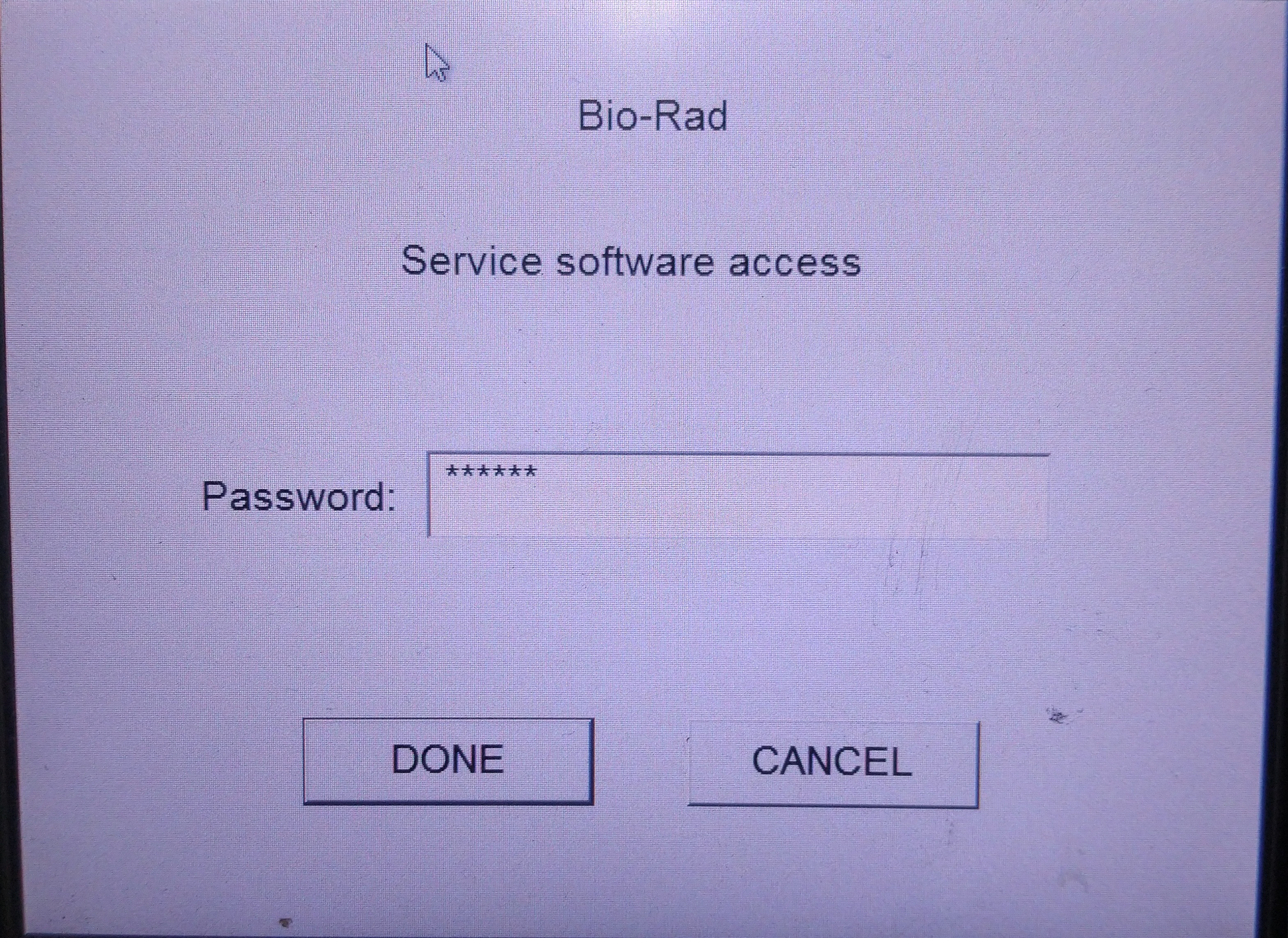
  4. Then it will request for a password and enter ‘DIA904‘ as the password and click Done
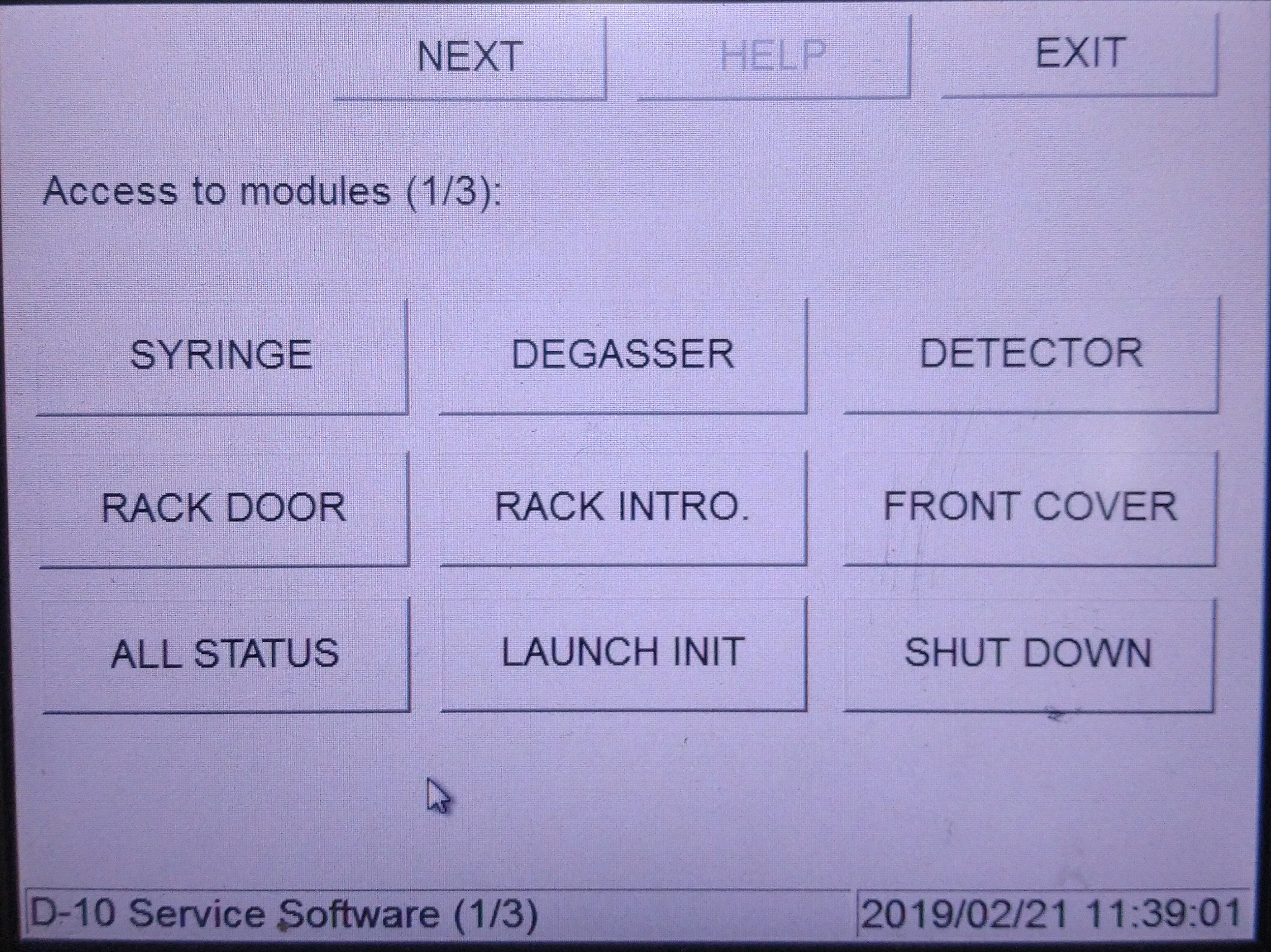
  5. Then select Next and go to second page.

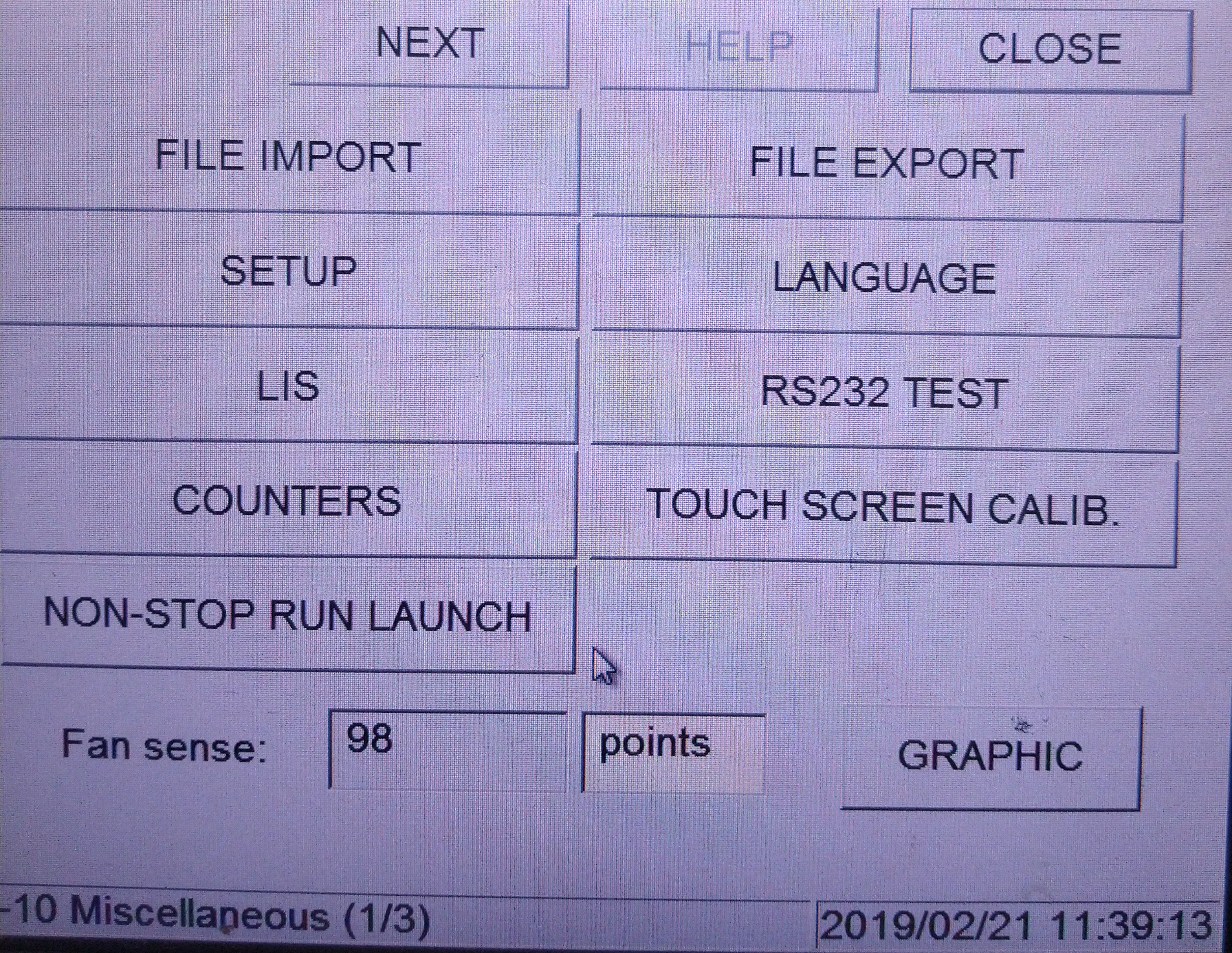
  6. On the second page, select MISC.

  7. Then select LIS
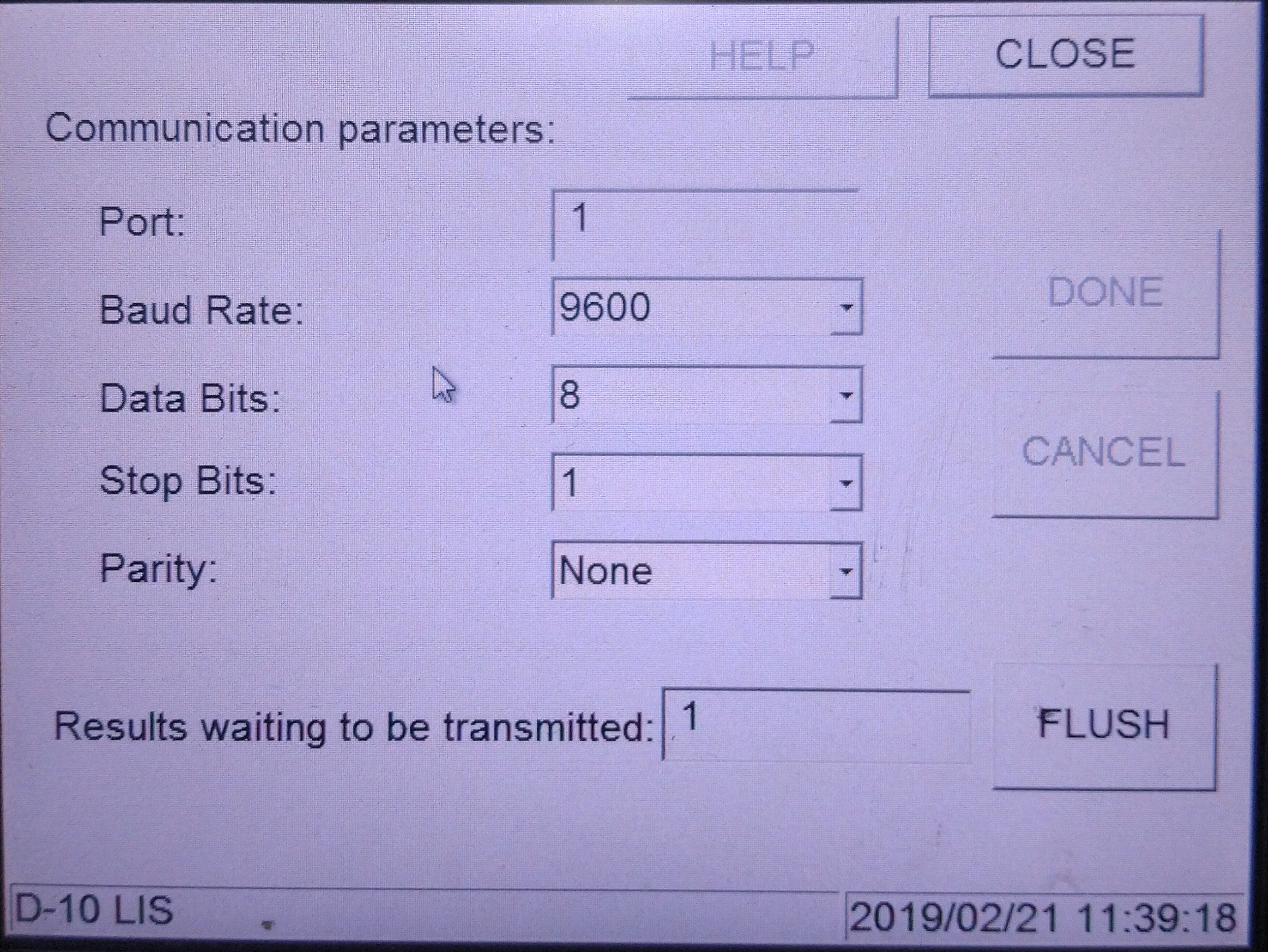
  8. Then check the Result waiting to be transmitted either there is a number or not. 
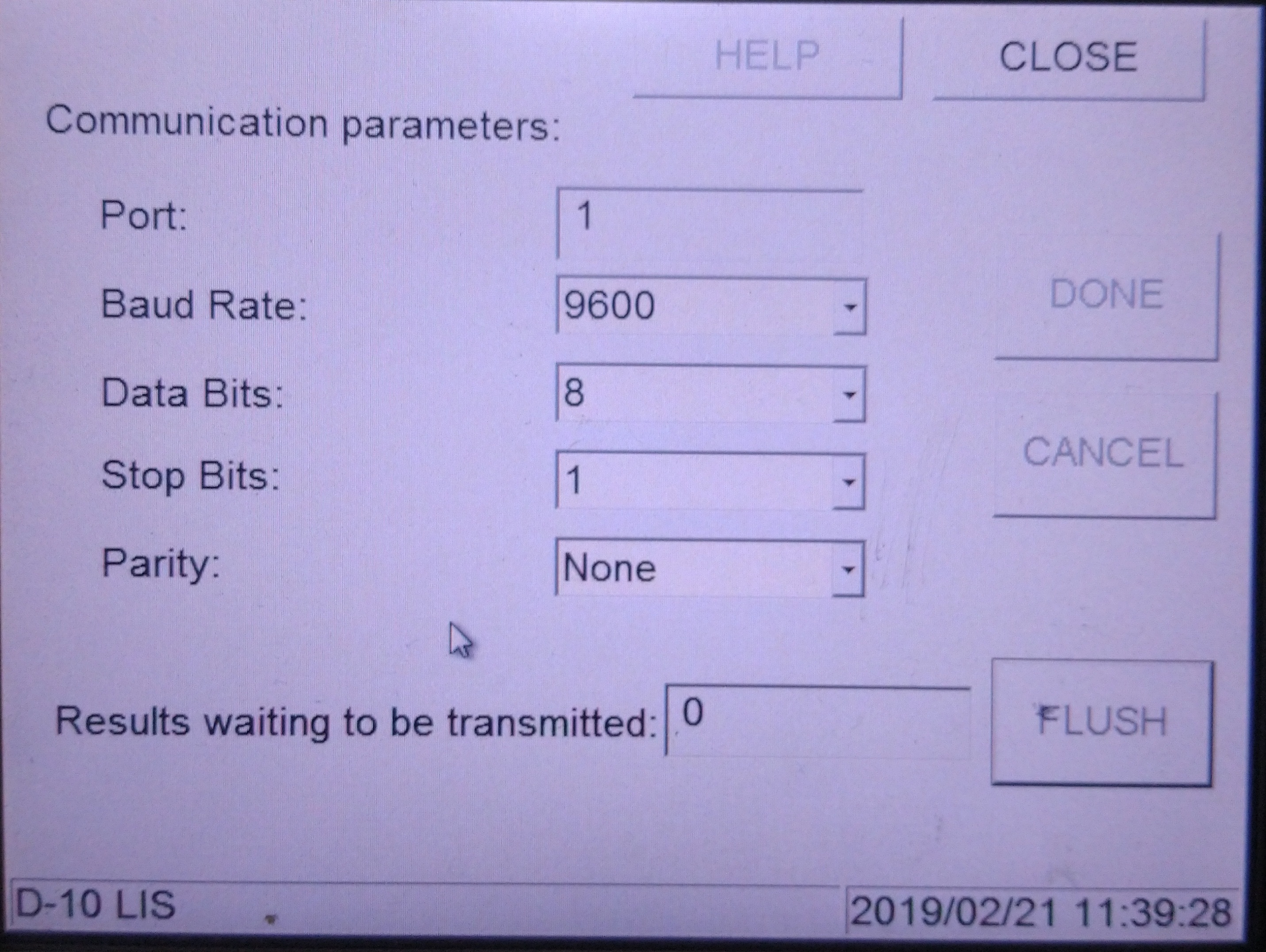
  9. If there is a number, then select Flush and  there will be a pop up asking Are you sure to flush the result? Select Yes
  10. The result waiting to be transmitted should become 0

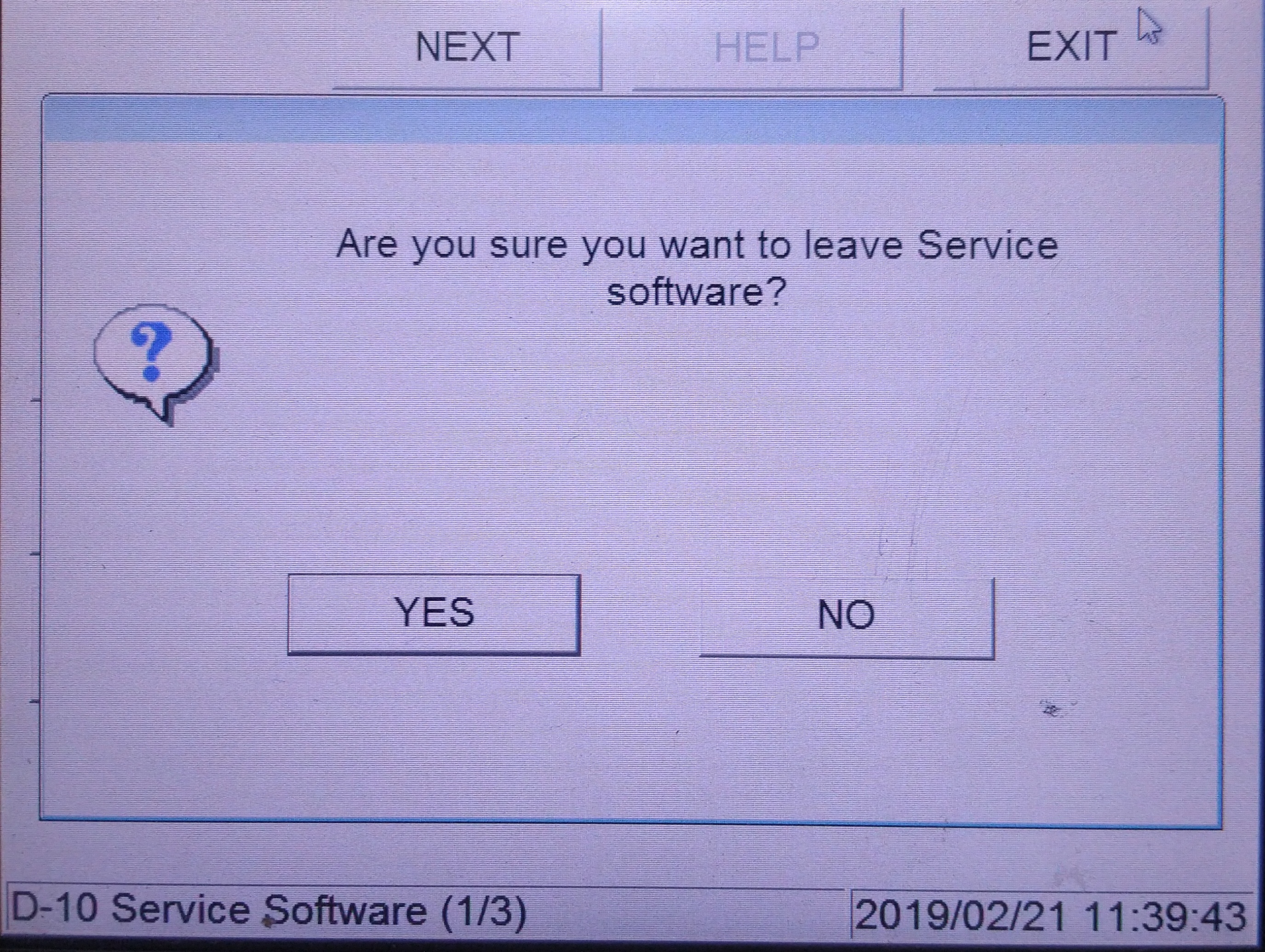
  11. Select Close on the upper right corner and there will be a pop up message asking Are you sure to leave? Select Yes
  12. Open ChemoLIMS Server Console
  13. Select Bio Rad D10 on the left side and select Stop
  14. Then make sure the cnnector status change from Idle to Running
  15. Then select the Start Up button on the right side 
  16.  
  17. After the machine is fully start up, re-transmit the data by selecting the Data Tab 
  18. Then highlight on several sample and select Export
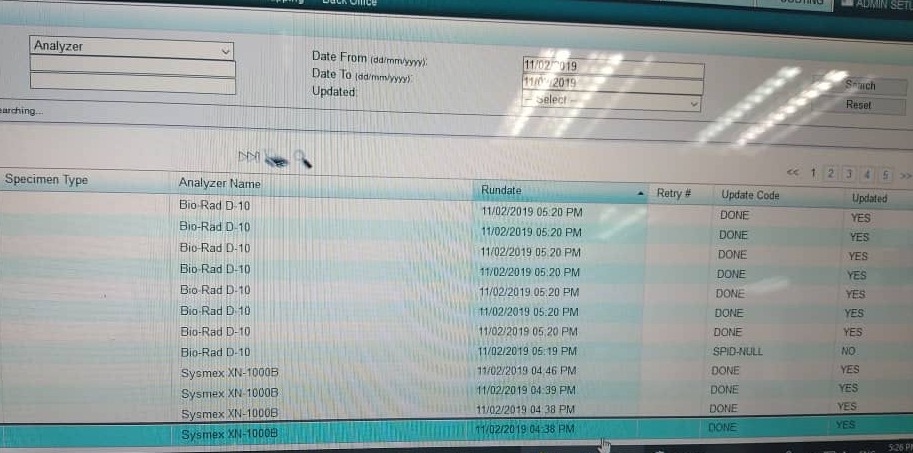
  19. Then log in Chemolims and select Admin Setup -> Back Office-> Manage Result Buffer and check either there is result from Bio Rad D10 or no. 

Unable to access ChemoLIMS in Server PC

Solution 1 – Check ChemoLIMS App Server

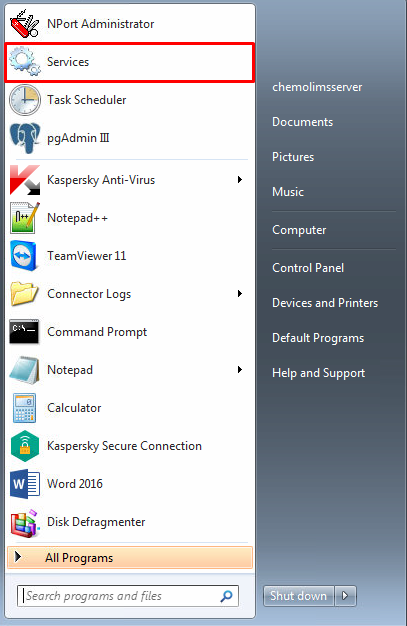
  1. Search for Services program.
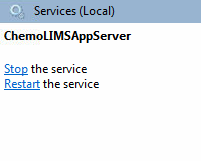
  2. Search for ChemoLIMSAppServer 
  3. If it is not running, Start the services on the left sidebar.
  4. If it is running but still cannot access ChemoLIMS, Stop the service and Start the service again.
  5. Refresh (f5) the page and try to access ChemoLIMS again by entering this url.(http://chemolimsserver:18080/chemolims/login.jsp) 

Solution 2 – Check Windows Firewall

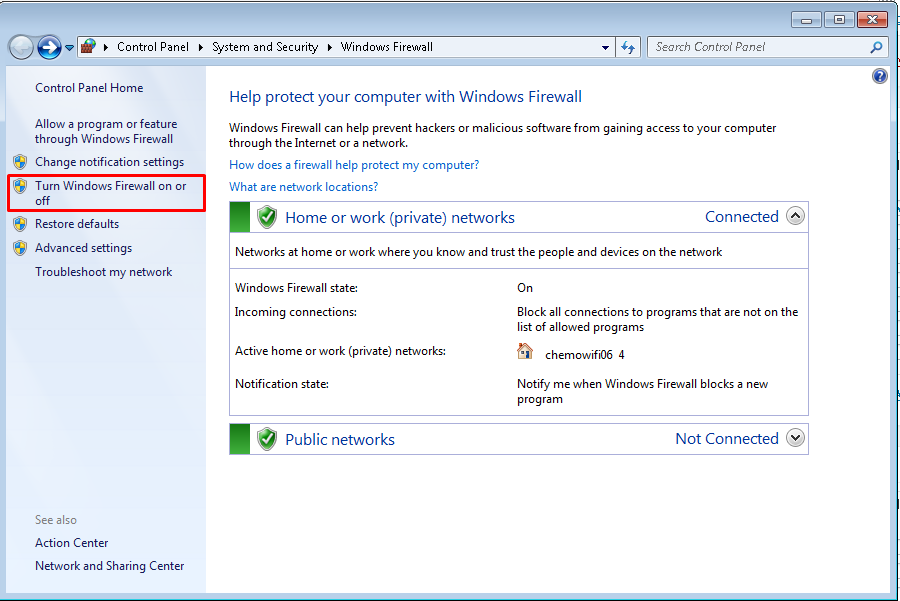
  1. Open Windows Firewall.
  2. If the firewall is On, it will be green. If it is green select Turn Windows Firewall On or Off on the left side.
  3. Then check on Turn off Windows Firewall.
  4. After the Windows Firewall is off, it will become red.
  5. Refresh (f5) the page and try to access ChemoLIMS again (http://chemolimsserver:18080/chemolims/login.jsp) 

Solution 3 – Check Ethernet Connection

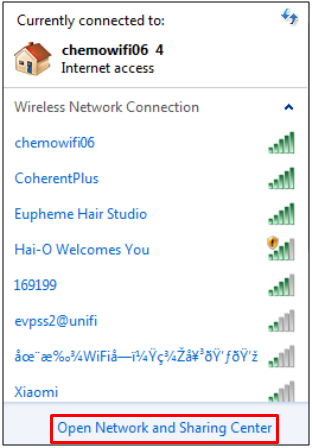
  1. Click on Internet Access Icon 
  2. Then select on Open Network and Sharing Center
  3. Then select Change Adapter Settings on the left sidebar. 
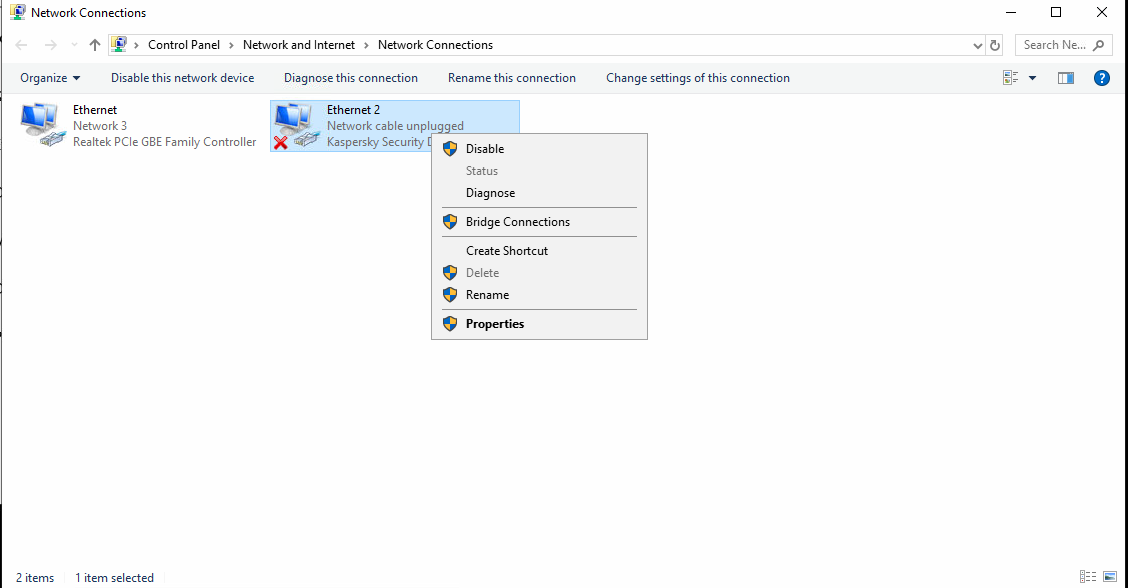
  4. Then check either the connection between the Kaspersky Security is enable or not. 
     
  5. If it shows the Cross Mark, right click on the Ethernet 2 and select Disable
     
  6. Refresh (f5) the page and try to access ChemoLIMS again (http://chemolimsserver:18080/chemolims/login.jsp)